If you'd like to customise the look and feel of your Commonplace project, you can do this using the branding page. From colour scheme to font, this page allows you to give your project a unique look and reflect your corporate brand - it's also helpful for users if there's a visual continuity between your Commonplace site and your organisation's presence elsewhere on the web.

From the top right menu dropdown, select ‘Dashboard’
Once in your dashboard, select the ‘Settings’ icon on the left-hand toolbar and then select ‘Branding’
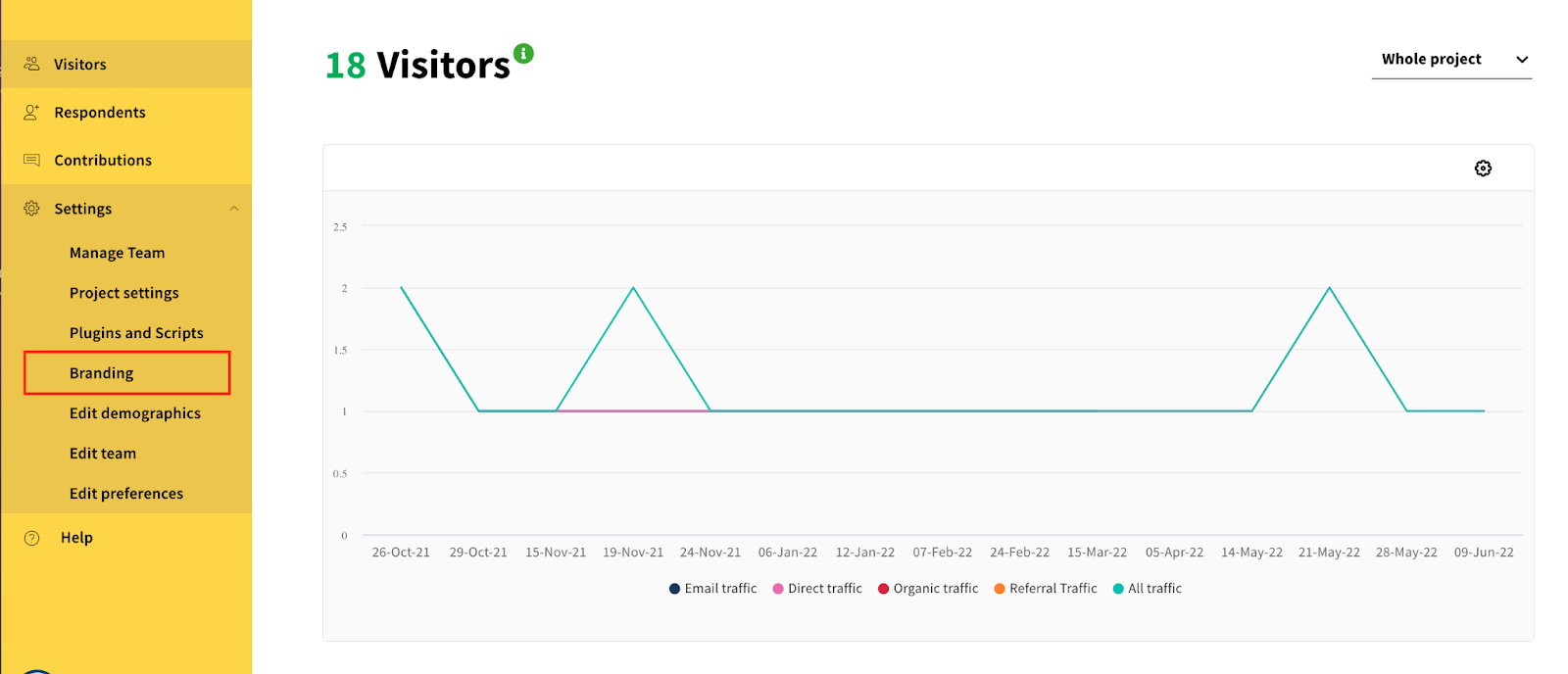
On the Branding page, you have a number of options:
Import branding settings from another project
Upload a company logo and adjust its display size
This logo appears in the top left corner of the page
Upload a favicon
This icon appears in bookmarks and tabs in people's web browsers
Customise the colours of different elements of your project
You can select from a palette of colours, or add custom hex code/RGB values. The page will warn you if your link/text colours do not provide sufficient contrast to meet web accessibility standards
Set a custom font
Note: the easiest way to do this is to choose a font from Google Fonts - whilst it is possible to use fonts that aren't listed on Google Fonts, you must hold the correct licence to use your font on the web
Best practice: Tips for accessibility
What are the recommended image dimensions?
Still unsure about anything? There's lots more information here on the Commonplace Help Centre - alternatively, contact the support team and we'll be happy to help 👋
