Edit mode is a tool on Commonplace which allows you to upload and make changes to content, questions, images and more.
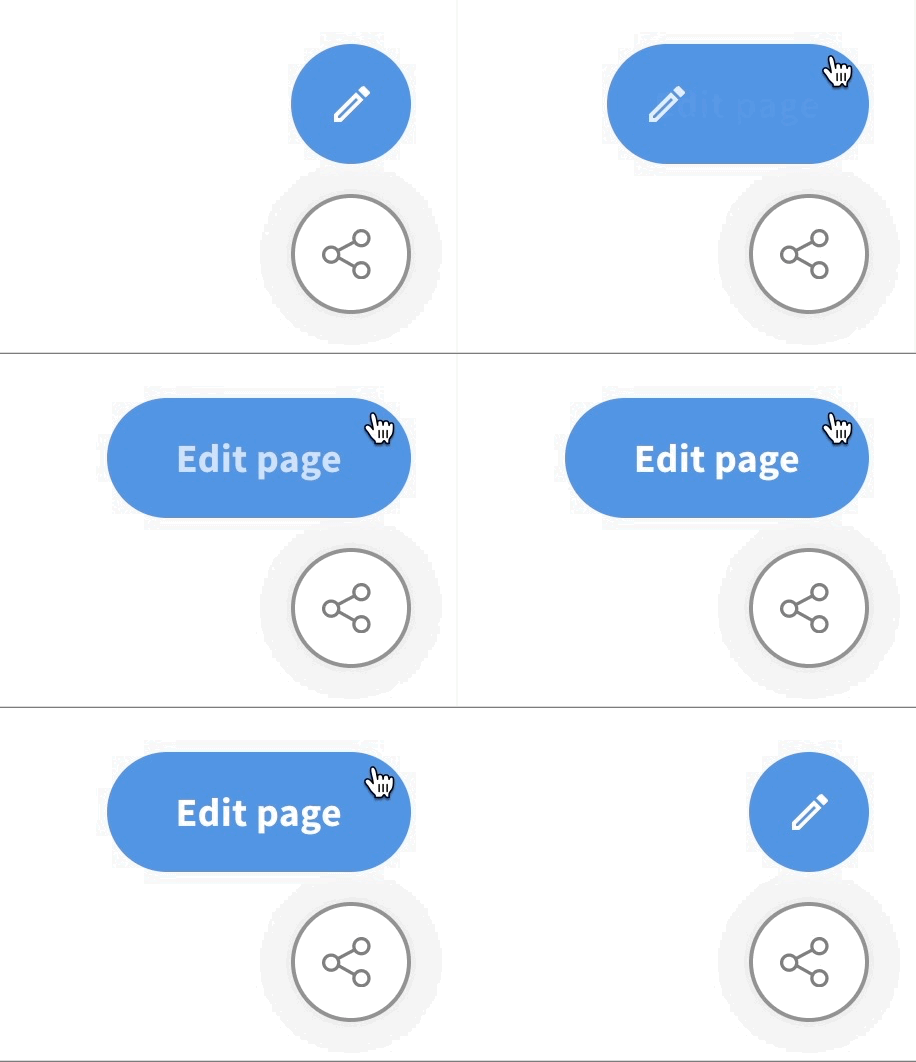
Edit mode is accessed by clicking the blue pencil 'edit page' icon in the bottom right corner of the screen. If you don't see the blue pencil icon, you may not be logged in to your admin account.
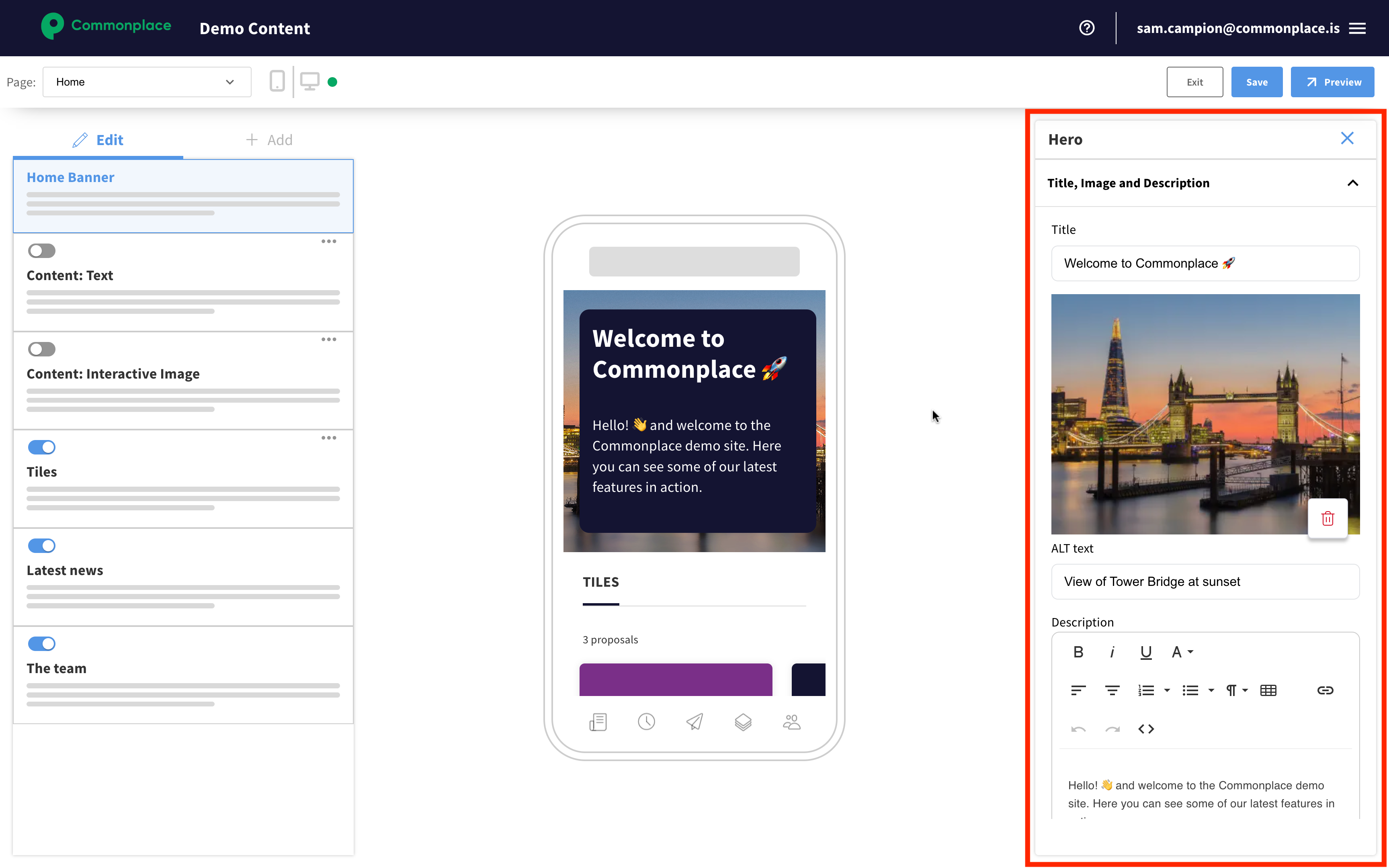
Once in edit mode, you'll see a page that looks a bit like this:
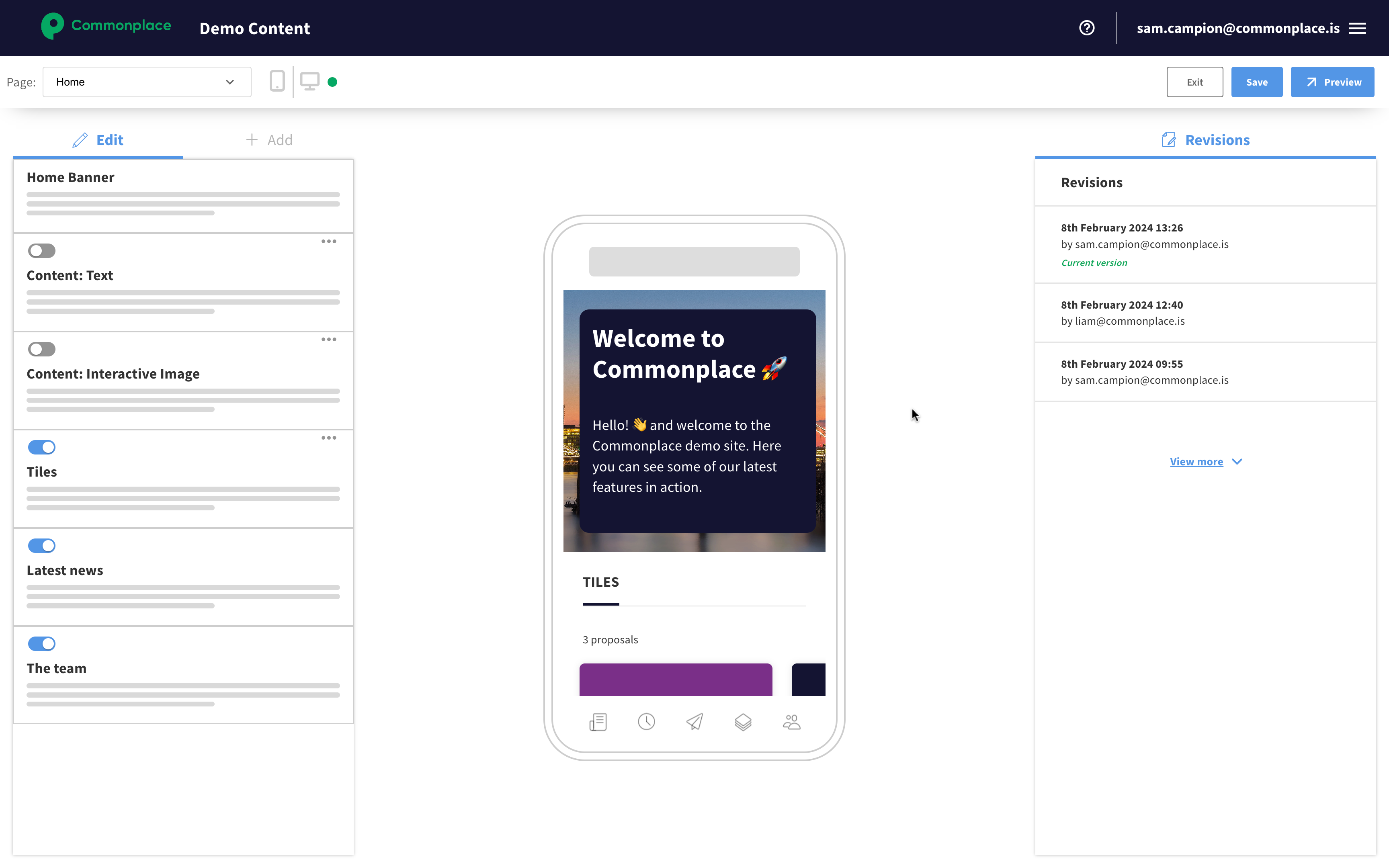
The edit mode screen is broken up into four main sections:
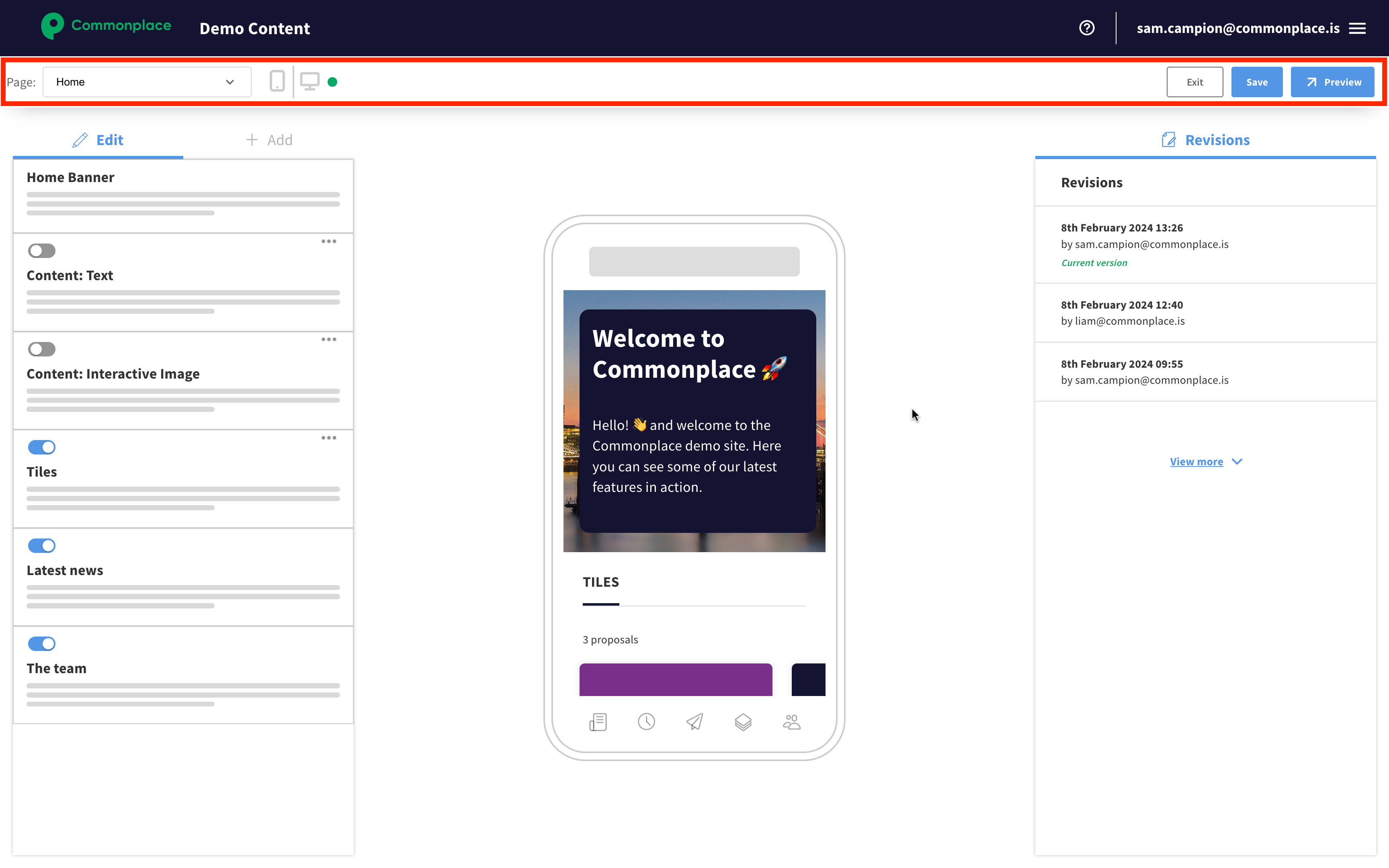
The first section is the top toolbar. This contains the following options:
Page menu
This allows you to select which page you want to edit, and is also where the option to create a new tile lives
Mobile/desktop preview toggle
This allows you to toggle the preview in the middle of the page between a mobile view and a desktop view
Exit button
This quits edit mode - if you have unsaved changes, these will be lost when you exit edit mode
Save button
This saves your changes - when you save, any updates you have made will show publicly straight away
Preview button
This allows you to preview the changes you have made, without your updates showing publicly
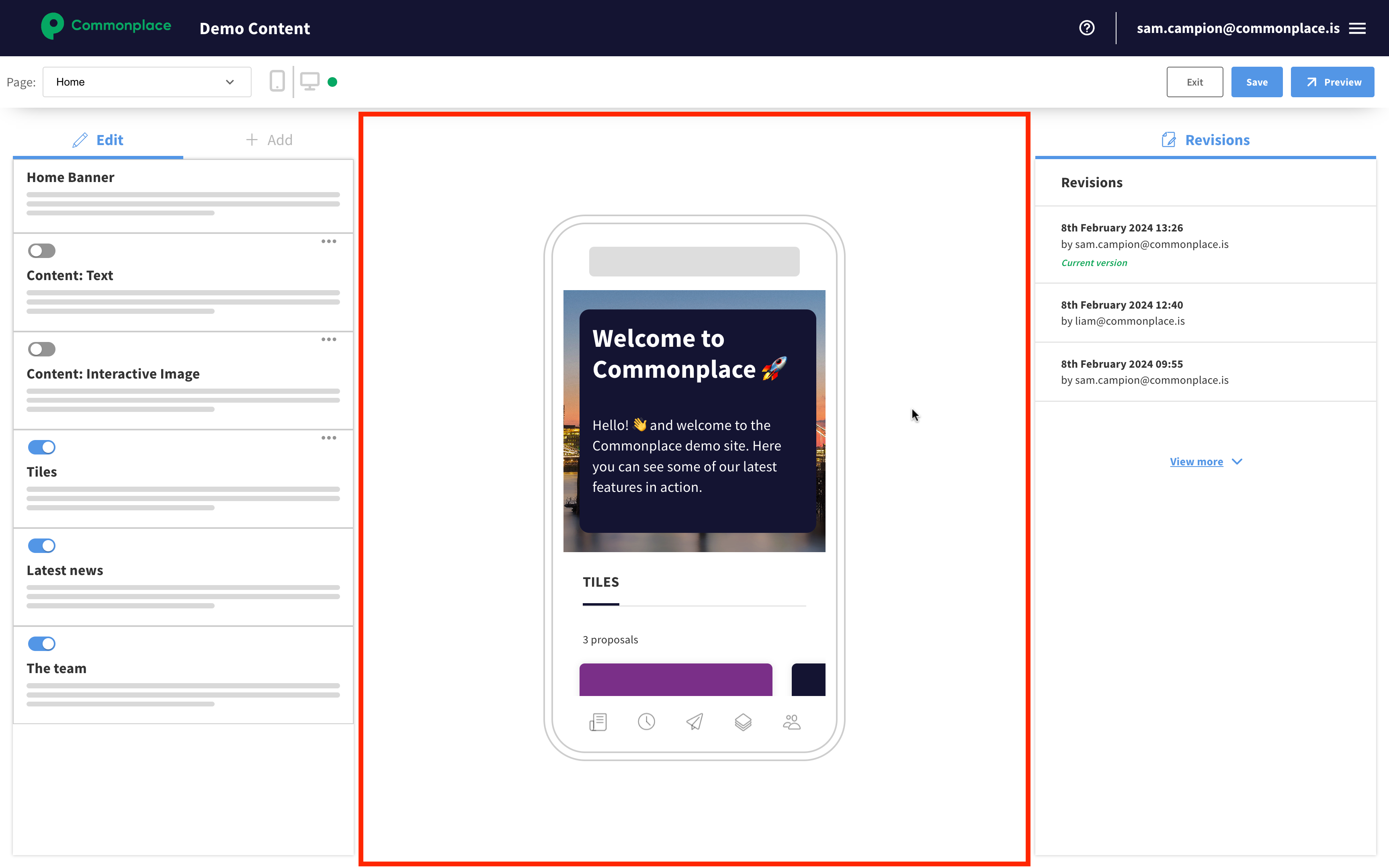
In the centre of the screen is the preview - this shows a preview of the page you are currently editing, and can be scrolled up or down. There are two possible views here - mobile view or desktop view. You can toggle between them using the mobile/desktop preview toggle in the top toolbar.
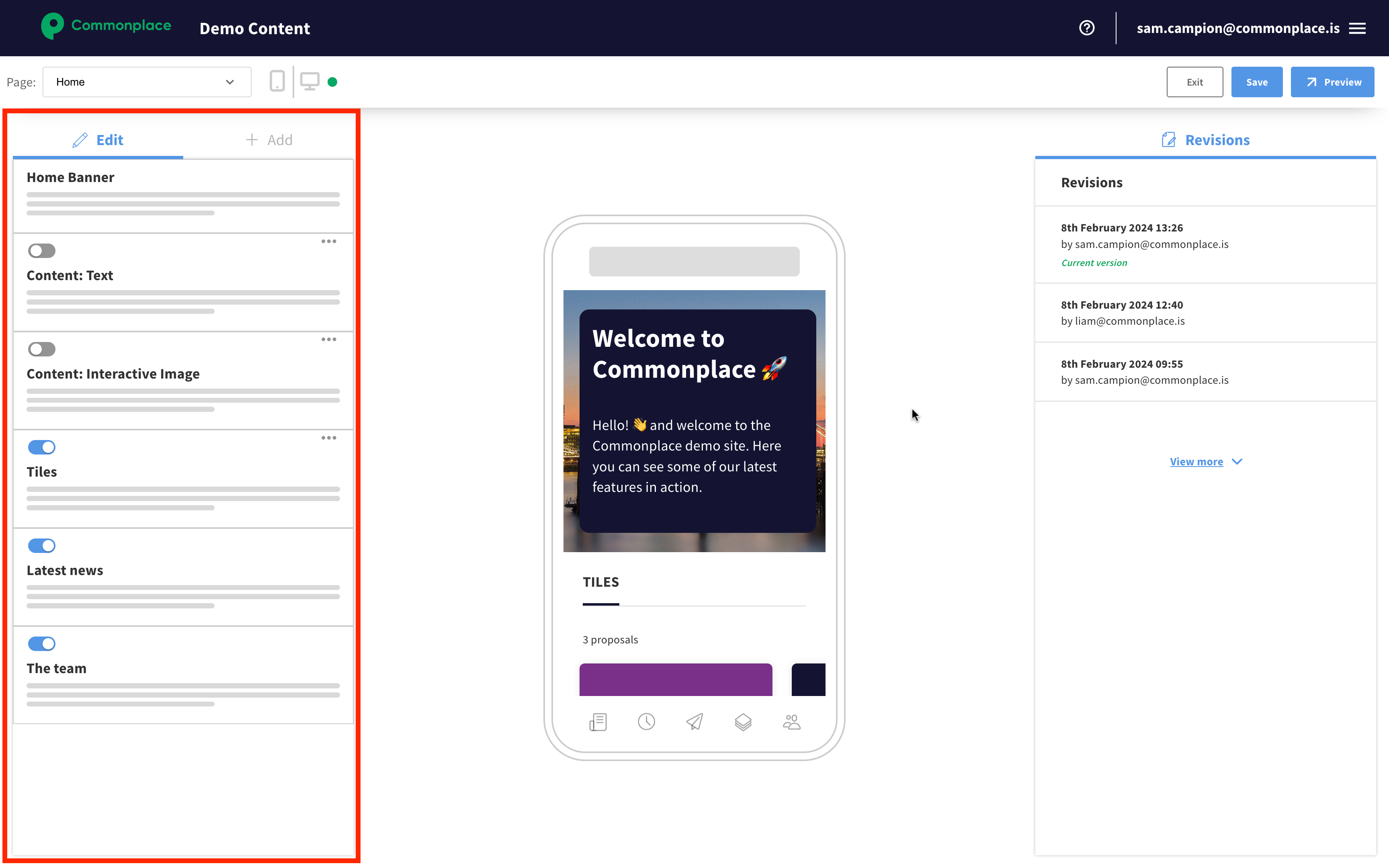
Next is the left hand panel, which has two tabs - 'edit' and 'add'.
Edit tab
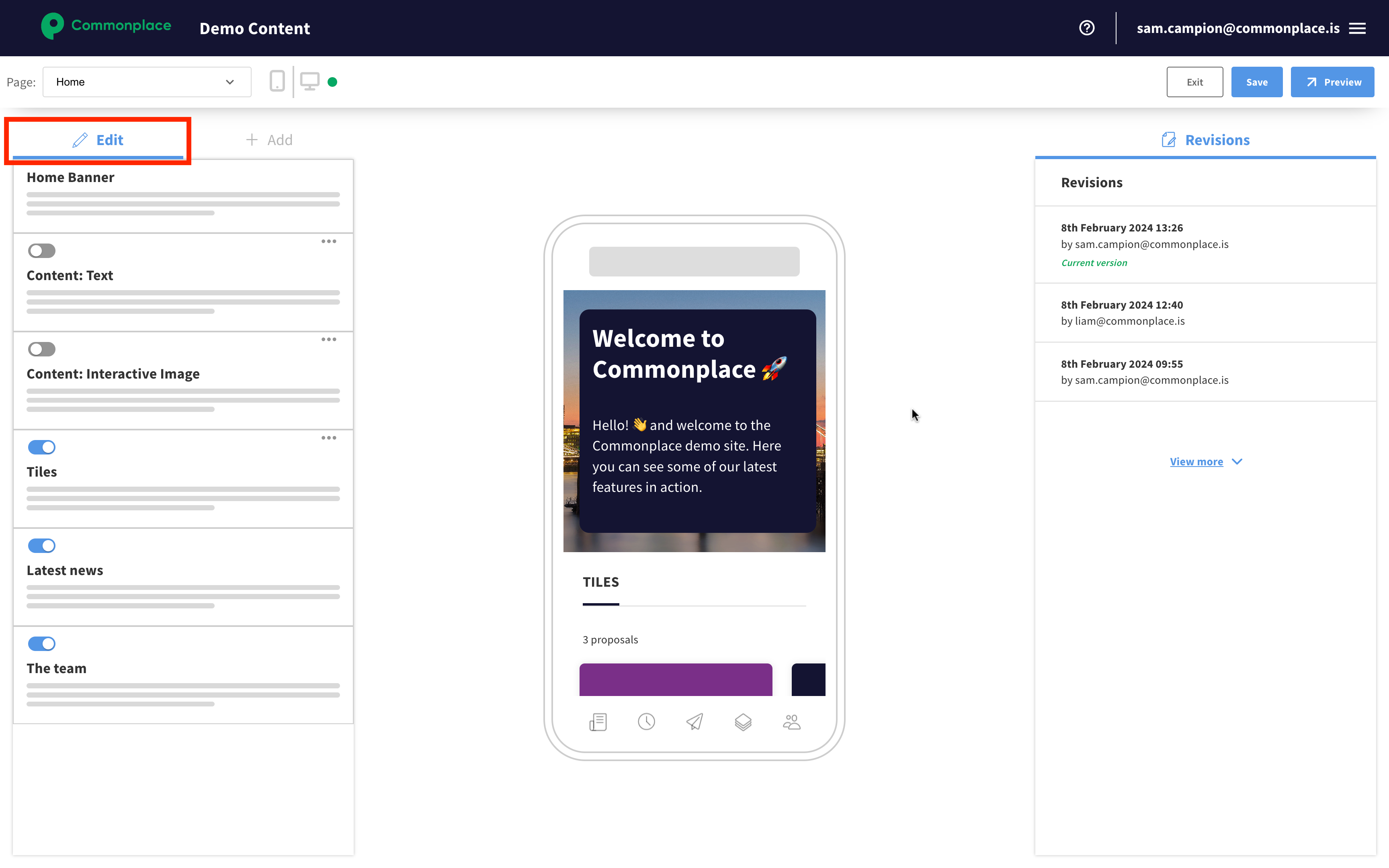
The 'edit' tab shows the list of content blocks on the current page. These are listed in the same order as they appear on the page itself. You can do the following actions with each content block:
Hide/unhide
Using the toggle button above each content block you can hide or unhide that content block
Duplicate
By clicking the ••• button and then selecting 'Duplicate section' you can make a copy of that content block
Delete
By clicking the ••• button and then selecting 'Delete section' you can delete that content block
Reorder
You can reorder the content blocks by dragging and dropping them

Add tab
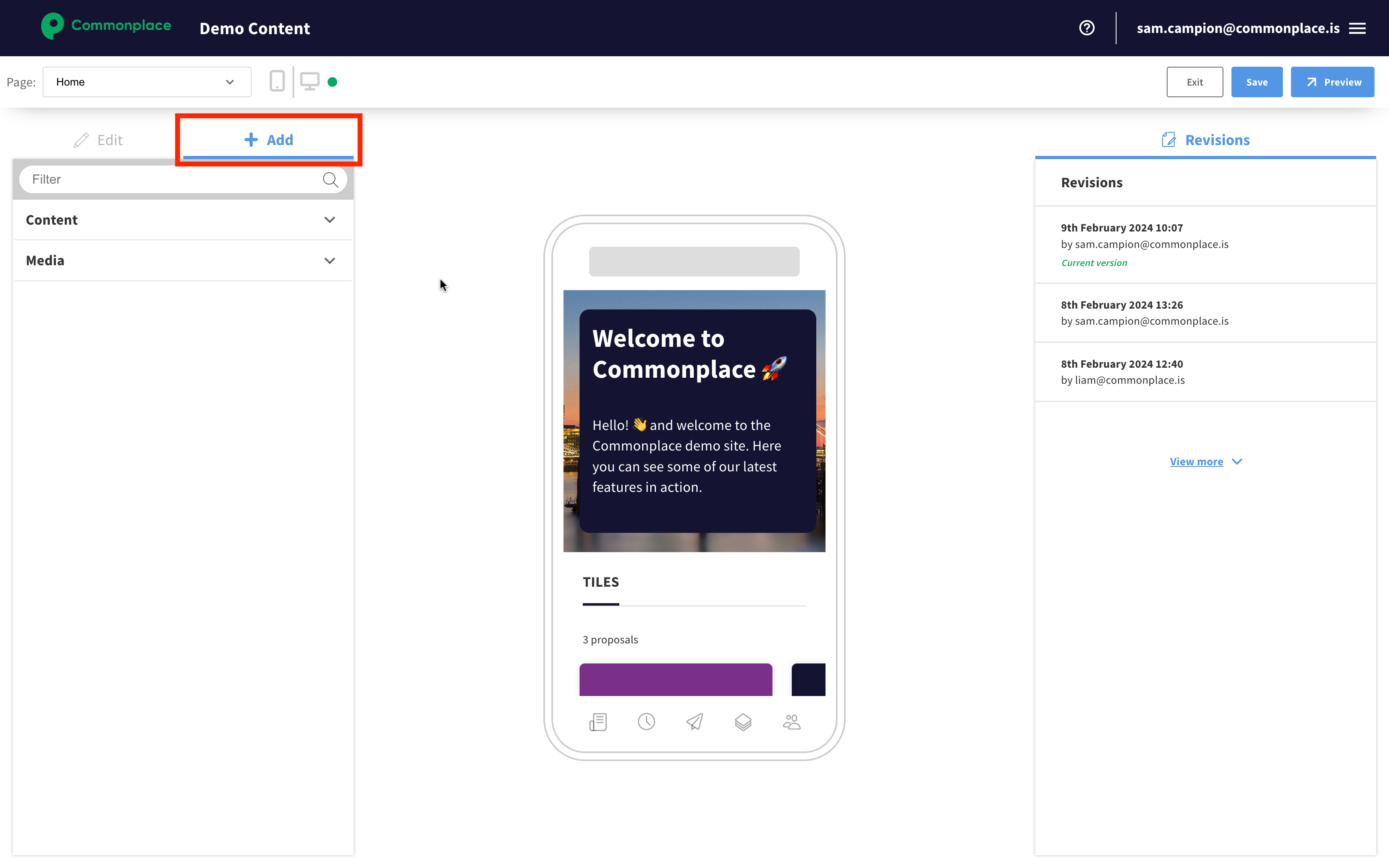
The 'Add' tab shows any content blocks that can be added to the current page. These are organised into folders (such as 'Content' or 'Questions'). To add one of these content blocks into a page, drag it from the left hand panel into the preview - a blue box will appear in the preview to show that you're dragging the content block into a permitted location.
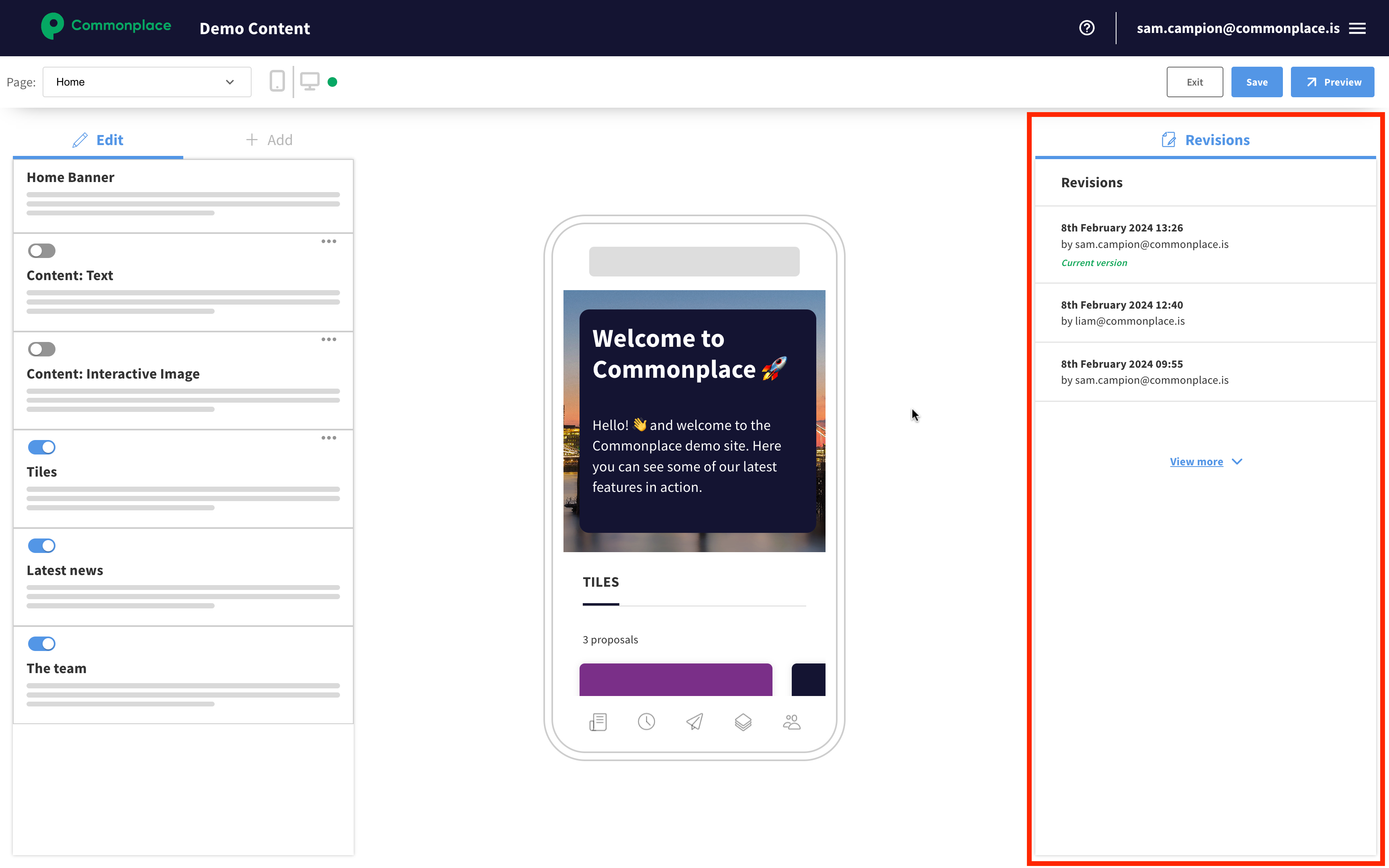
Revisions tab
When you first enter edit mode, the right hand panel shows the page's revision history. These are all the changes that have been made to the page. For each revision of the page in the revision history you will see the date of the revision, who made it and whether or not it is the currently active version. You can also preview each revision, or switch to it if you would like to revert later changes.
Content block edits
When you select a content block, either by clicking it in the left hand panel or by clicking it in the preview, the right hand panel will update to show the things you can edit about that content block. For example, for the Home banner, we can edit the title, the image, the text and the layout. You can get the revision history back by clicking the 'X' button in the top right hand corner of the panel.
Once you've finished editing, remember to save your changes by clicking the 'Save' button.
Still unsure about anything? There's lots more information here on the Commonplace Help Centre - alternatively, contact the support team and we'll be happy to help 👋
