Voice notes offers an easy enhancement to free text comments. Respondents have their say by recording a voice message, which is automatically transcribed in your dashboard.
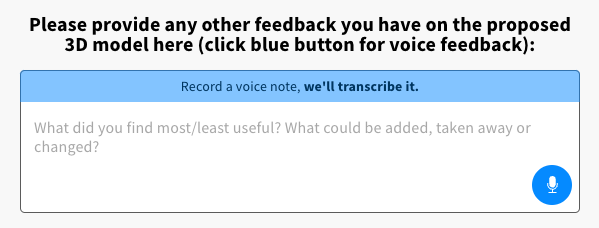
🔍 Unlock a new dimension for your consultation:
Expand your reach with a new response channels, ensuring optimal feedback coverage.
Capture rich insights through meaningful voice messages, tapping into the nuances that text alone can't convey.
Effortlessly access transcribed data in your dashboard, ready to fuel your analysis and decision-making.
🌟Tip: Maximise the power of Voice notes by pairing it with TrendsAI!
Blend quantitative and qualitative data for a holistic understanding of your audience.
Voice notes provides an additional channel for capturing responses from more diverse audiences:
Reaching younger audiences who have a preference for using voice notes
Providing an accessible option for respondents who have trouble with typing
Supporting your face-to-face events with a faster way to capture free text comments
Voice notes comments are transcribed instantly and converted into text, which means you can include them in your analysis, alongside your other free text answers that have been typed.
When used together with TrendsAI, you'll never want to run another engagement project without capturing free text comments, the ultimate way to better understand community priorities.
The exciting benefit that audio also brings is that it brings the consultation to life. Rather than just reading what their neighbours think, respondents can hear each others' thoughts and respond. The understanding you can get from hearing someone's opinion is much richer than simply reading it.
Voice notes is available as an add-on feature for most paid plans. In order to activate this on your project, get in touch your Customer Success Manager or email customer@commonplace.is
Once the feature is activated, you can use the voice note feature by following these steps:
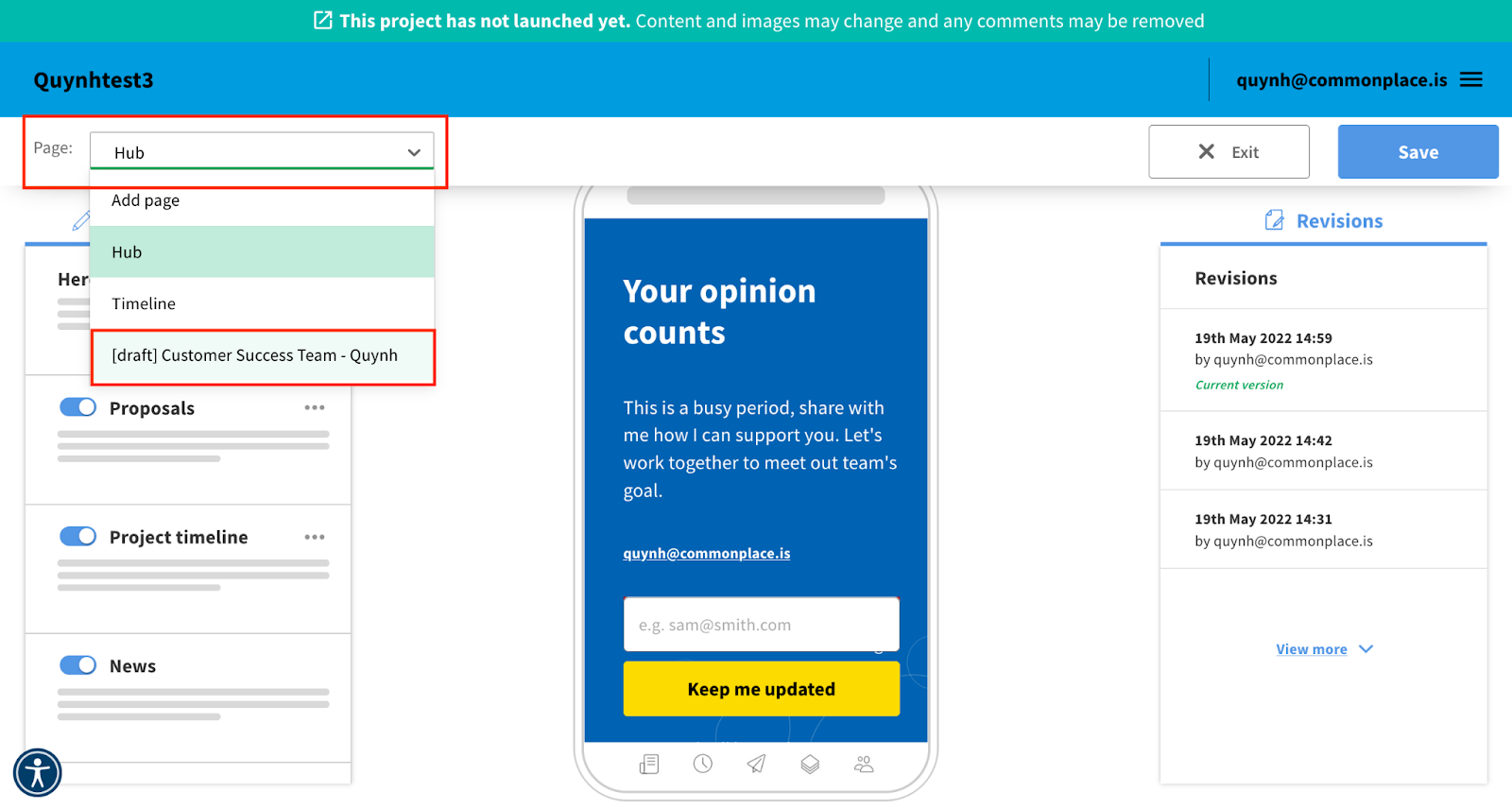
1. Go edit mode and navigate to the tile you wish to edit.
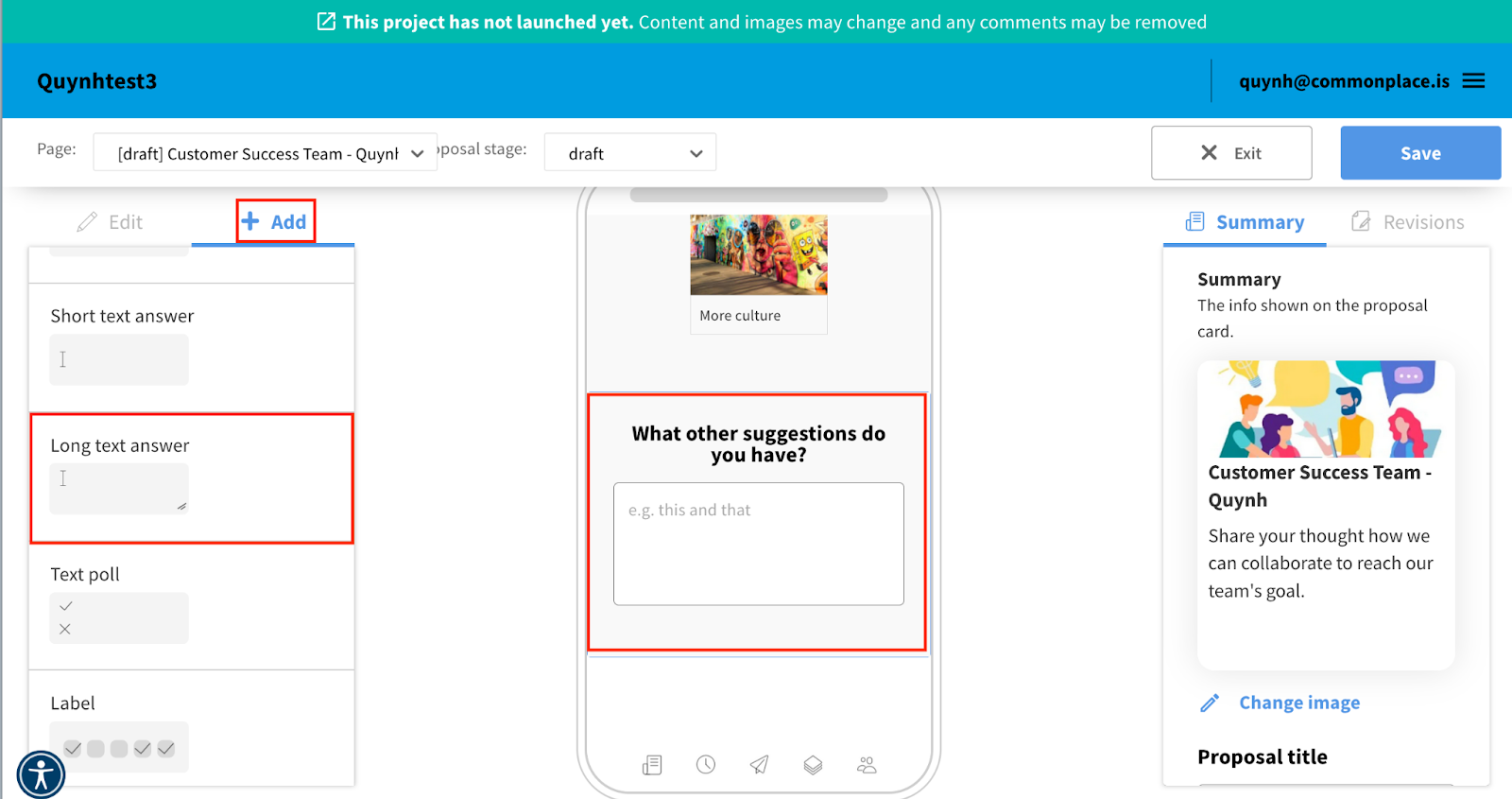
2. Add Long text answer by clicking on Add, then drag it to mobile screen.
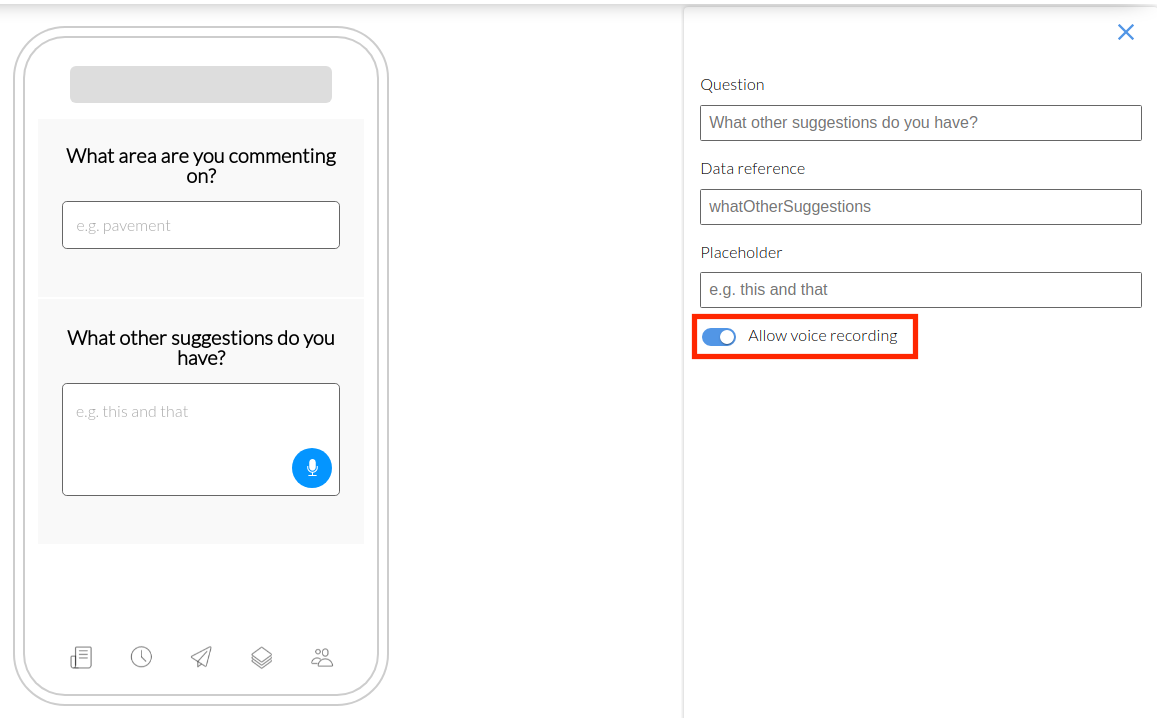
3. Click on the question. On the right hand side you can edit the question, to activate the Voice Note function click on Allow voice recording.
4. When you are ready click to Save to make sure all your editing is saved.
As audio files: Once the data collected, it will appear as .wav links in the dashboard, which you will be able to download and listen to. These hyperlinks will also appear in your exports.
As text: The transcription of voice to text happens instantly so that you can analyse these comments alongside other typed comments.

Still unsure about anything? There's lots more information here on the Commonplace Help Centre - alternatively, contact the support team and we'll be happy to help 👋
