Images are key to ensuring that your project performs well - users are far more likely to engage with a project that is brought to life with images.
There are a number of image display formats you can choose from:
Default image layout
Full width image layout
Carousel
Image and text
Grid
More information about recommended sizes and dimensions for these images can be found here:
What are the recommended image dimensions?
Recommended image dimensions for high quality, engaging images
Enter edit mode on your project by clicking the blue 'edit page' icon - go to the 'add' tab and simply drag the 'Image' content block into the preview screen:
Next, select your desired image layout from the dropdown:
The image layouts are as follows:
This layout is perfect for if you want to display an image fully in a landscape format - be it an infographic, master plan or artist's impression. We always display the full image and you can add an image description that displays under the image. Be sure to add alt text so that the site is accessible for people using screen readers.
To access this, select 'Default' in the dropdown - then upload the image, add the description and the alt text.
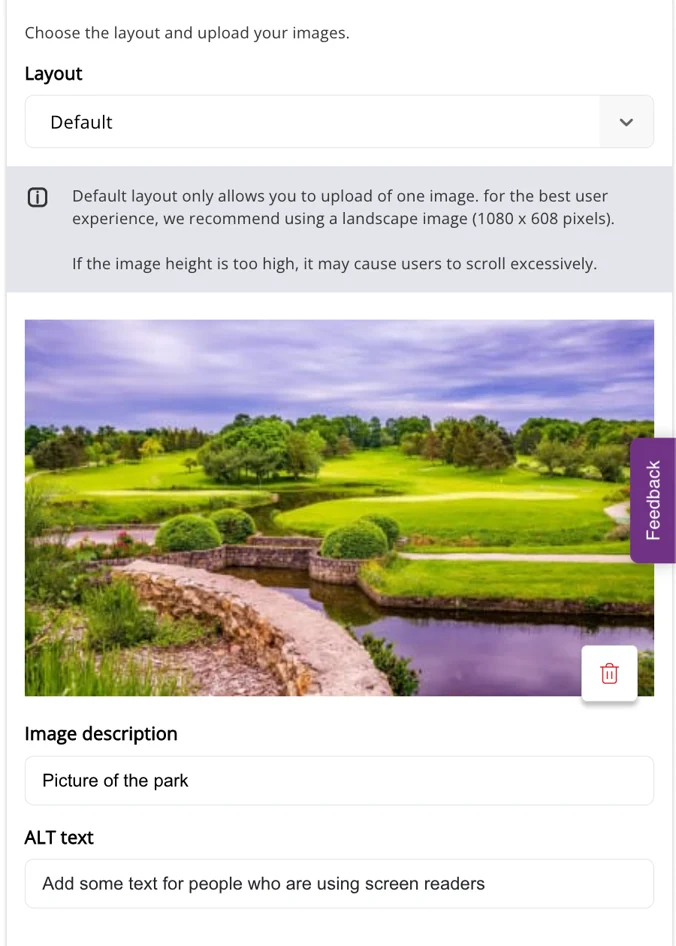

This layout is perfect for landscape images and takes up the full width of the screen. In the edit mode preview we display 70% of the image from the middle, and you can add an image description that displays under the image. Be sure to add alt text for accessibility purposes.
To access this, select 'Full width' in the dropdown, then upload the image, add the description and the alt text.
With this layout, you can upload up to 6 images to create a smooth carousel effect. The smooth animation allows you to showcase multiple images in a single space.
To access this, select 'Carousel' in the dropdown, you can then upload up to 6 images and the alt text for each.
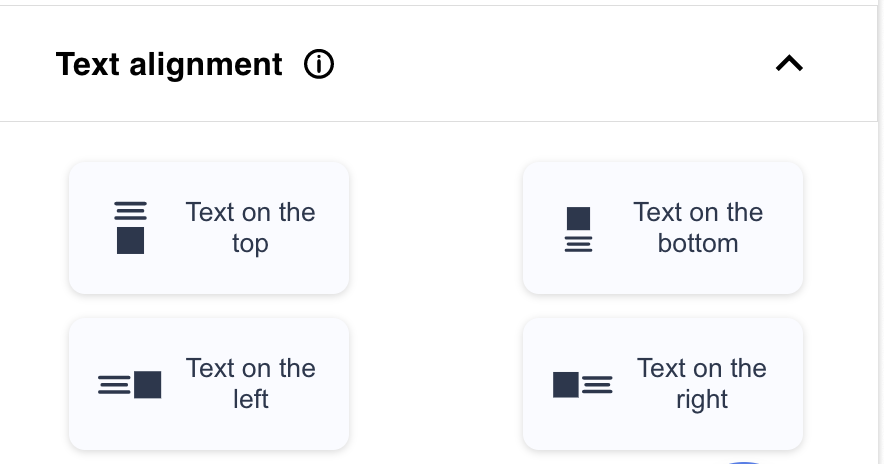
This layout allows you to upload an image and add accompanying text. The text can be oriented on top, bottom, right, or left of the image.
To access this, select 'Image and text' in the dropdown, then you can upload up to 6 images and the alt text for each.
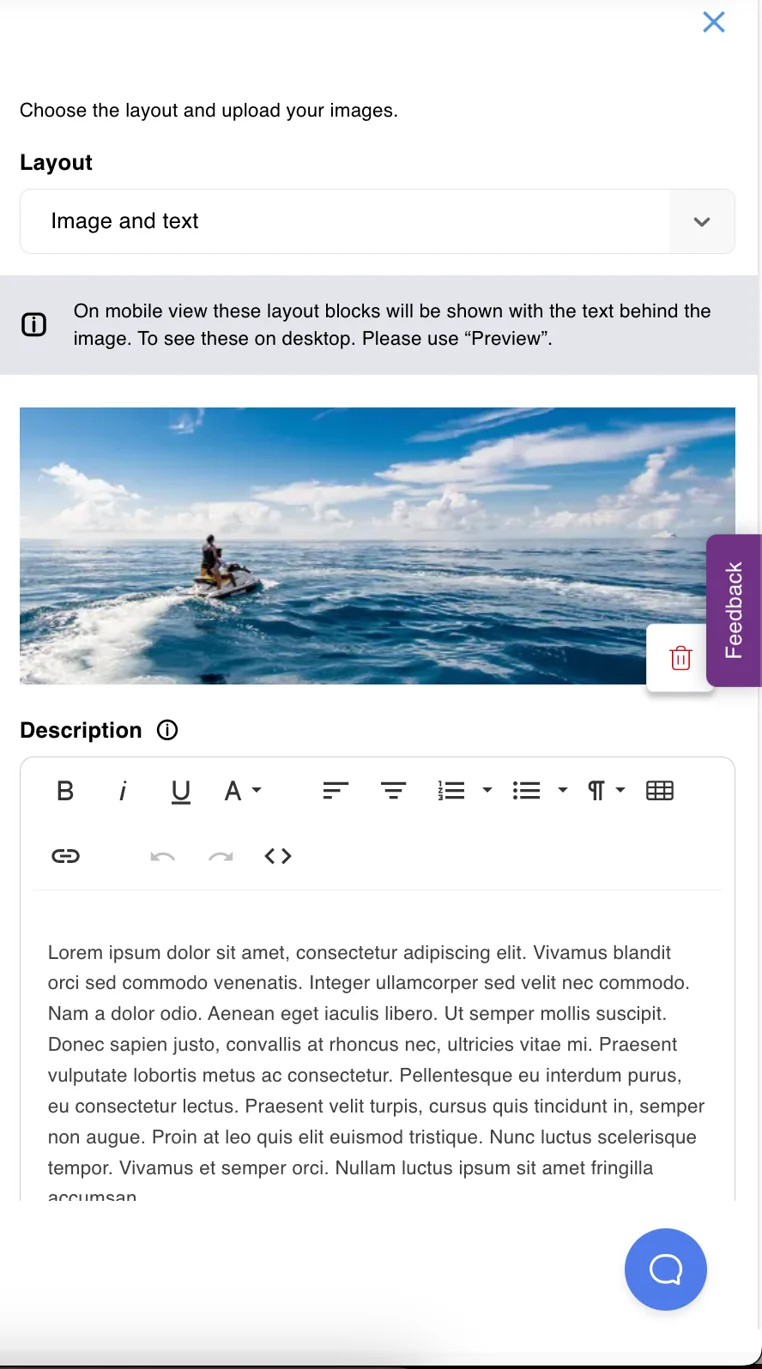
The text can be oriented on top, bottom, right, or left of the image. This can be done by selecting your chosen text alignment from the menu.
On mobile, right and left alignments will always be shown with the image above the text.
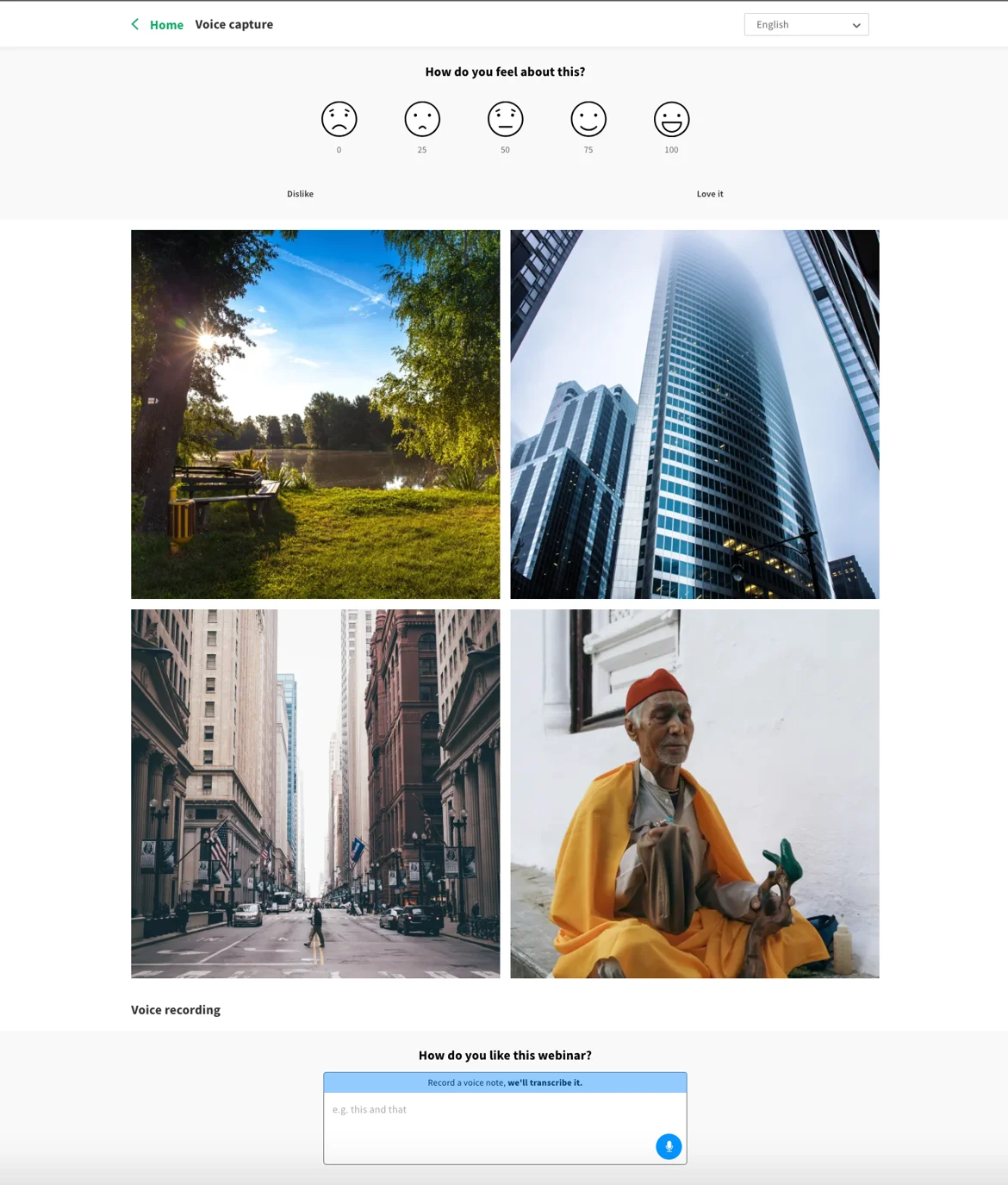
With this layout, you can upload up to 6 images that will be displayed in a grid format. The images will be displayed over 2 columns and 3 rows.
To access this, select 'Grid' in the dropdown, then you can upload up to 6 images and the alt text for each.
Note that not all image types are available for every plan - you may need to change plan in order to access advanced functionality. Contact us at customers@commonplace.is for more information.
What are the recommended image dimensions?
How to add alternative text to an image
Still unsure about anything? There's lots more information here on the Commonplace Help Centre - alternatively, contact the support team and we'll be happy to help 👋
