Images provide not only visual interest on a project, but also greater context - for example, a photo of a local landmark will help a user connect with your project and understand that it is relevant to them.
A key part of accessibility is ensuring that images are correctly described with alternative (alt) text, which helps people with visual impairments understand what is shown in an image. This is done through screen reader software, which is able to read hidden text describing the image.
First, enter edit mode by clicking the blue 'edit page' icon in the bottom left corner of the screen.
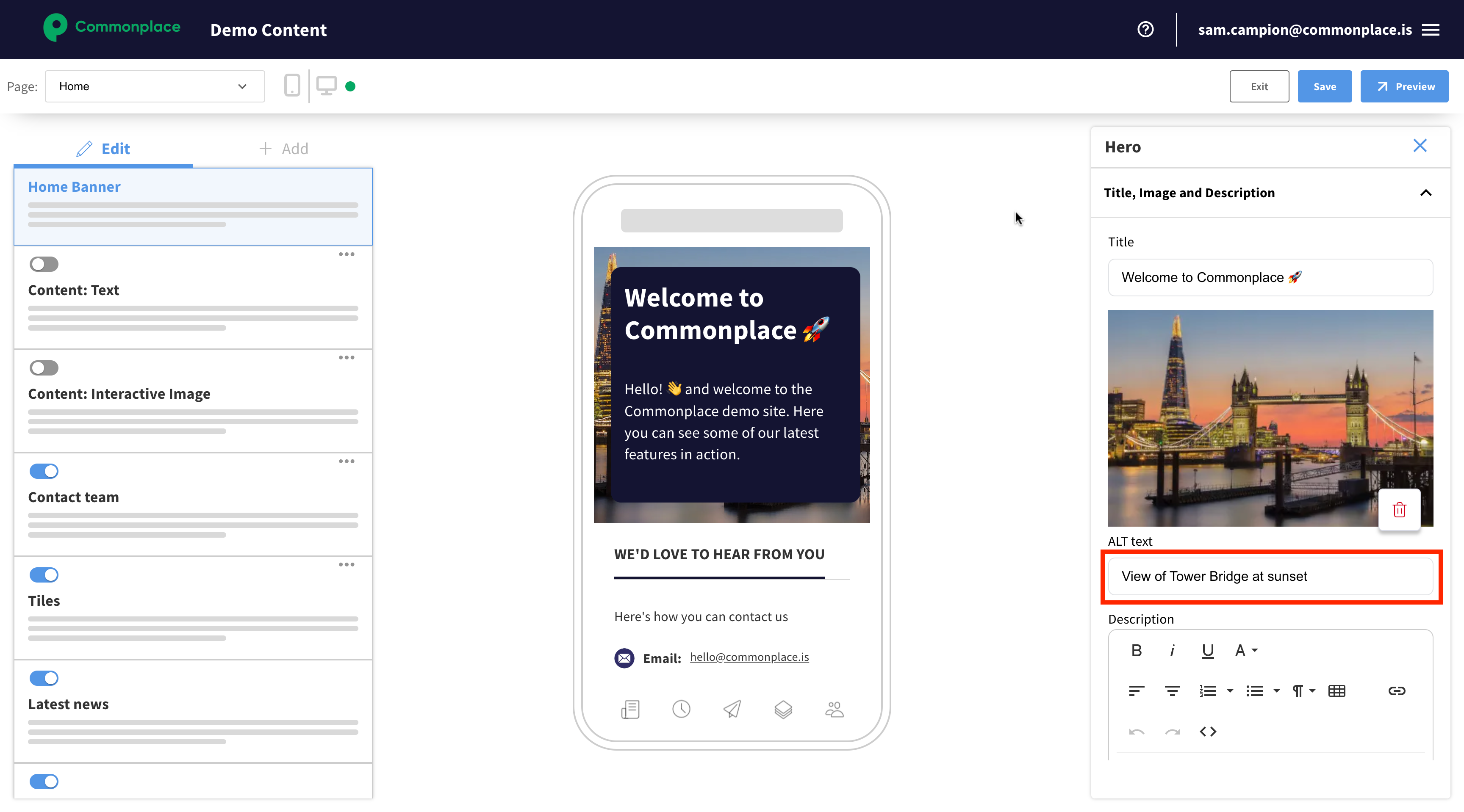
This is the main image shown at the top of the home page.
Click on the home banner content block to edit it
The alt text field is below the image in the 'Title, image and description' section
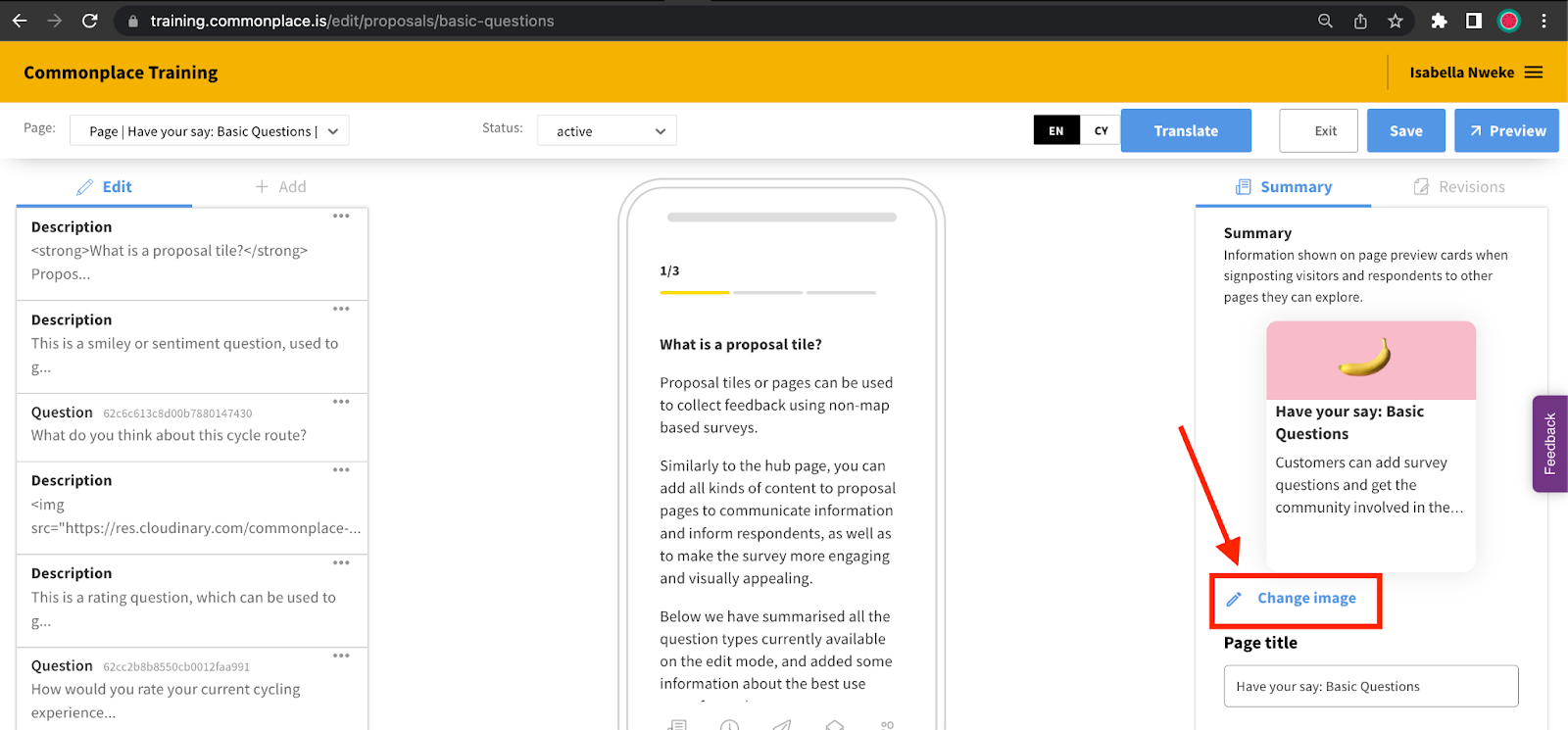
In the summary panel on the right hand side of the page, click 'change image'
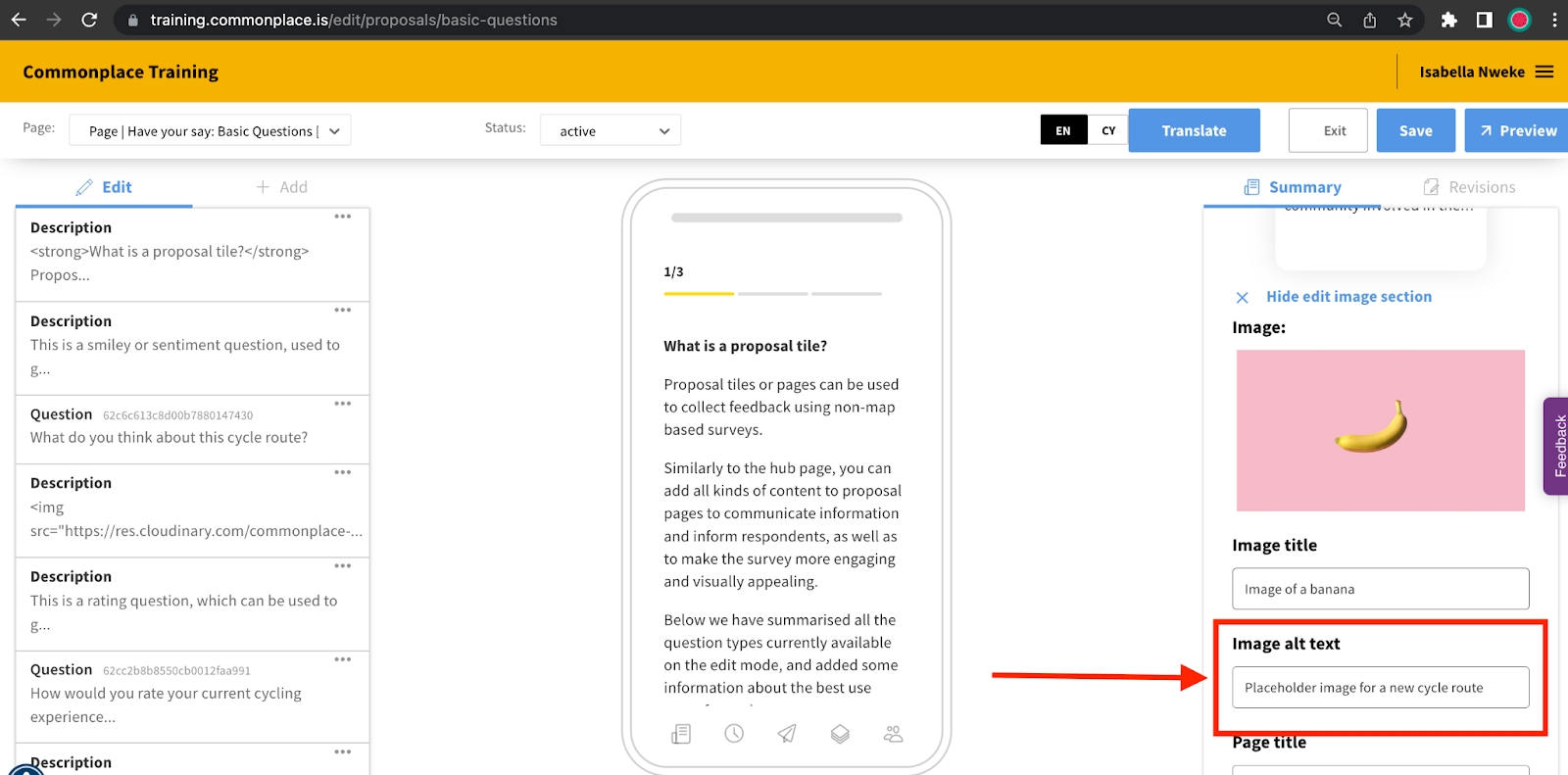
Scroll down - the alt text field is below the image
Navigate to the page where your image is
Click the content block containing your image
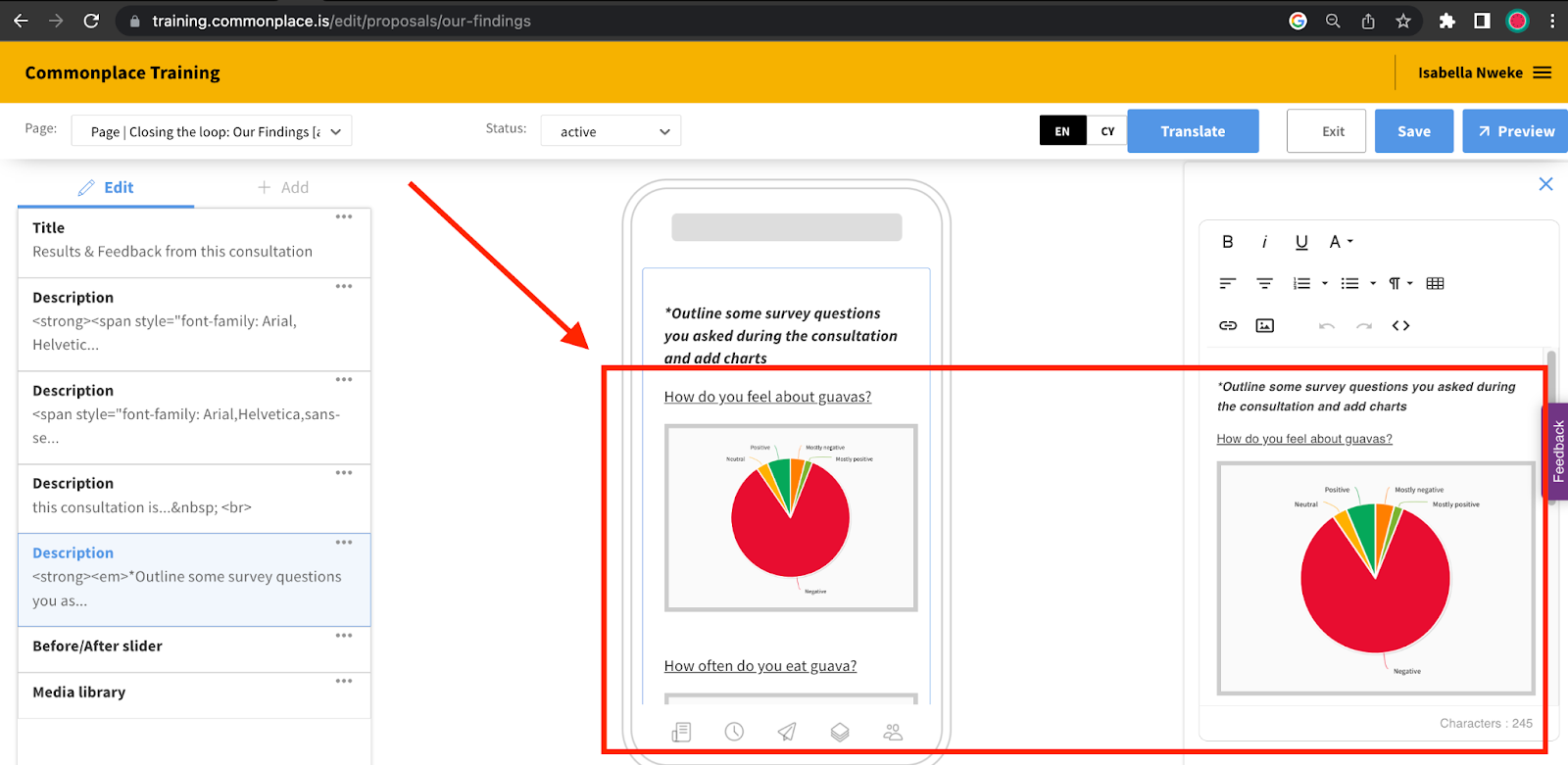
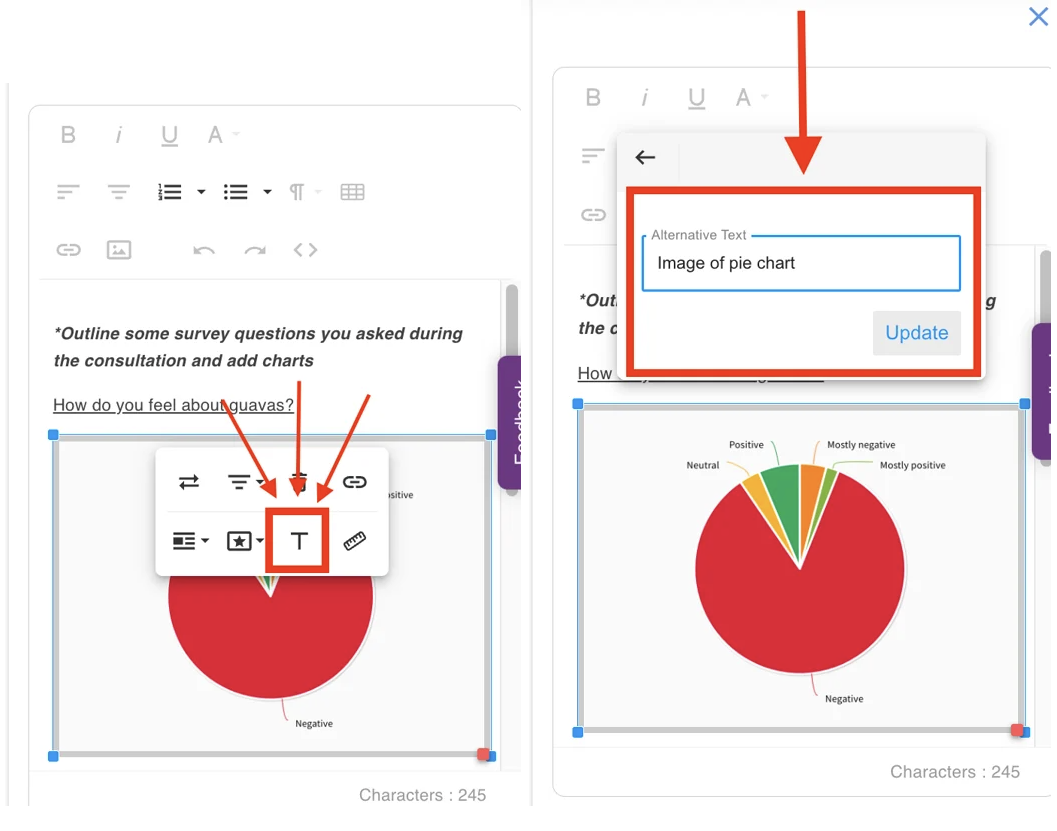
Scroll down to the image and click on it
Click the 'T' icon to add alt text
Click 'update' to save it
The video below shows this process:
Click on the content block to edit it
Below each image is the alt text field
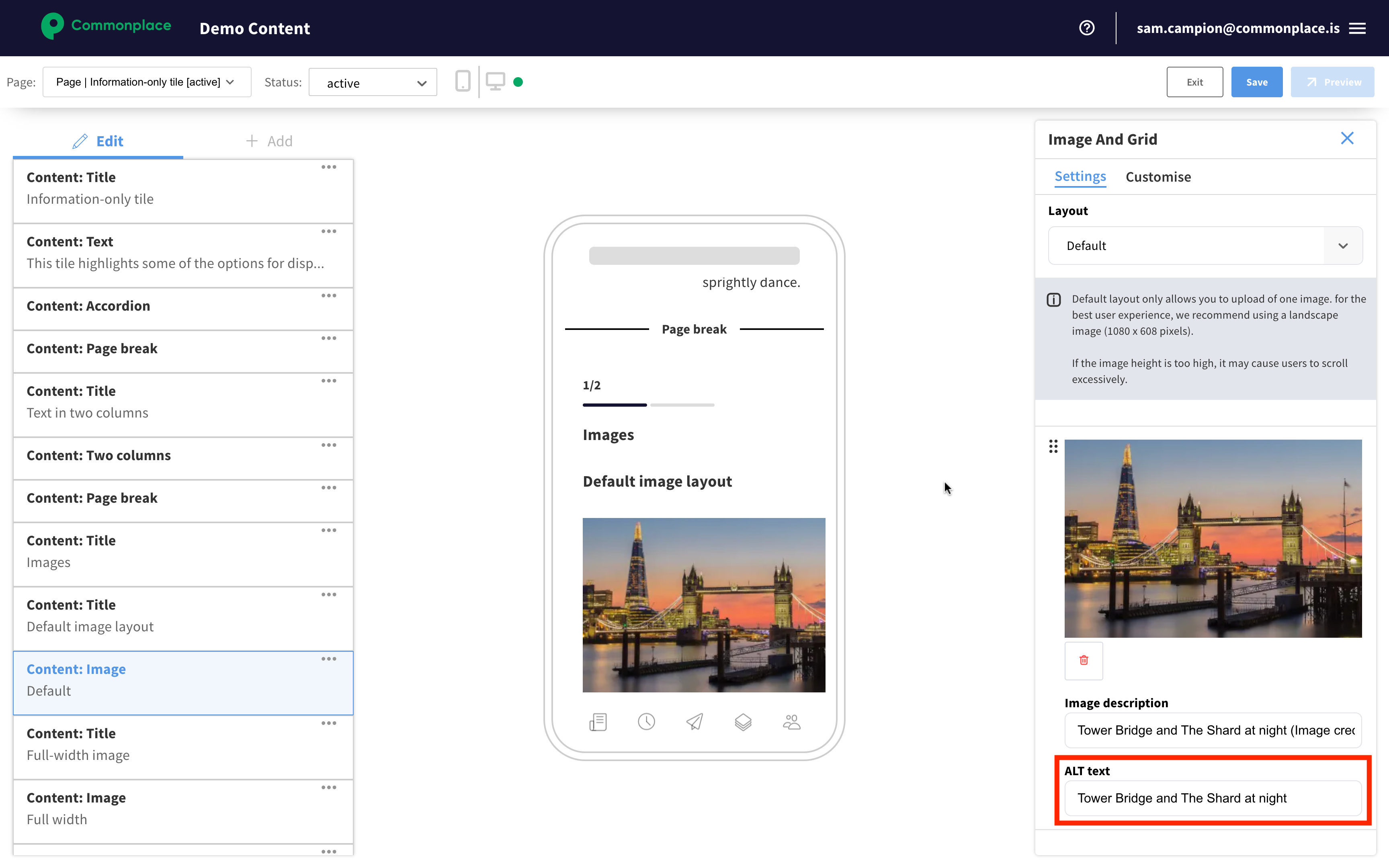
Remember to save your changes by clicking the 'save' button before exiting.
Best practice: Tips for accessibility
Still unsure about anything? There's lots more information here on the Commonplace Help Centre - alternatively, contact the support team and we'll be happy to help 👋
