Embedding a URL or link (hyperlink) into text on your Commonplace website enhances the user experience by creating a smooth and intuitive browsing journey. It allows users to maintain their reading flow without being interrupted by long, unsightly URLs. By using text, you can provide context about the content of the linked page, enabling users to make informed decisions about whether to click the link or not. This practice also keeps the design clean and professional, improving the overall aesthetic of your content.
Hyperlinks can also be used to help with navigation around a Commonplace with a large number of pages and multiple tiers of navigation. For example, in this screenshot, the engagement team used breadcrumbs to navigate visitors up and down the content hierarchy. This works particularly well with our additional content tier option, which is available as an add-on.

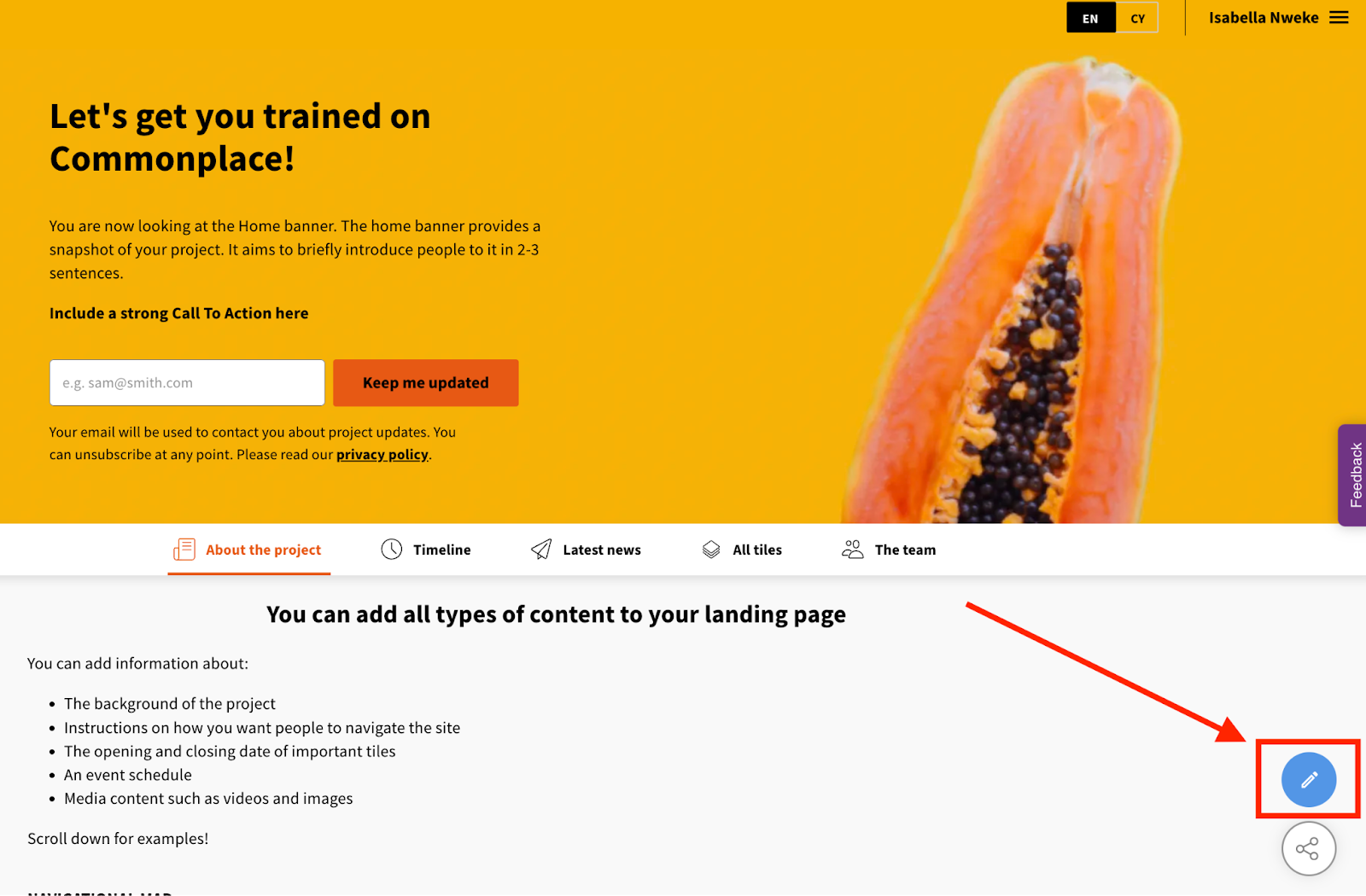
1. Click the edit icon on a webpage, which is located in the bottom right corner to go into edit mode.
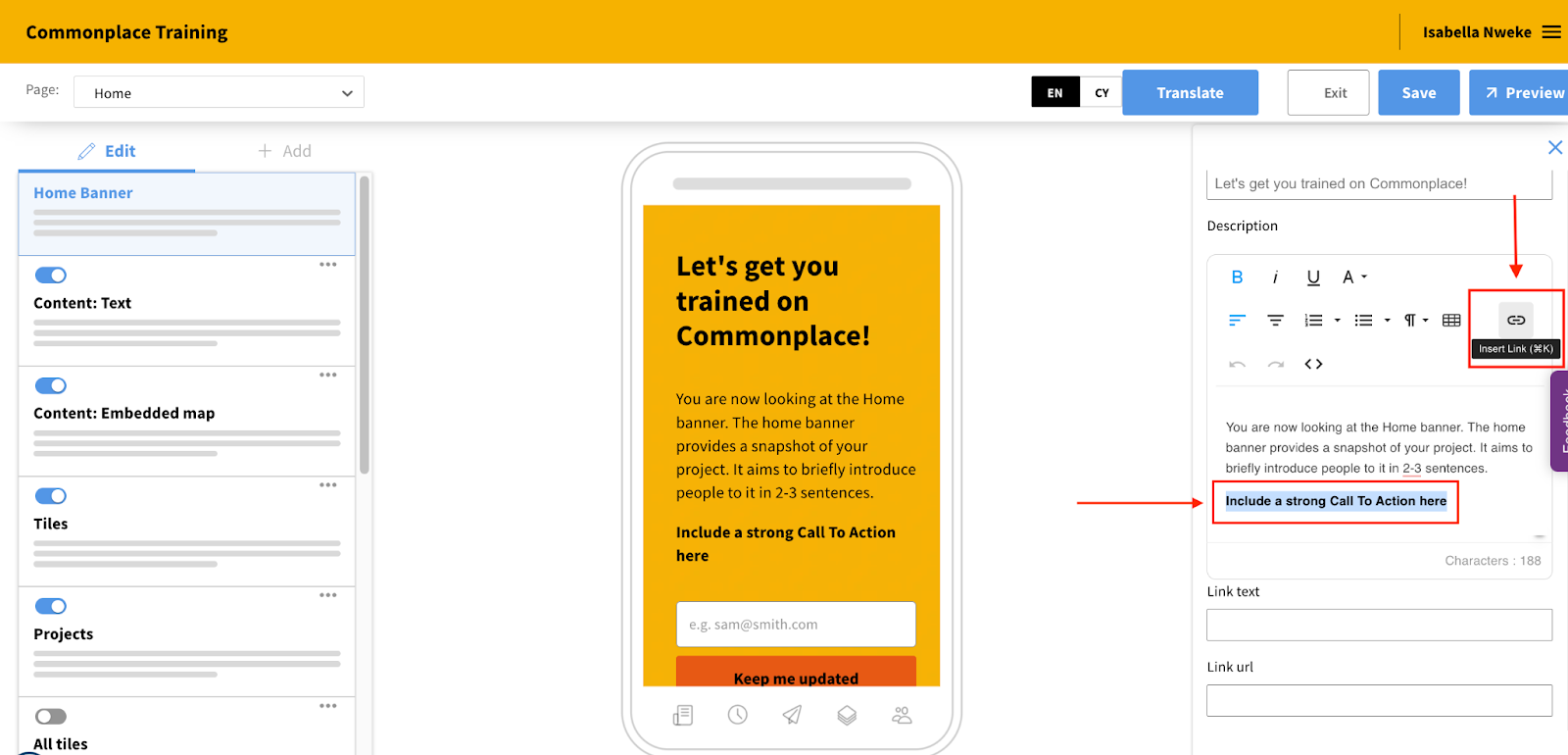
2. To bring up the editing options on the right side of the webpage, click a section on the mobile phone screen. Then, as seen in the illustration below, highlight the text you wish to hyperlink to and click Insert Link.
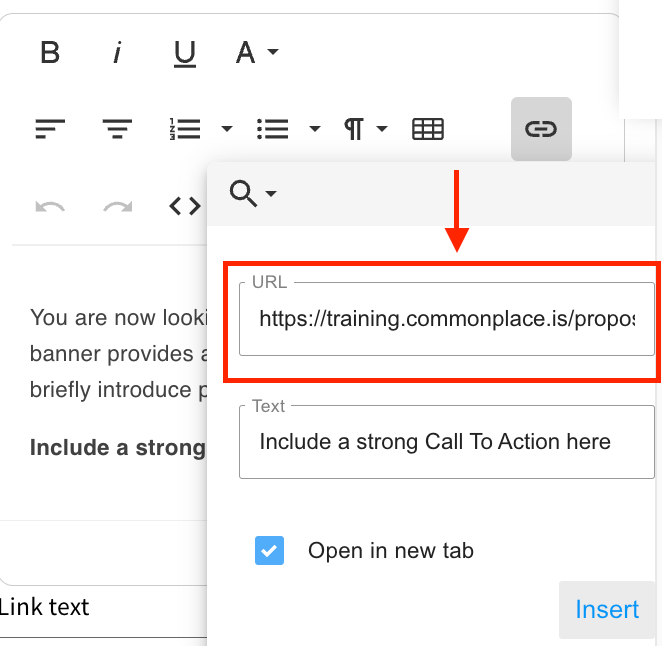
3. Add your link in the URL field of the popup window. The highlighted text is also editable in the Text box below. To open your link in a new tab on your web browser, select the "Open in a new tab" checkbox. To complete the action, click the Insert button.
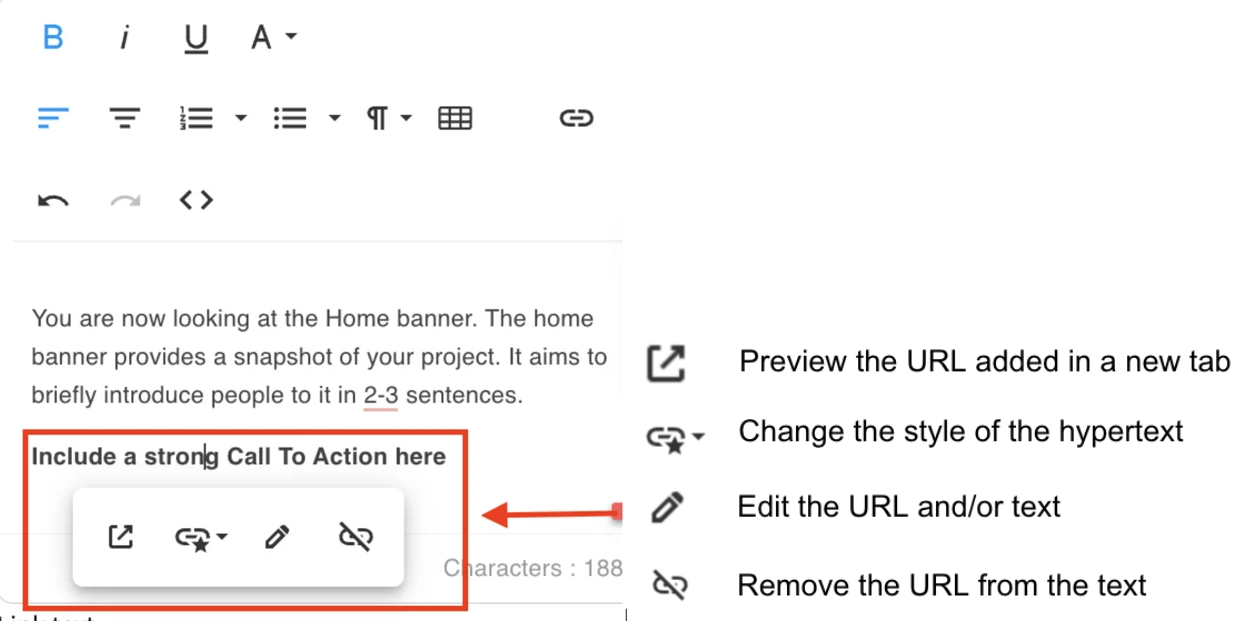
4. If you need to make changes, click anywhere on the highlighted text as shown below.
5. Don’t forget to hit the Save button at the top right corner of the webpage to save all changes.
Video: As an alternative, here’s a quick tutorial that demonstrates how to embed a URL into text using the "Insert Link" feature.
That’s it! You’re all done! 🎉🎉🎉
Still unsure about anything? There's lots more information here on the Commonplace Help Centre - alternatively, contact the support team and we'll be happy to help 👋
