The instructions below show you how to associate Special Category Data (SCD) with individual contributions. To follow these instructions, you will need to have a Special Category Data (SCD) extract - speak to your Customer Success Manager about being provided with one. The instructions below are for Google Sheets, however equivalent steps should also work in Microsoft Excel and other similar software.
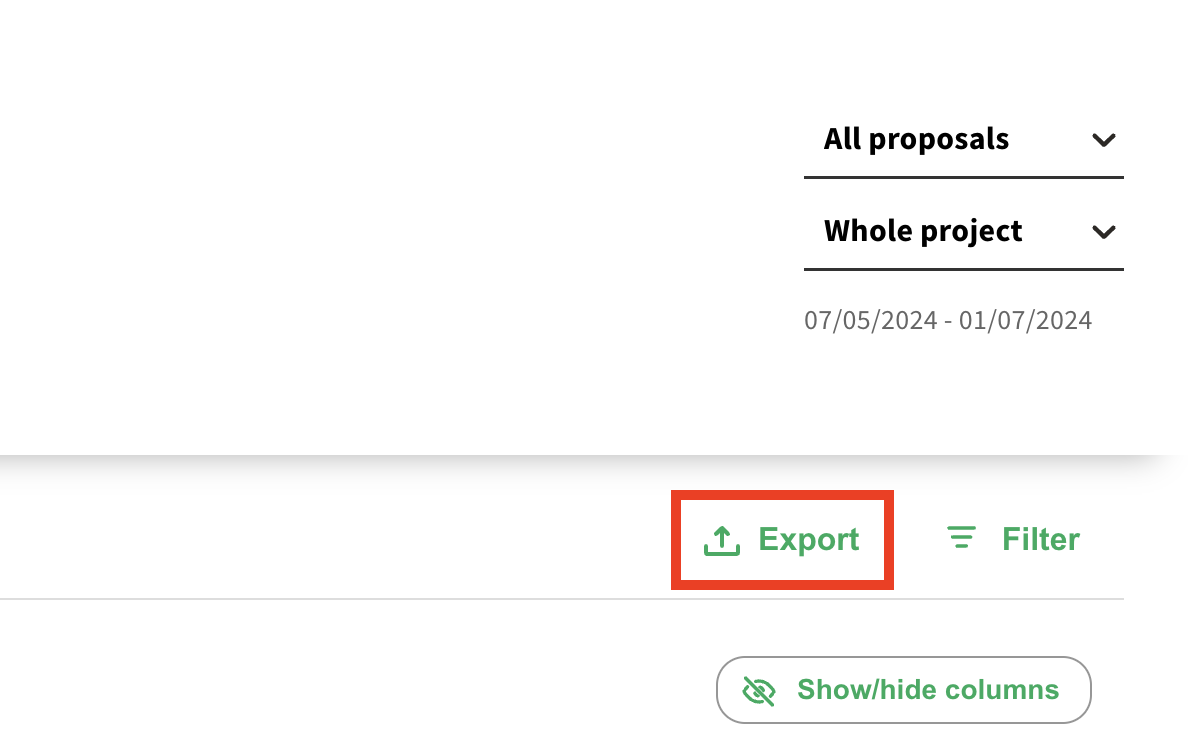
Go to the 'Contributions' tab in your dashboard, then select 'Export'. If you'd like, you can filter to a specific tile before exporting.
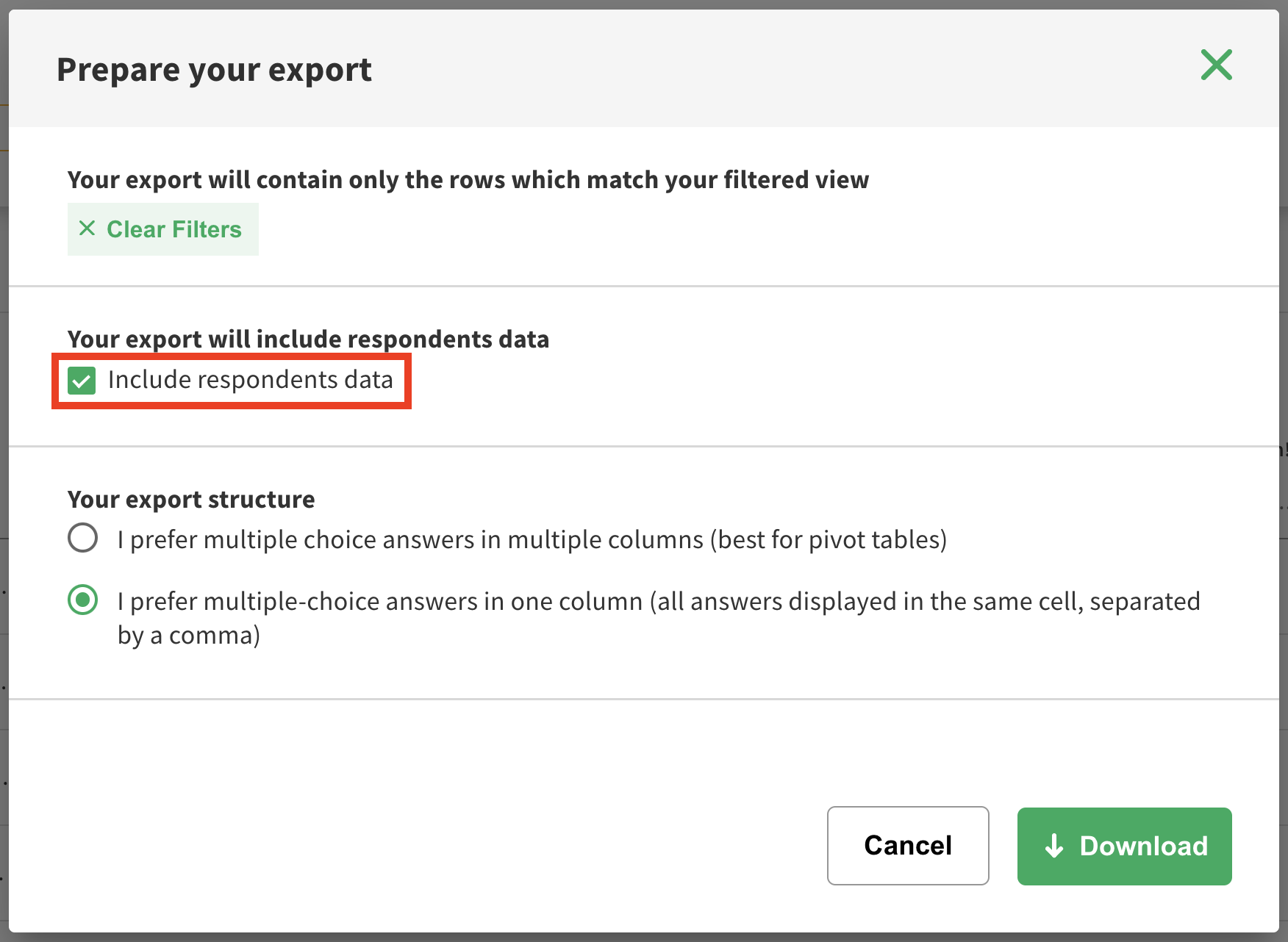
In the 'Prepare your export' box, make sure 'Include respondents data' is selected.
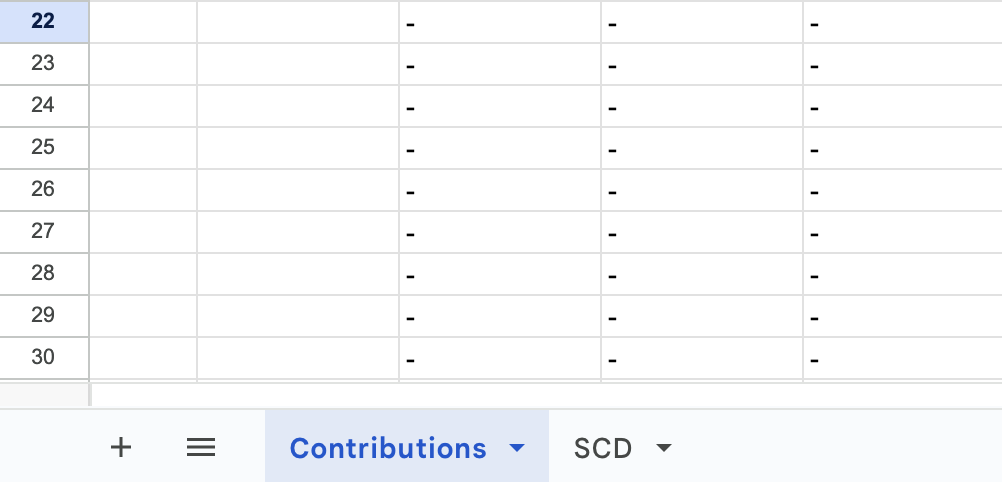
Create a new spreadsheet. In one sheet, import your contribution data and name the sheet 'Contributions'. In another sheet, import your Special Category Data (SCD) extract and name the sheet 'SCD'.
Towards the right hand side of your Contributions sheet, you should see columns relating to the non-sensitive demographics data (e.g. connection to the area, employment status). To the right of these, insert the column headings from your SCD extract, in the same order that they appear in the SCD extract.
In the cell below the first of the column headings you just added, insert the following formula:
=VLOOKUP($C2,SCD!$C$2:$J$449,4,FALSE)You may need to adjust the following:
$C2 - this is the cell in the Contributions sheet where the Respondent ID we're using for our lookup is. The $ symbol allows us to drag our formula across columns without this column reference also moving.
SCD!$C$2:$J$449 - this is the range in the SCD sheet where we're searching for results. The first column reference ($C) should be the column in the SCD sheet where our Respondent ID is. The last column reference ($J) should be the final column in our SCD sheet. The last row reference ($449) should be the final row in our SCD sheet. Once again, we're using the $ symbol to allow us to drag our formula across columns/rows without our references moving.
4 - This is the column lookup number, for the column we want to return results from. This is counted up from our first column reference (in this case, column C), inclusive of the first column. For example, if we want to populate the ethnicity column and the ethnicity data is in column I in the SCD sheet, the column lookup number would be 7 - because column I is 7 columns along from column C (not 6 - remember we include the first column when counting).
With these references configured correctly, you can now drag the formula down to pull in data from the SCD sheet. If a respondent ID doesn't exist in the SCD sheet, #N/A will be returned.
If the data in this column matches what you expect to see, you can then drag the formula across to the right. The cell references we locked using the $ symbol should mean that the only thing in the formula we need to update is the column lookup number. If you populated your column headings in the same order as they appear in the SCD sheet, you should only need to increase the column lookup number by 1 for each column it has been dragged across.
You should now be able to see your Special Category Data in association with each individual comment.
Microsoft Excel docs - VLOOKUP function
Still unsure about anything? There's lots more information here on the Commonplace Help Centre - alternatively, contact the support team and we'll be happy to help 👋
