
PDF Clipper is an add-on tool designed to make the analysis of respondent-submitted PDFs fast and painless.
It allows you to open a PDF directly in your project dashboard and 'clip' text out of them, turning them from inaccessible, siloed and often lengthy documents into accessible, usable, analytics-ready highlights.
It is ideal for any consultation which asks respondents to share documents with their submission, including (but not restricted to) reg 18 and local plans - which are known for their lengthy, wordy and analysis-resistant documents
It saves you time by avoiding the need to create, share and maintain messy spreadsheets
It provides a built-in solution to explore and manage PDFs inside your dashboard, allowing them to benefit from Commonplace's other analysis tools (such as filters, embeddable charts and exports)
Clipped highlights from your PDFs then become compatible with Trends AI, enabling automatic tagging, sentiment analysis and summaries
What is TrendsAI?
This article presents TrendsAI and its functionalities.
To use PDF Clipper, simply follow the steps below:
Go to your contributions dashboard
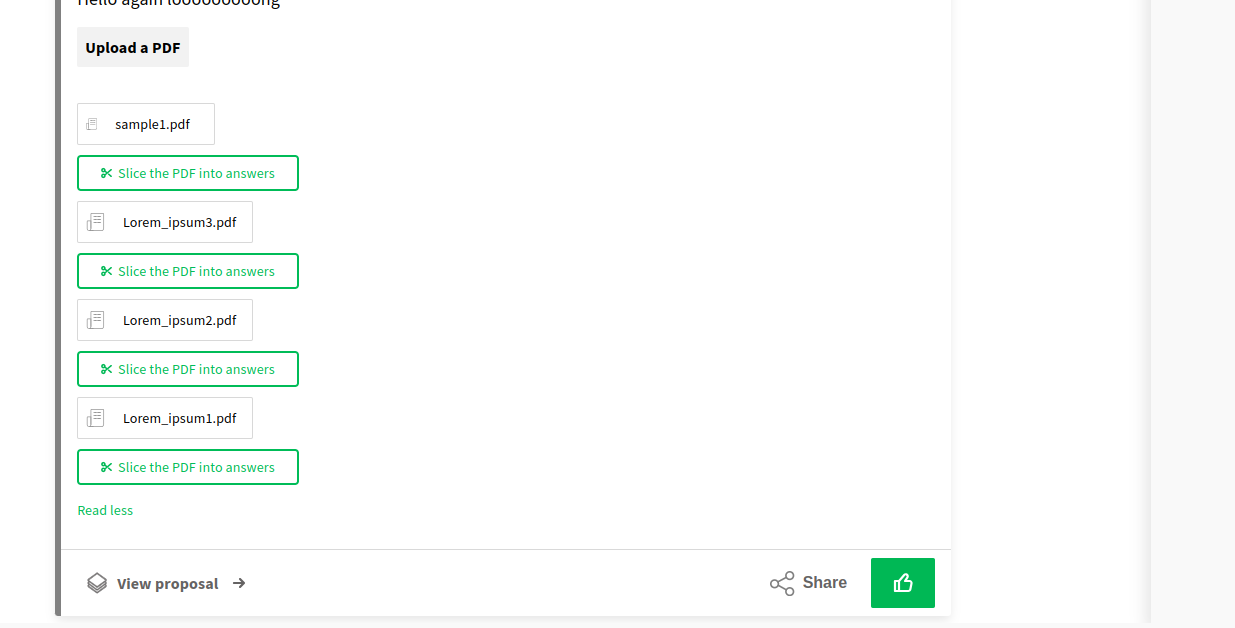
Click on a contribution with an attached document
Below the PDF document, select 'Slice the PDF into answers'
Highlight a piece of text from the PDF to select it
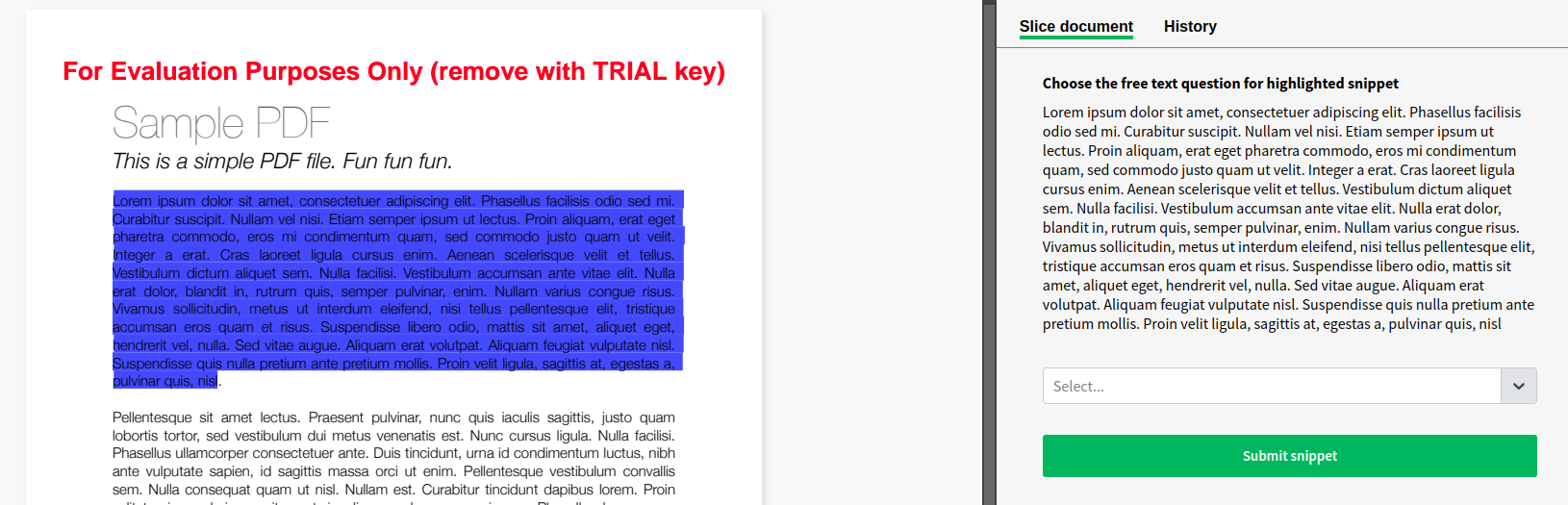
Choose which free text question within the survey the text you've highlighted is related to
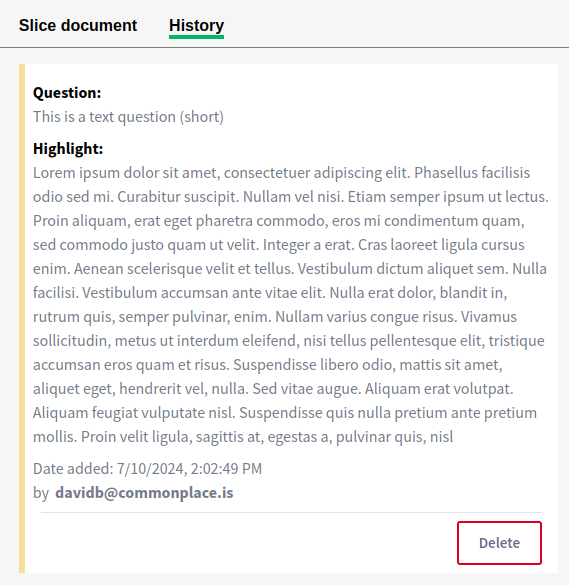
Success! Your data is now clipped into new columns in the contribution dashboard
The columns created by your clipping of PDFs are available in dashboard filters and exports, in separate columns called 'Highlights'.
Charts on the charts tab will 'merge' all free text answers, including those clipped from PDFs, into the word cloud for that question.
If you are using the Trends AI automated text analysis add-on, the data will appear in the Trends AI dashboard under the original questions.
Still unsure about anything? There's lots more information here on the Commonplace Help Centre - alternatively, contact the support team and we'll be happy to help 
