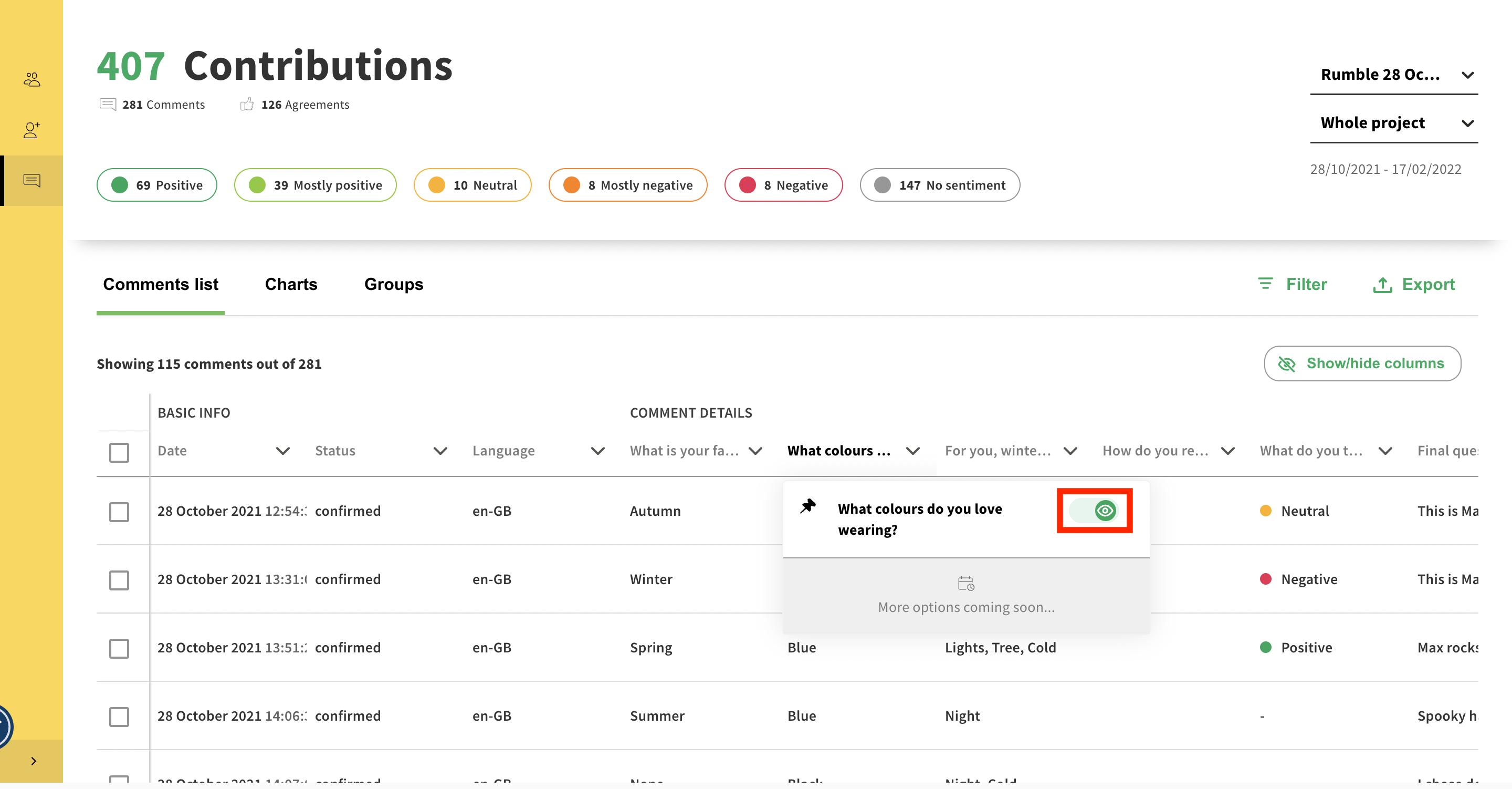
To hide a column, hover on its header and select the eye icon. The column will then be masked until you show it again or reload the page.
To manage hidden columns and show them again, click on the Show/hide columns button on the top right of the table. In there, you will be able to show some columns again or all of them.
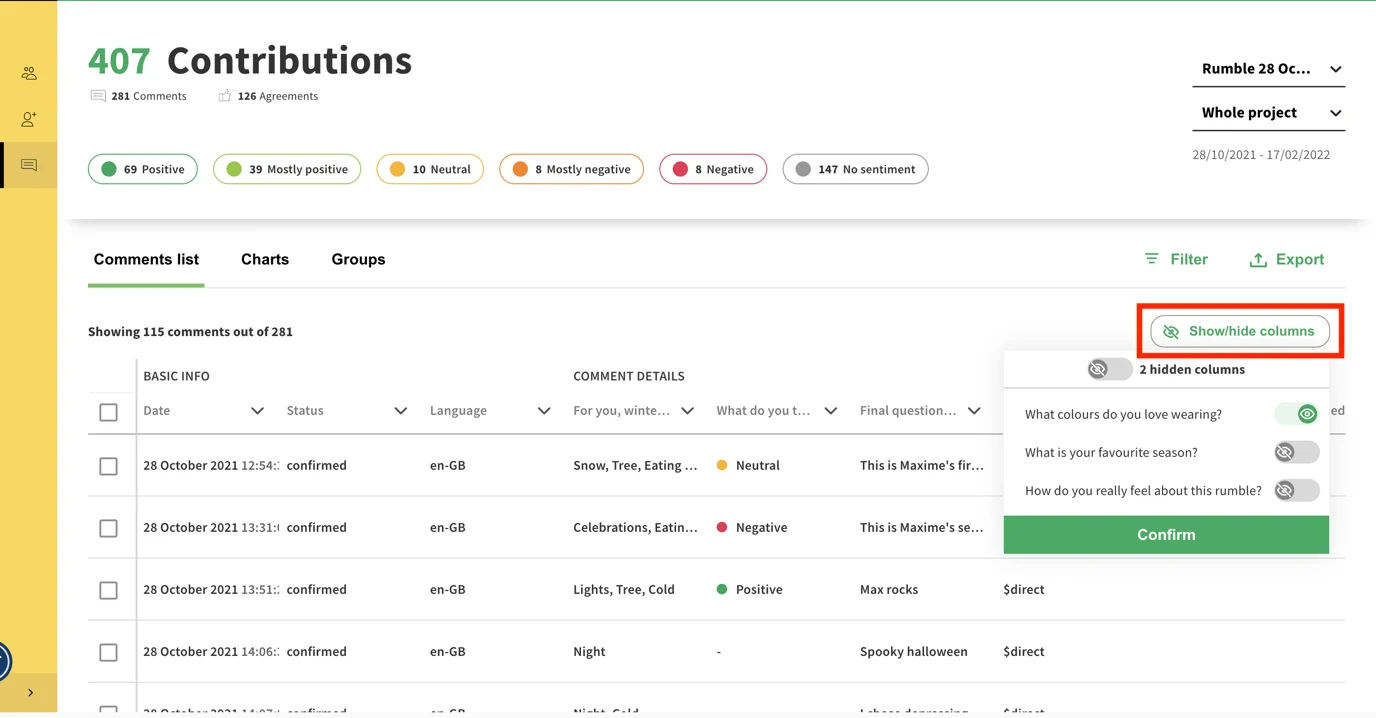
Note: don’t forget to apply your changes!
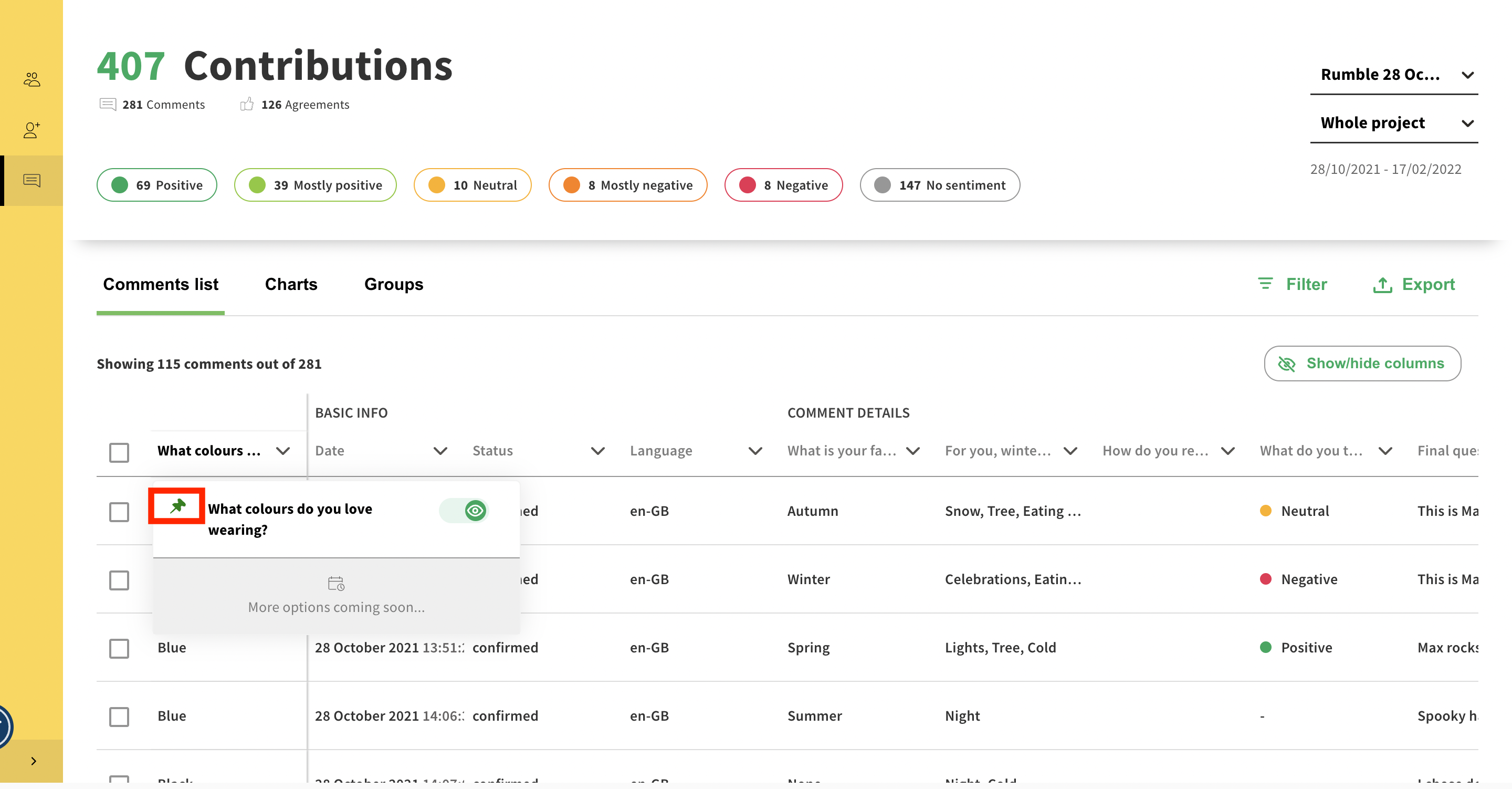
To stick a column so that it will always appear when scrolling to the right, hover on its header and select the pin icon.
The column will automatically be added to the left of the table and won’t move from there until you un-stick it or reload the page.
To unstick a column, hover its header and select the pin icon.
To re-order the table content, select the arrow icon in a column header.
When pointing up, the content will be ordered from A to Z, when pointing down, the content will be ordered from Z to A.
Note: this won’t be reflected when exporting or saving a view.
Only one column can be ordered at a time.
Filters are detailed in this article:
Using comment filters
Apply filters to get more granular analysis
Tip: Customising the view also reflects when Exporting data or building reports.
Still unsure about anything? There's lots more information here on the Commonplace Help Centre - alternatively, contact the support team and we'll be happy to help 👋
