If you have data from offline surveys or if you are migrating from another supplier, you can import your survey data straight in to the Dashboard. This will enable you to benefit from all the filters, charts and analysis tools in our Dashboard.
To enable this feature, please speak to your Customer Success Manager or Account Manager.

Data can be imported from the following file formats:
CSV
XML
XLSX
XLS
JSON
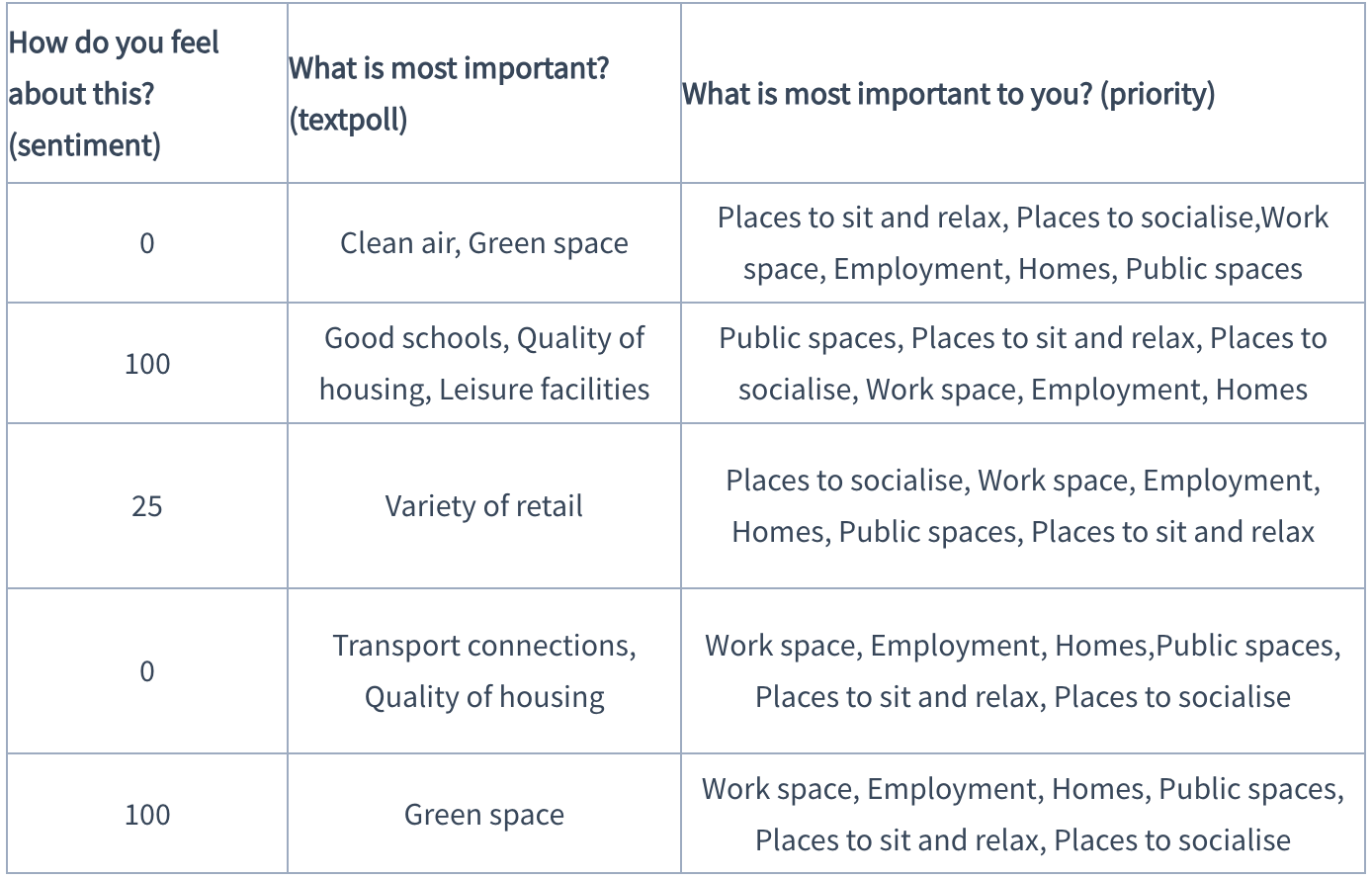
The contributions data needs to be organised in a table. Best practice will include headings in row 1 and each of the following rows will contain the answers to a survey.

Each question needs to be in one column only, with multiple option answers separated by commas. eg:
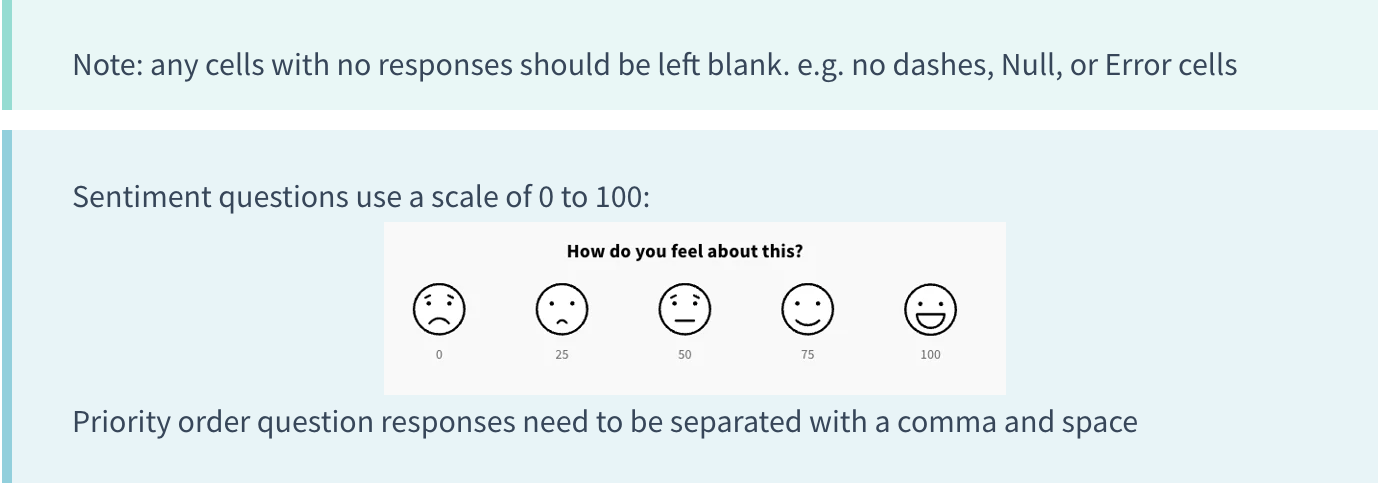
Your data will need to be matched up to questions in an existing survey in your Commonplace project. If you are migrating from another provider, a proposal tile will need to be created with the questions and available answers. The questions in your survey should closely match the headings in the data, however, we use AI to help match the questions in the data to the questions in your Commonplace. You will also have the chance to review the data and amend it before completing the import.

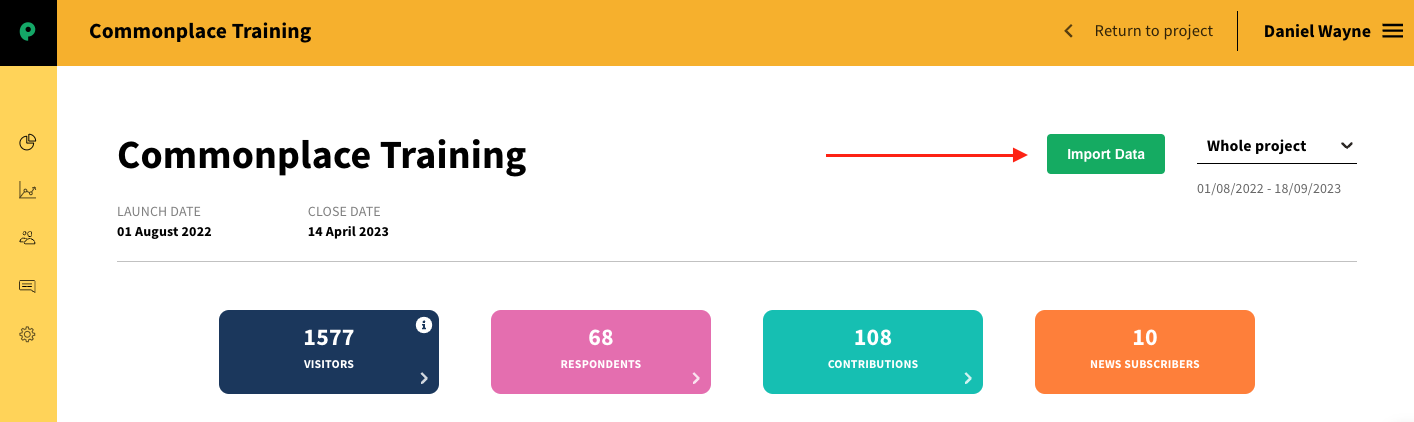
Go to the dashboard and click on the Import Data button
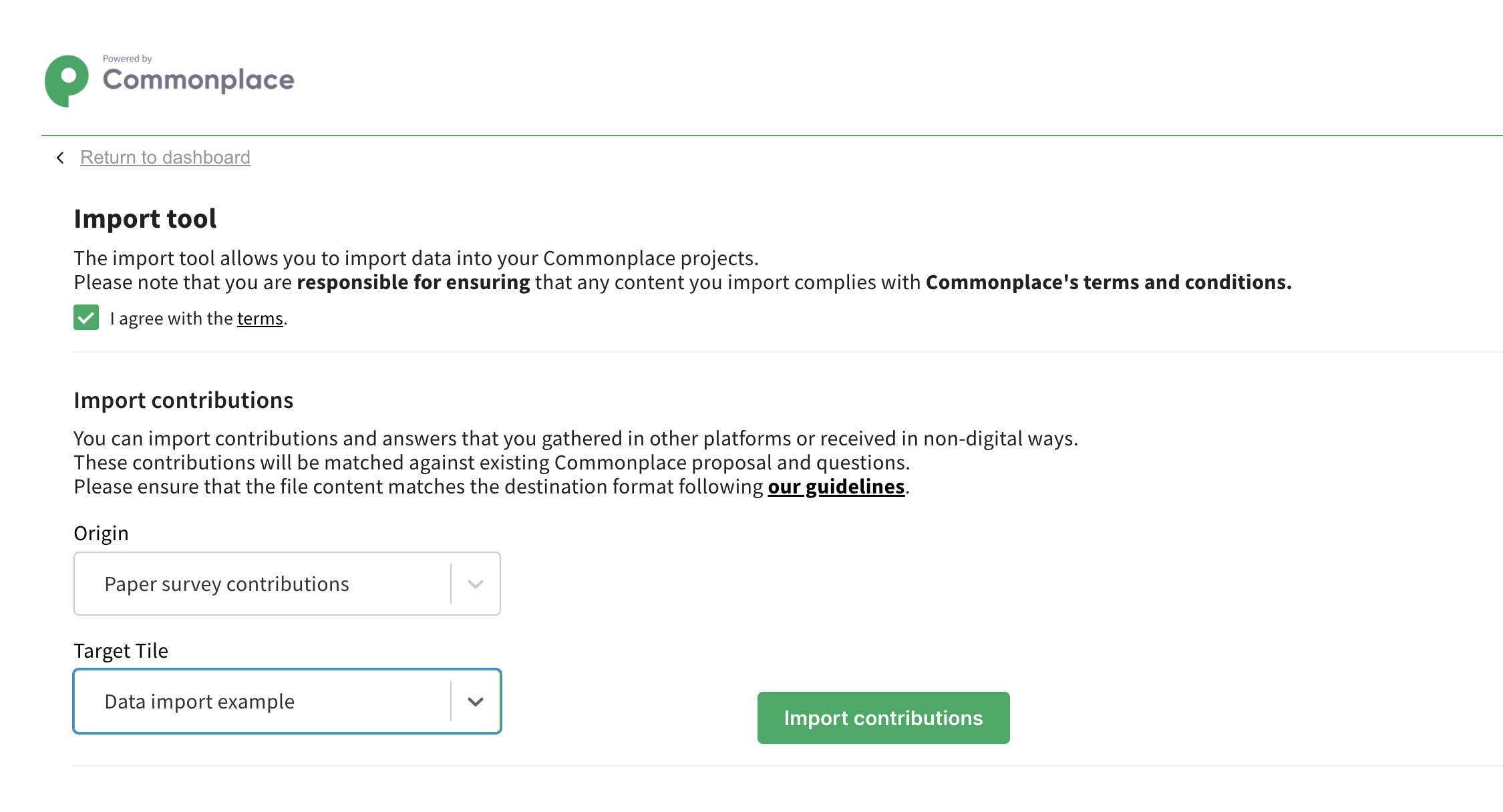
In the first screen of the import there are 3 items that need to be completed, then click on Import Contributions:
Agree to the terms and conditions
Select the Origin of the import (ie from paper surveys or from face-to-face events)
Select the Target Tile. ie the survey tile to match the data to
Next, select the file to import. You can drag and drop your file, or select it by clicking on Import contributions:
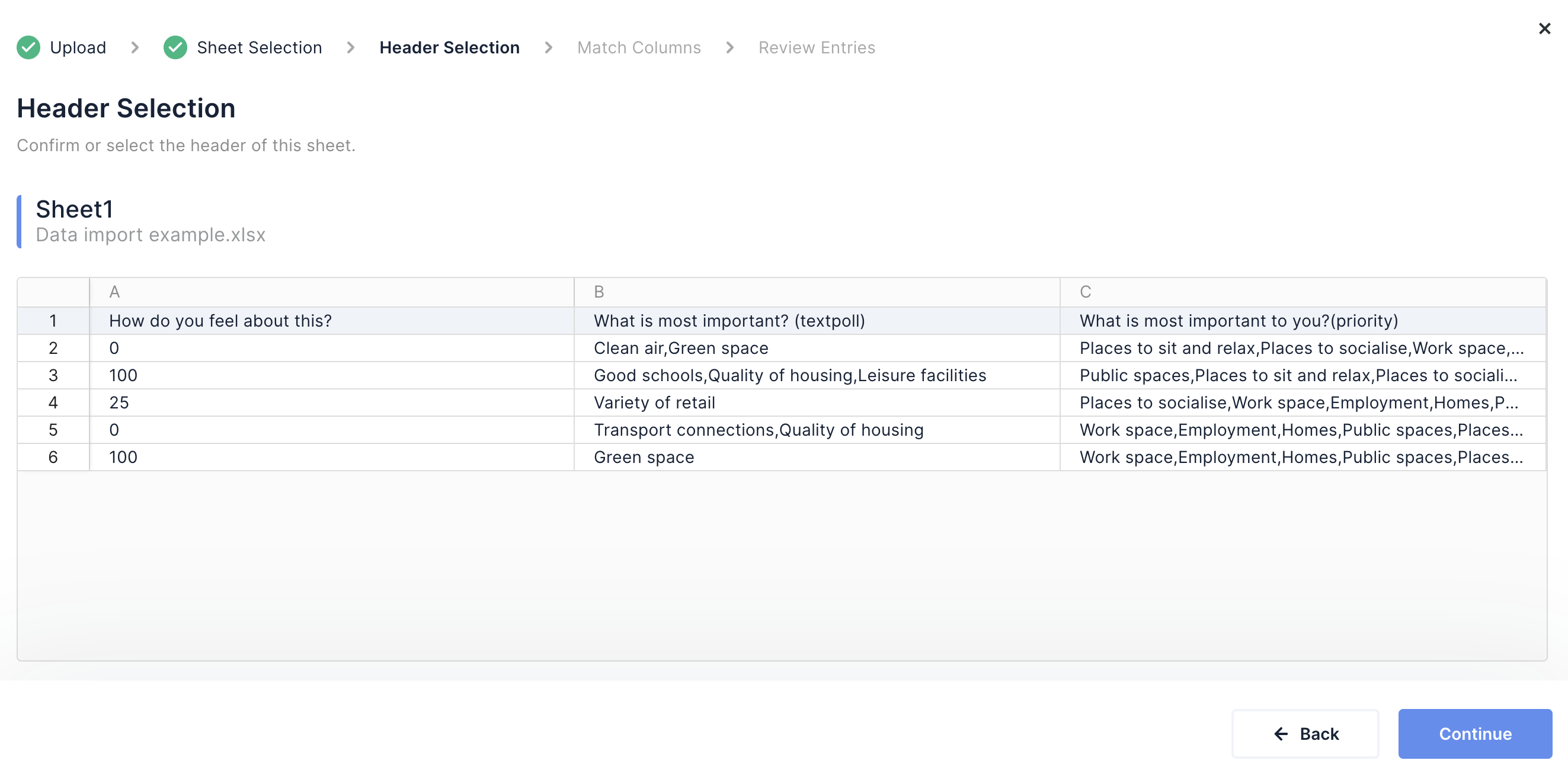
Next you can select which row contains the headings for the questions. It will default to row 1, but select the correct row, then click Continue
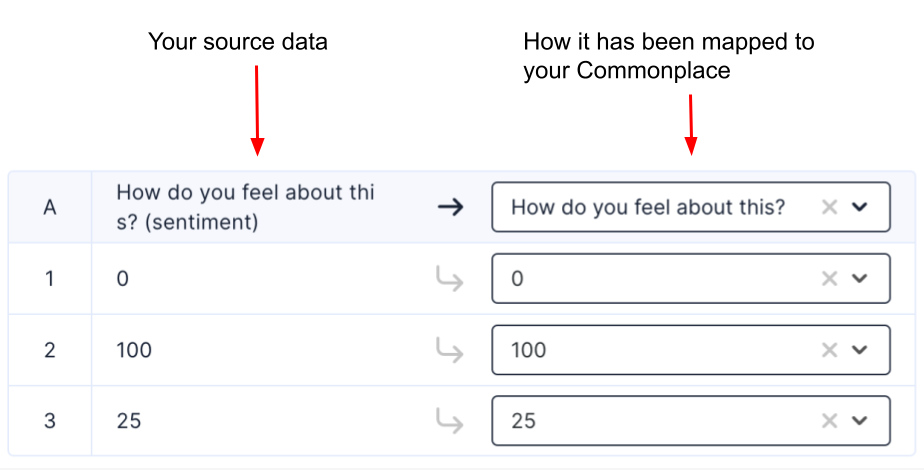
This next step enables you to review and amend how the data is mapped to your survey in Commonplace. You can review and amend how the question headings and responses are mapped.
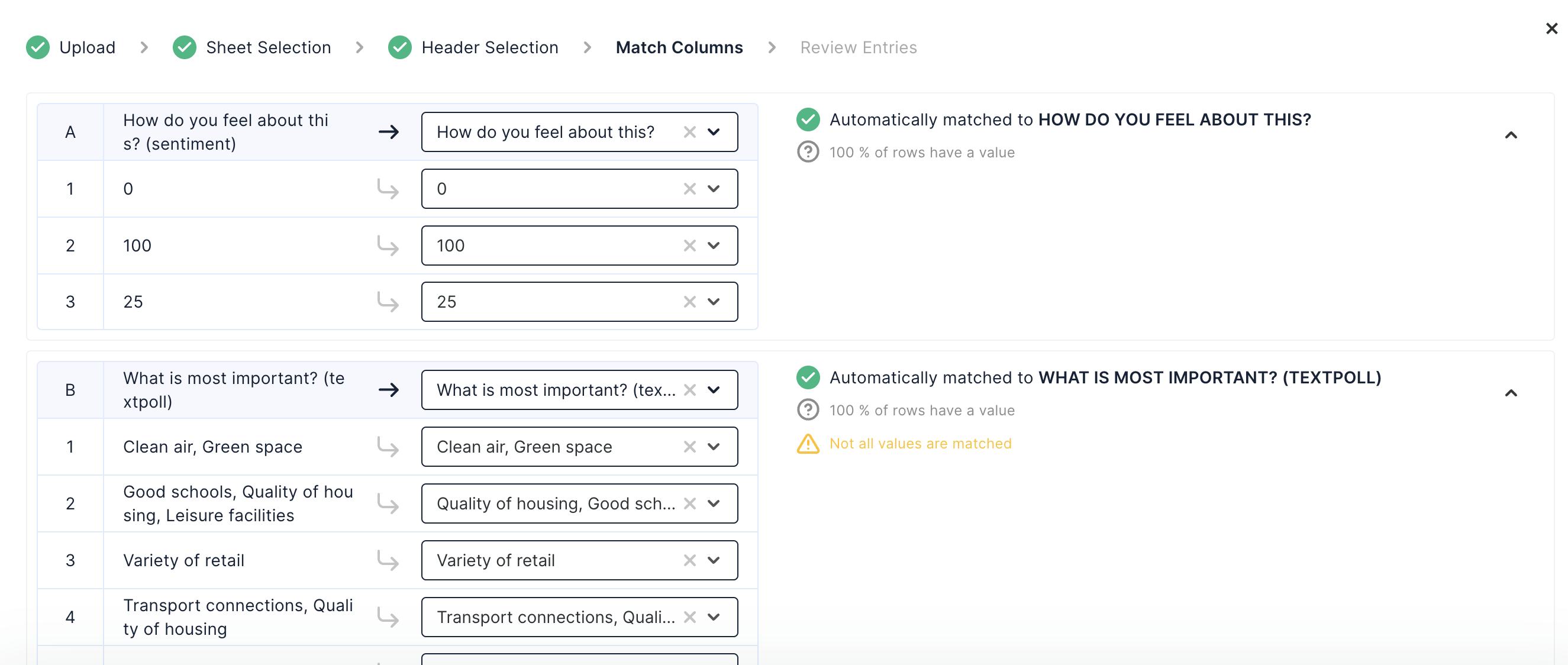
Take note of any warnings and resolve them before moving on. Press Confirm when ready
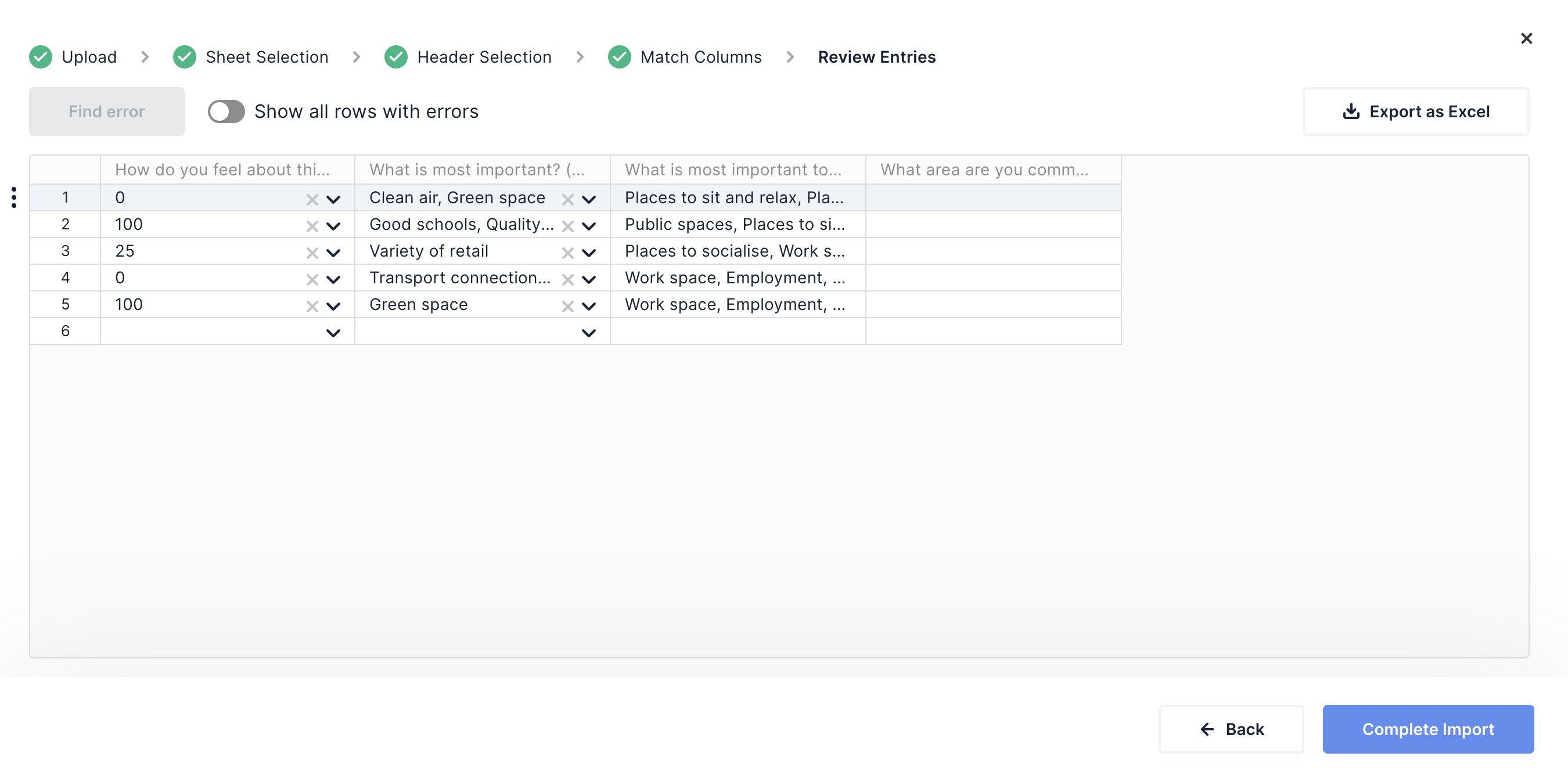
Finally, you can review the entries. You can edit the text of individual cells, or click Back to go back to previous screens to make changes to the mapping. When you are ready to import, click the Complete Import button.

Still unsure about anything? There's lots more information here on the Commonplace Help Centre - alternatively, contact the support team and we'll be happy to help 👋
