Exporting respondent data from the dashboard will provide you with all the data you see in the respondents table view in the dashboard. This includes all of the information provided by respondents, based on questions asked in the demographics page.
Additional fields, such as reverse geocoded information derived from their postcode, if you asked for it, will also be available.
This allows you to dive deep into the respondents data offline. Data will be made available in a comma-separated values (csv) file format.
Your export will reflect any filters you have set in the dashboard, such that any contributions excluded by filters you have set will not appear in the export.
Please bear in mind that the demographic questions asked under Special Category Data will not be made available in the respondents table by default. This data is considered sensitive and needs to be treated differently to protect end users from being targeted individually. It can, however, be accessed and used in the dashboard if you request it. Alternatively, you may also request an export by contacting customers@commonplace.is.
As a security measure, the last character in a postcode will be replaced by an X. To access the full postcode, please complete the form above.
Click on the Respondents tab on the side menu located at the left hand side of the dashboard page
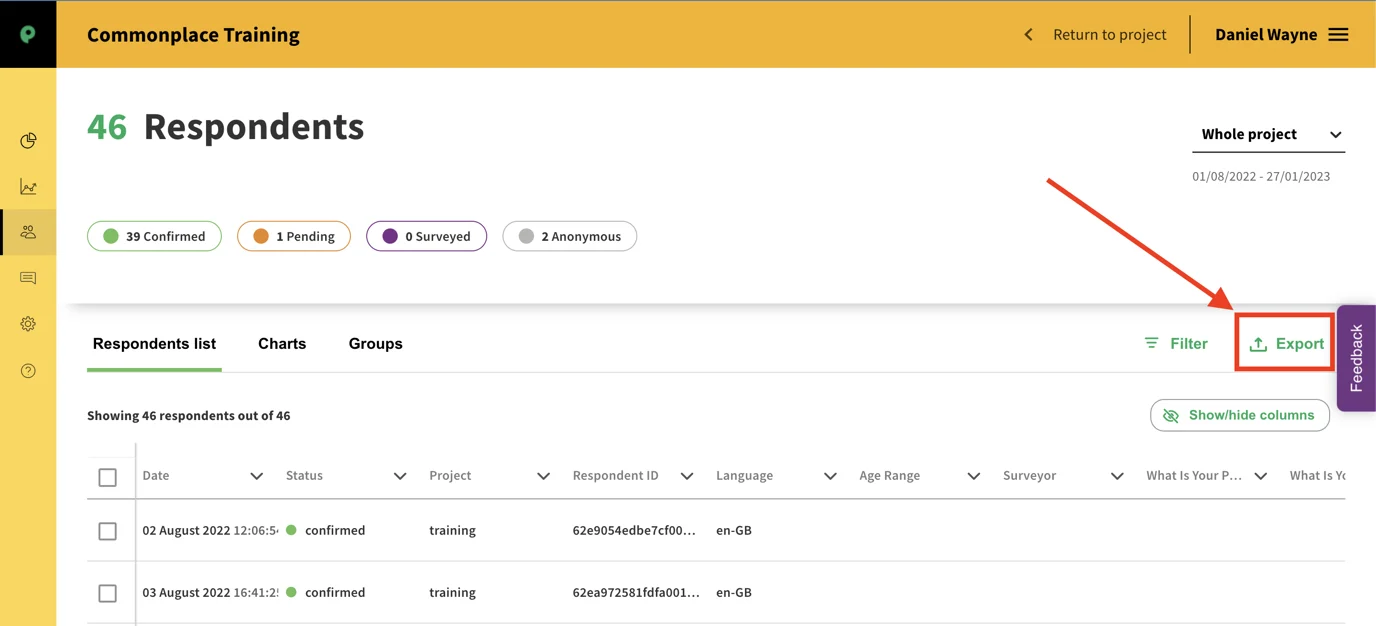
Click on Export to download the respondents data report in the dashboard.
4. You can select your preferences for the export:
“I prefer multiple choice answers in multiple columns…” which means when you download your data report, you want answers to questions with multiple choice options (like a text poll question) to show up in separate cells and columns.
OR
“I prefer multiple choice answers in one column…” which means that when you download your data report, you want responses to questions with multiple choice options (like a text poll question) to show in the same cell under one column with each response separated by a comma. Please keep in mind that the survey question is represented by the column header.
5. When you have selected your preferred option, click on the Download button.
6. You will receive an email notification similar to the image below with a download link to download your report. Click on link to download offline report in CSV (comma-separated values) format.
Note that the download link is only available for 7 days before it expires.
That’s it! You’re all done! 
Still unsure about anything? There's lots more information here on the Commonplace Help Centre - alternatively, contact the support team and we'll be happy to help 
