The team page is a list of the organisations involved in your project. In compliance with GDPR rules, this page informs your website users who will have access to their data and for what purposes. For each organisation we show:
The name of the organisation
The organisation's logo
A description of the organisation's role in the project
A link to the organisation's privacy policy
Sometimes your own organisation may be the only organisation involved in the project, whereas other times multiple organisations and project partners may be involved.
Different organisations may have different roles in the project - for example, you may be outsourcing your data analysis to a separate organisation.
The information you populate on the team page will also be shown on the demographics page:
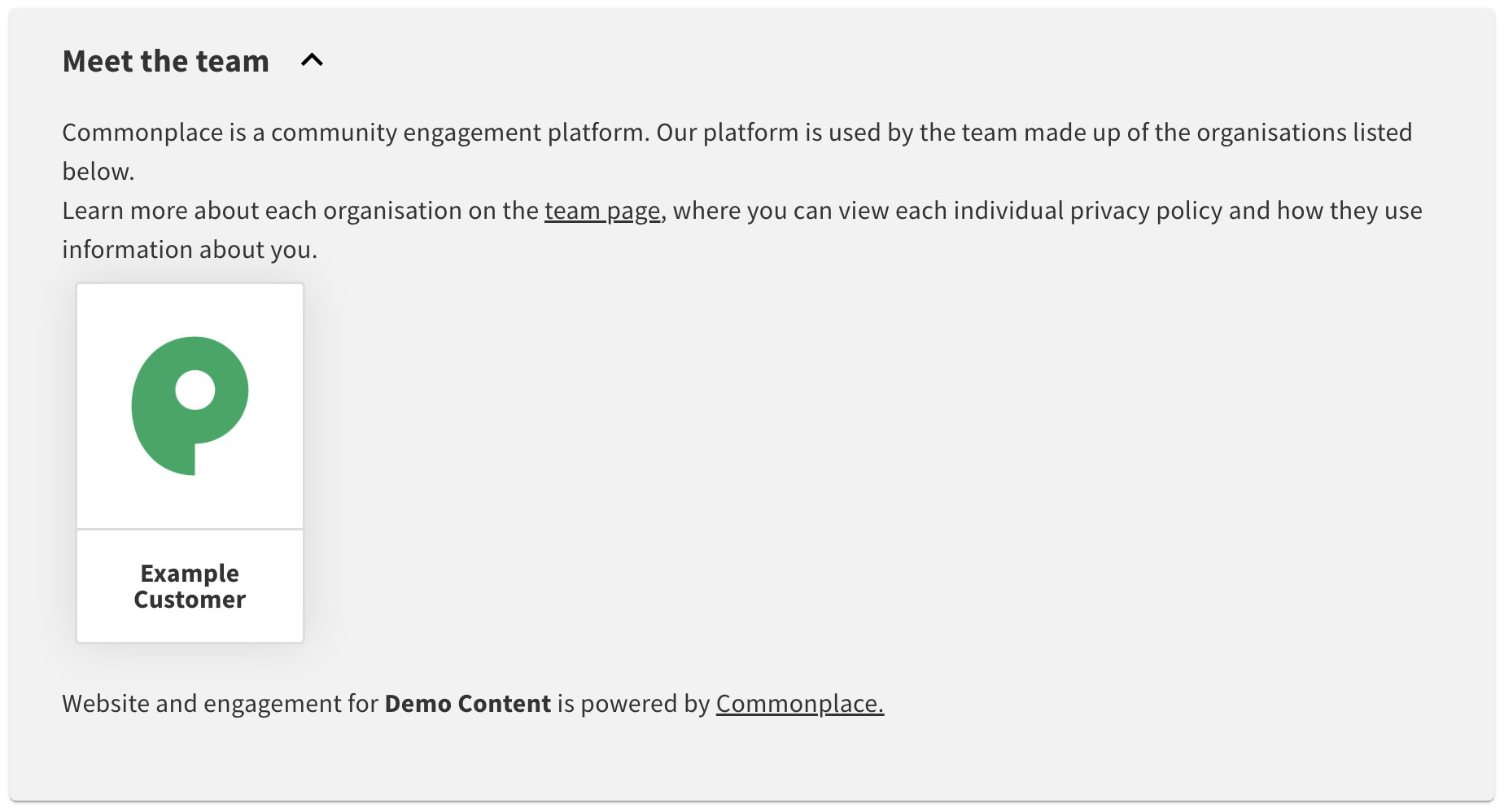
For a real life example of the team page, click here.
You can access the team page by clicking the 'the team' option in the navigation bar on the home page.

Alternatively, you can go directly to the team page by adding /project-team to the end of your URL - e.g. https://democontent.commonplace.is/project-team.
If you are unfamiliar with edit mode, it may be useful to read the 'introduction to edit mode' article first.
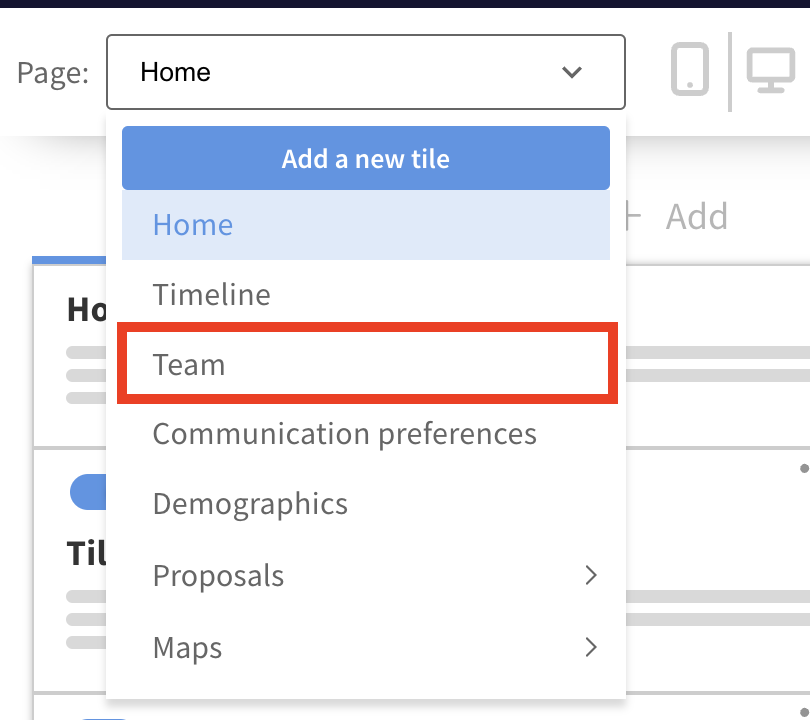
You can edit the team page by:
Entering edit mode through the blue 'edit page' icon
Opening the 'page' dropdown menu and then selecting 'team'
You can add new organisations to the team page by opening the '+ add' menu and dragging them into the preview. For each organisation you must provide a name, logo, description of responsibilities and a privacy policy link (if the organisation will have access to the data collected on the project).
Each organisation also has a 'show logo on landing page' toggle, to show or hide the organisation logo on the landing page.
Once you've finished editing, remember to save your changes by clicking the blue 'save' button.

Still unsure about anything? There's lots more information here on the Commonplace Help Centre - alternatively, contact the support team and we'll be happy to help 👋
