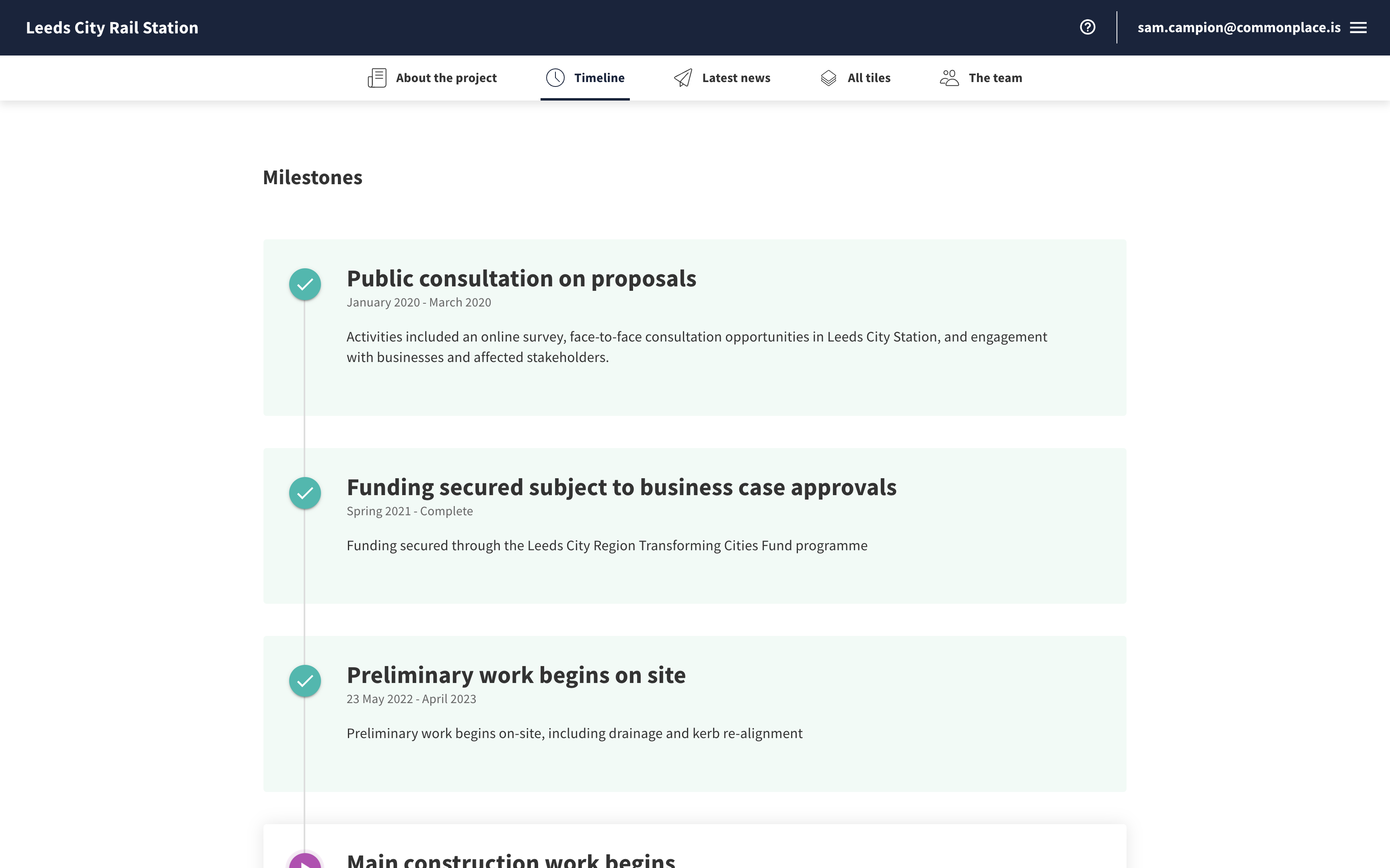
Above: An example of the timeline page
The timeline page helps give users a better understanding of the context behind your project, by letting them know what has happened now, what is happening currently and what will be happening next.
The number one thing respondents feel concerned about when using Commonplace is the lack of response from the engagement partner. By providing a timeline of when you will complete your analysis, evaluation and published response (or even better individual replies), you’re helping alleviate these concerns.
Each milestone on the timeline page has the following information:
A name
From/to dates (these can be vague, such as 'Winter 2024' - or specific, such as '19 December 2024')
A description (a brief summary of the milestone)
A stage ('completed', 'active' or 'planned')

For a real life example of the timeline page, click here.
You can access the timeline page by clicking the 'timeline' option in the navigation bar on the home page.

Alternatively, you can go directly to the timeline page by adding /timeline to the end of your URL - e.g. https://democontent.commonplace.is/timeline.
If you are unfamiliar with edit mode, it may be useful to read the 'introduction to edit mode' article first.
Enter edit mode through the blue 'edit page' icon in the bottom right corner of the screen
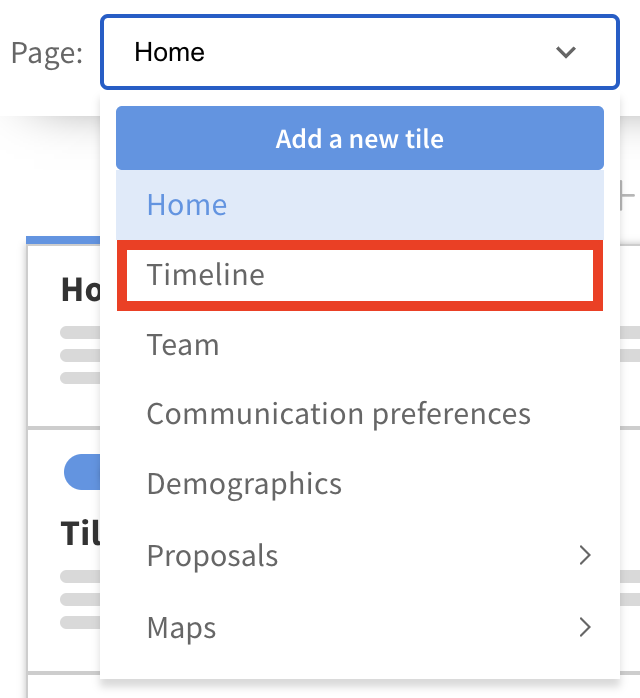
Select the 'timeline' option from the 'page' menu in the top left corner
Click on a milestone on the left hand side or in the page preview to edit its content. For each milestone you will need to provide a name, from/to dates, a description and a stage
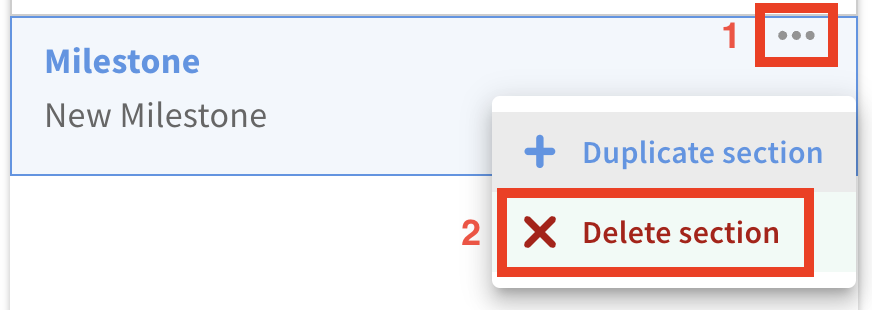
To delete a milestone, click the ••• icon next to the milestone, then select 'delete section'
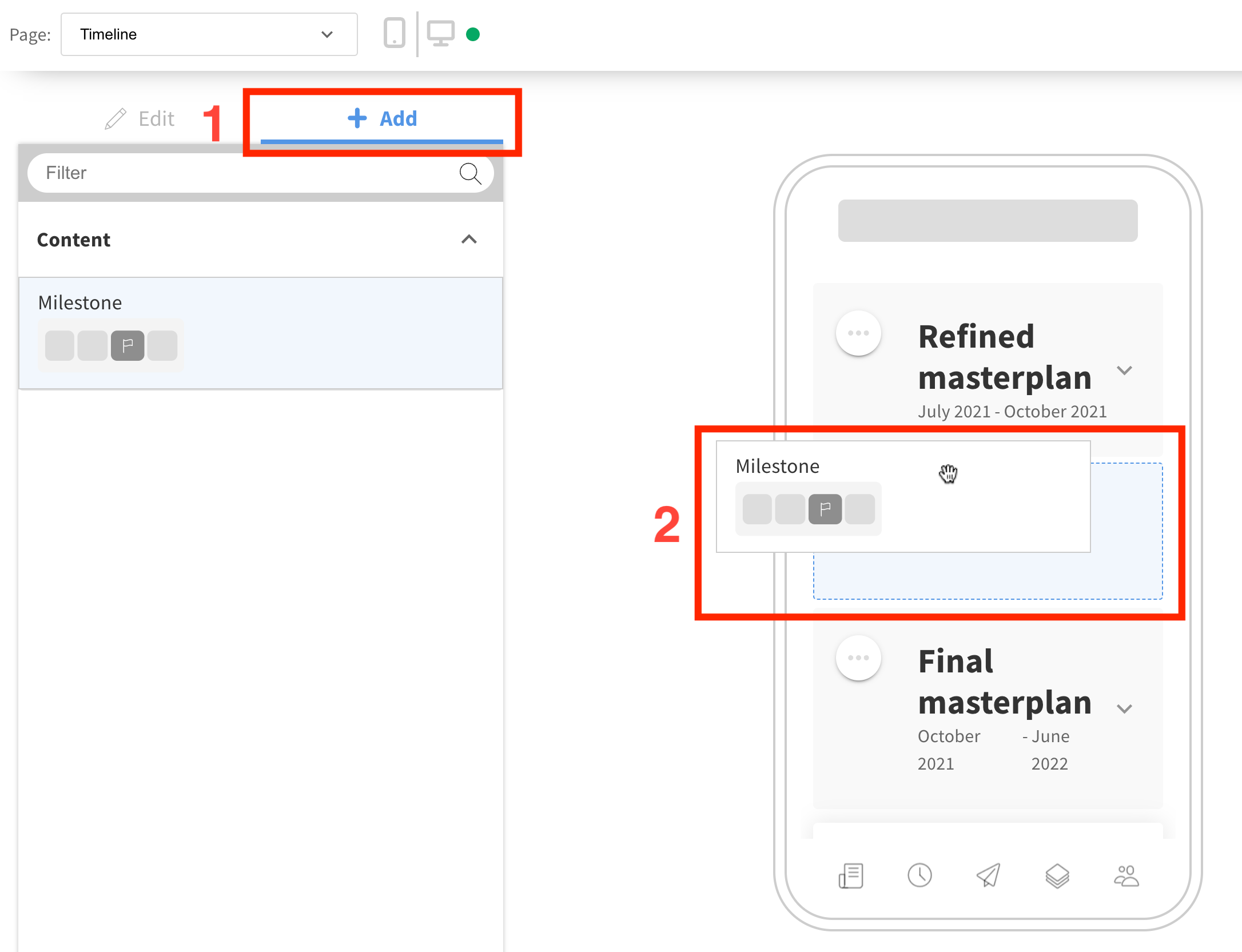
You can add new milestones to the timeline page by opening the '+ add' menu and dragging them into the preview
Once you've finished editing, remember to save your changes by clicking the blue 'save' button.
Still unsure about anything? There's lots more information here on the Commonplace Help Centre - alternatively, contact the support team and we'll be happy to help 👋
