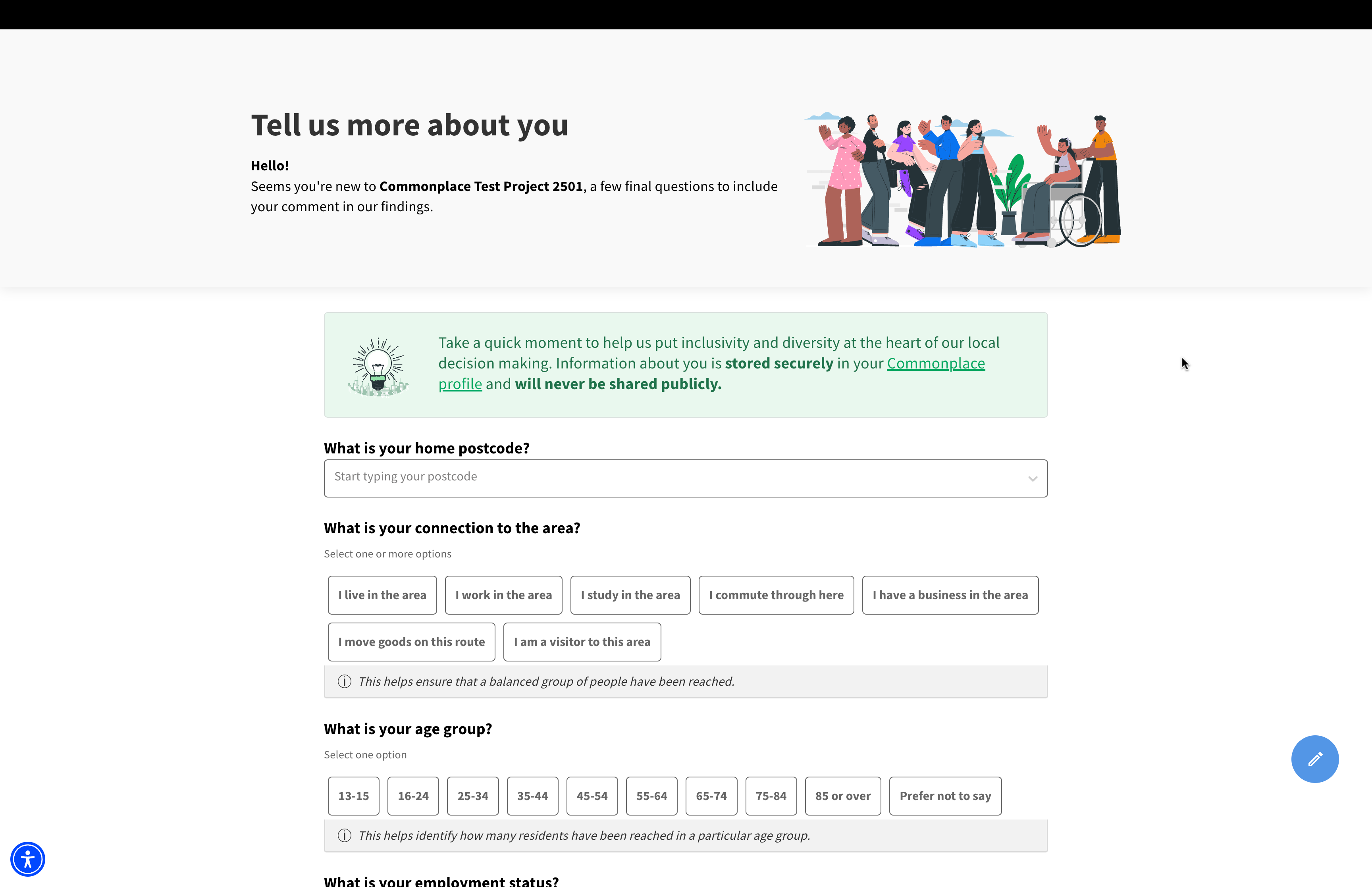
Above: An example of the demographics page
The demographics page allows you to ask questions about who your respondents are, instead of what they think. Understanding who your respondents are provides greater context for their comments, as well as allowing you to identify whether any groups are under-represented in your engagement.
Users are only asked to answer the demographics questions once, when they first sign up - for more information about the user journey, click here. Information shared by respondents on the demographics page is never shown publicly.

The UK General Data Protection Regulation (GDPR) defines special category data as:
personal data revealing racial or ethnic origin
personal data revealing political opinions
personal data revealing religious or philosophical beliefs
personal data revealing trade union membership
genetic data
biometric data (where used for identification purposes)
data concerning health
data concerning a person’s sex life
data concerning a person’s sexual orientation
Source: Information Commissioner's Office
When asking demographics questions related to any of these pieces of data, you must ensure that the questions are marked as Special Category Data - for information on how to do this, see 'How do I edit the demographics page?' below.
By default, Special Category Data is only displayed in an aggregated form in the Commonplace dashboard. Once you have received a minimum of 25 respondents, you will be able to pivot other demographics charts by Special Category Data.
More information on Special Category Data can be found here.
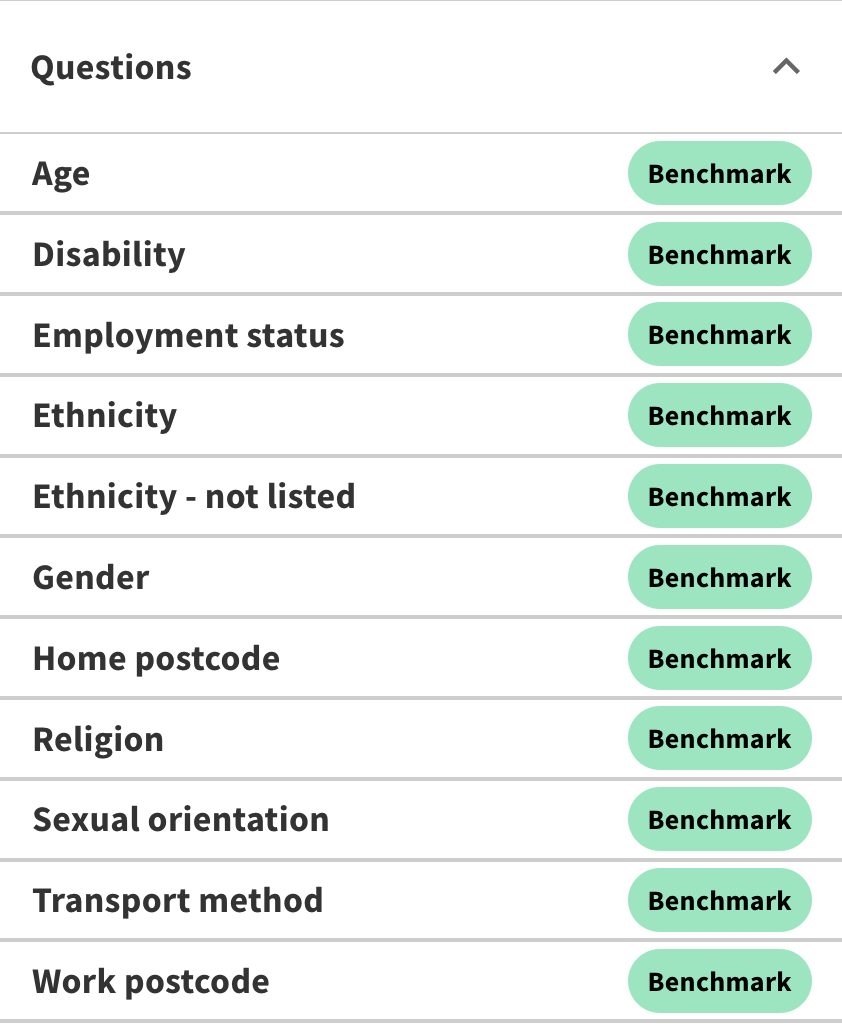
While editing the demographics page (see below), you may notice that certain questions are marked with a 'benchmark' label. Benchmark questions are questions created by Commonplace - they have a pre-defined list of answers and cannot be edited.
We strongly advise using benchmark questions where possible - not only does it save you time and effort in having to manually set up your questions, it also allows for benchmarking your data against other Commonplace projects, as well as external data sources (such as ethnicity data from the Office for National Statistics) - allowing you to identify gaps in your outreach.
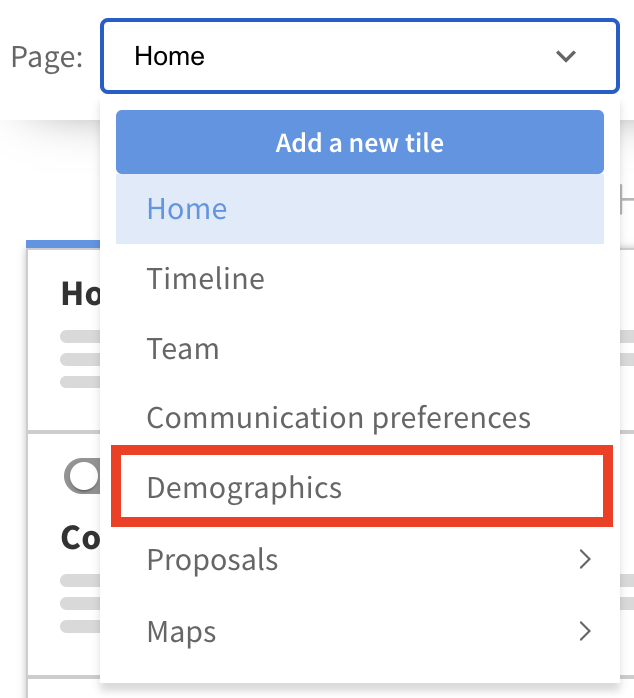
You can access the demographics page by selecting the 'demographics' option from the 'page' dropdown menu in edit mode.
Alternatively, you can go directly to the demographics page by adding /demographics to the end of your URL - e.g. https://democontent.commonplace.is/demographics.
By default, when your project is created your demographics page will be pre-populated with a list of common demographics questions. If you'd like to edit these, you can do so by following the steps below. If you are unfamiliar with edit mode, it may be useful to read the 'introduction to edit mode' article first.
In the left hand panel is your list of questions. The list is divided into two - at the top are non-Special Category Data questions, at the bottom are Special Category Data questions.
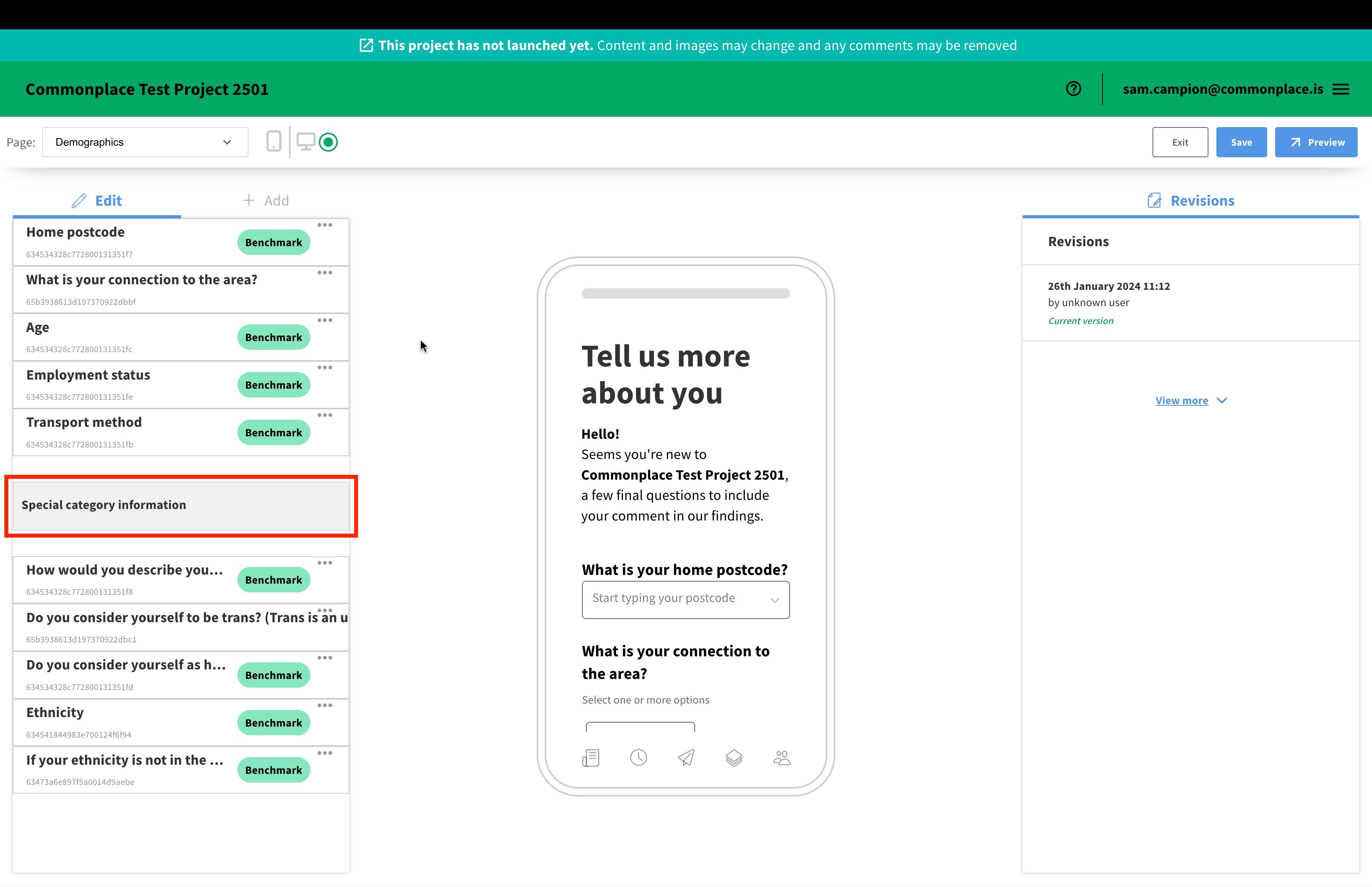
Select a question in the left hand panel to edit it. Benchmark questions cannot be edited.
For each non-benchmark question, you have various editing options - for example, when editing a multiple choice question you will be able to add, remove and re-order the options your users can select from.
Each question also has two other attributes that need to be populated:
Sensitive type - This field defines the type of question:
Identifier is data that would allow you to identify an individual person - such as name or full postal address
Postcode is specifically for postcodes
Not sensitive is data that can't easily be used to identify someone and is not Special Category Data - things like age, transport mode or employment status would count as 'not sensitive'
Special Category Data is defined above in more detail - data on ethnicity, religion or disability would count as Special Category Data
Why is this question relevant? - A user may wonder why certain demographic questions are relevant to the engagement - for example, why their religion might be relevant to an active travel engagement. This field allows you to explain the reason the question is being asked.
Switch the left hand panel to the '+ add' tab to add a question. You can choose from the pre-defined list of benchmarks questions or add create your own questions with the generic question types.
To add a question, drag the question block into the preview - a blue box will display when it is hovering over a location it can be added to.
To delete a question, click the ••• icon next to it and select 'delete section'.
Once you've finished editing, remember to save your changes by clicking the blue 'save' button.
Special Category Data
Using Commonplace with young people (under 13 and under 18)
GDPR & information security
Still unsure about anything? There's lots more information here on the Commonplace Help Centre - alternatively, contact the support team and we'll be happy to help 👋
