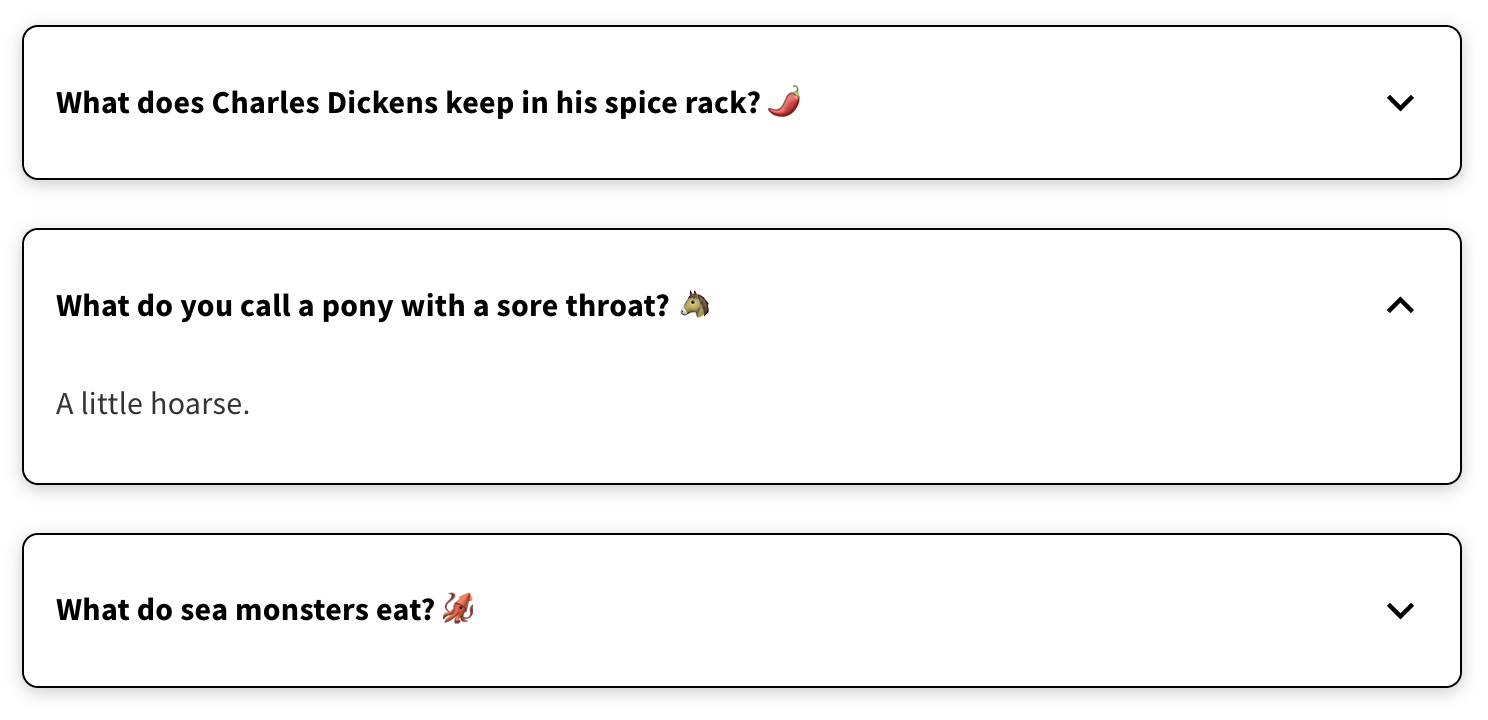
Above: An example of an accordion
Accordions - also known as drop-down blocks - allow a user to click on a heading to expand the content below. This provides a much better user experience by keeping the page short and neatly organised, as well as minimising the amount of scrolling a mobile user is required to do.
Accordions can be used on the home page or on proposal tiles. To add an accordion, follow the steps below. If you are unfamiliar with edit mode, it may be useful to read the 'introduction to edit mode' article first.
Enter edit mode through the blue 'edit page' icon in the bottom right corner of the screen - ensure you are editing either the home page or a proposal tile
Drag an accordion content block from the '+ add' menu into the preview to add an accordion onto the page
By default, your accordion will have one section already added - click the title of the section to expand it
Here you can give the section a title and add the content that will sit inside the section - there is a character limit of 1500
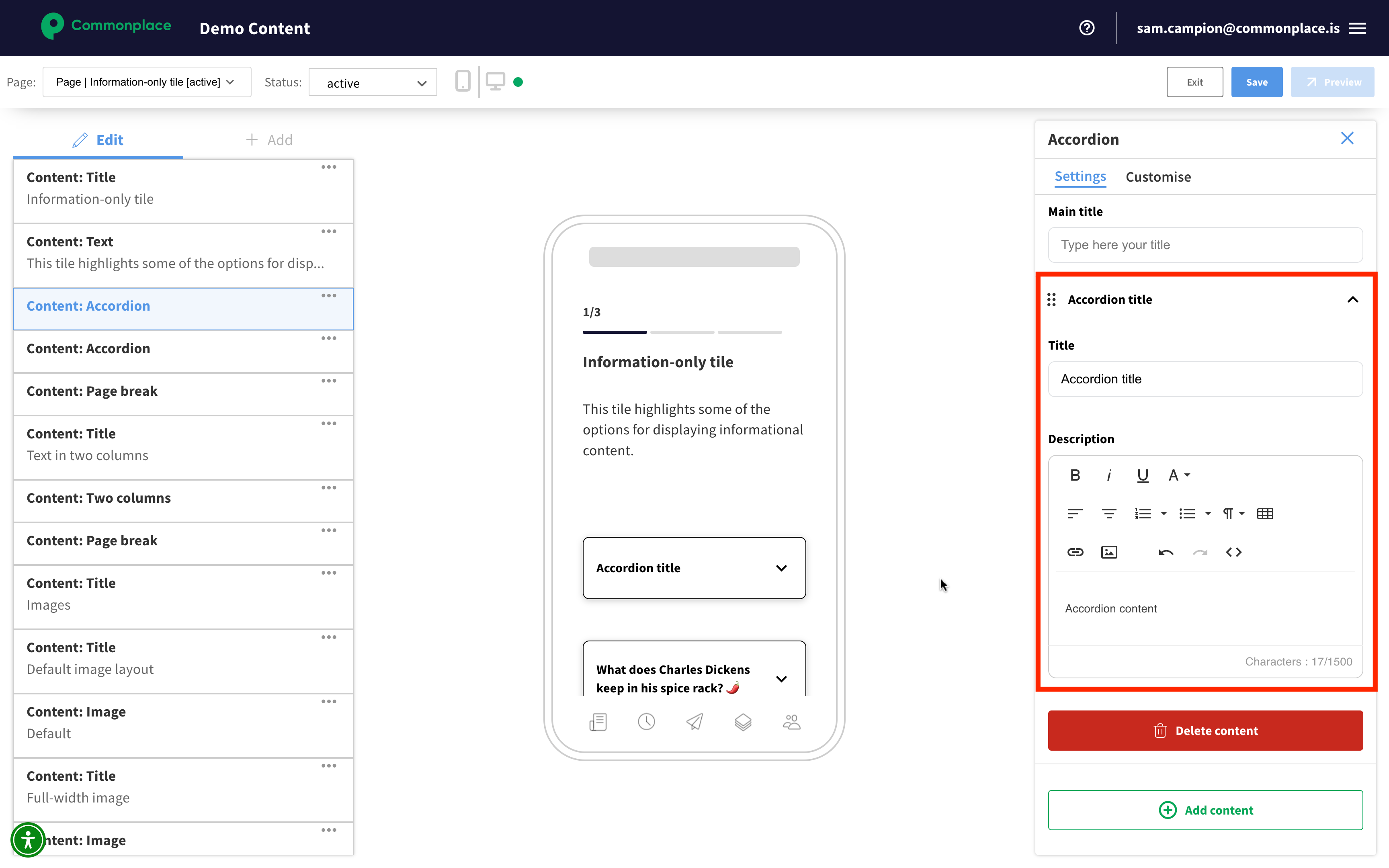
You can add further sections using the 'add content' button
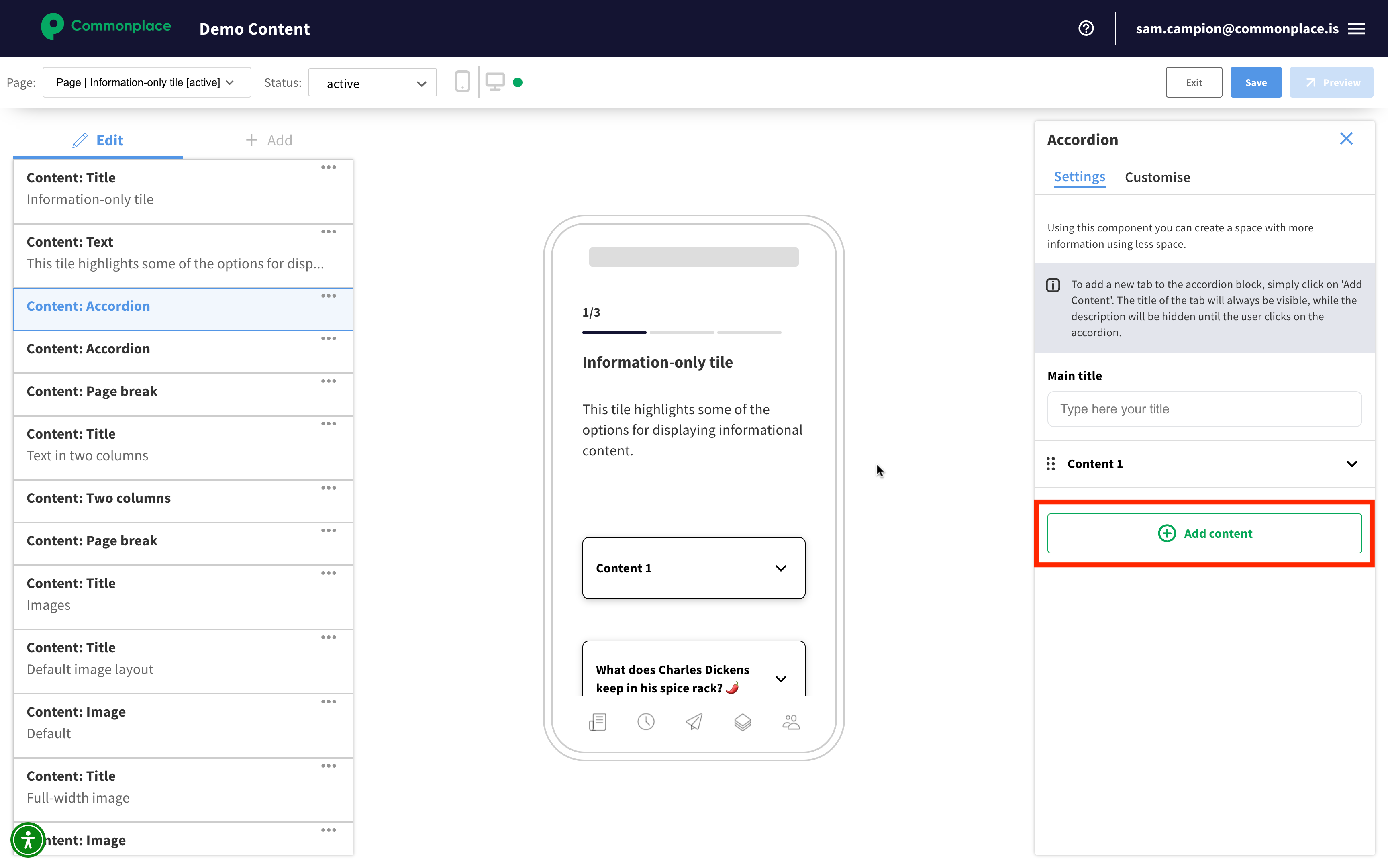
You can also delete sections, and re-order them by dragging and dropping them
Once you've finished editing, remember to save your changes by clicking the blue 'save' button.
Still unsure about anything? There's lots more information here on the Commonplace Help Centre - alternatively, contact the support team and we'll be happy to help 👋
