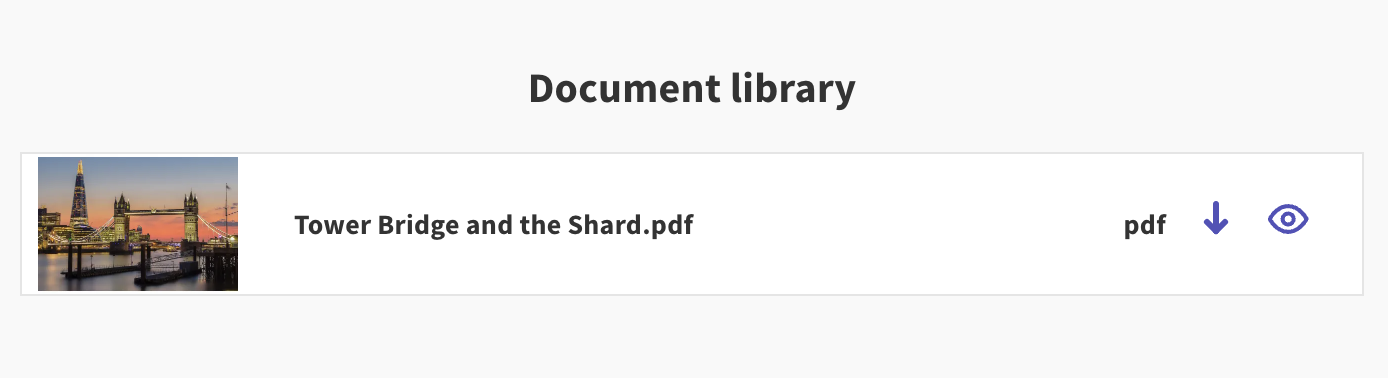
Above: An example of a PDF Library
A PDF Library allows you to upload documents which users can then download or view in their browser.
Some examples include exhibition boards, plan drawings, newsletters, and so on.
One of the key benefits of including a PDF Library is that it allows you to highlight the most important, engaging content on your tile - whilst still allowing those who want to take a deeper dive into the information to do so by viewing the PDFs.
PDFs uploaded through the PDF Library are limited to a file size of 40 MB and a document name length of 187 characters. Make sure your PDF has a clear, easy to understand name (avoiding underscores, hyphens, etc.).

A PDF Library can be added on proposal tiles. To add a PDF Library, follow the steps below. If you are unfamiliar with edit mode, it may be useful to read the 'introduction to edit mode' article first.
Enter edit mode through the blue 'edit page' icon in the bottom right corner of the screen - ensure you are editing a proposal tile
Drag a PDF Library content block from the '+ add' menu into the preview
Upload your document(s)
Once you've finished editing, remember to save your changes by clicking the blue 'save' button.
Still unsure about anything? There's lots more information here on the Commonplace Help Centre - alternatively, contact the support team and we'll be happy to help 👋
