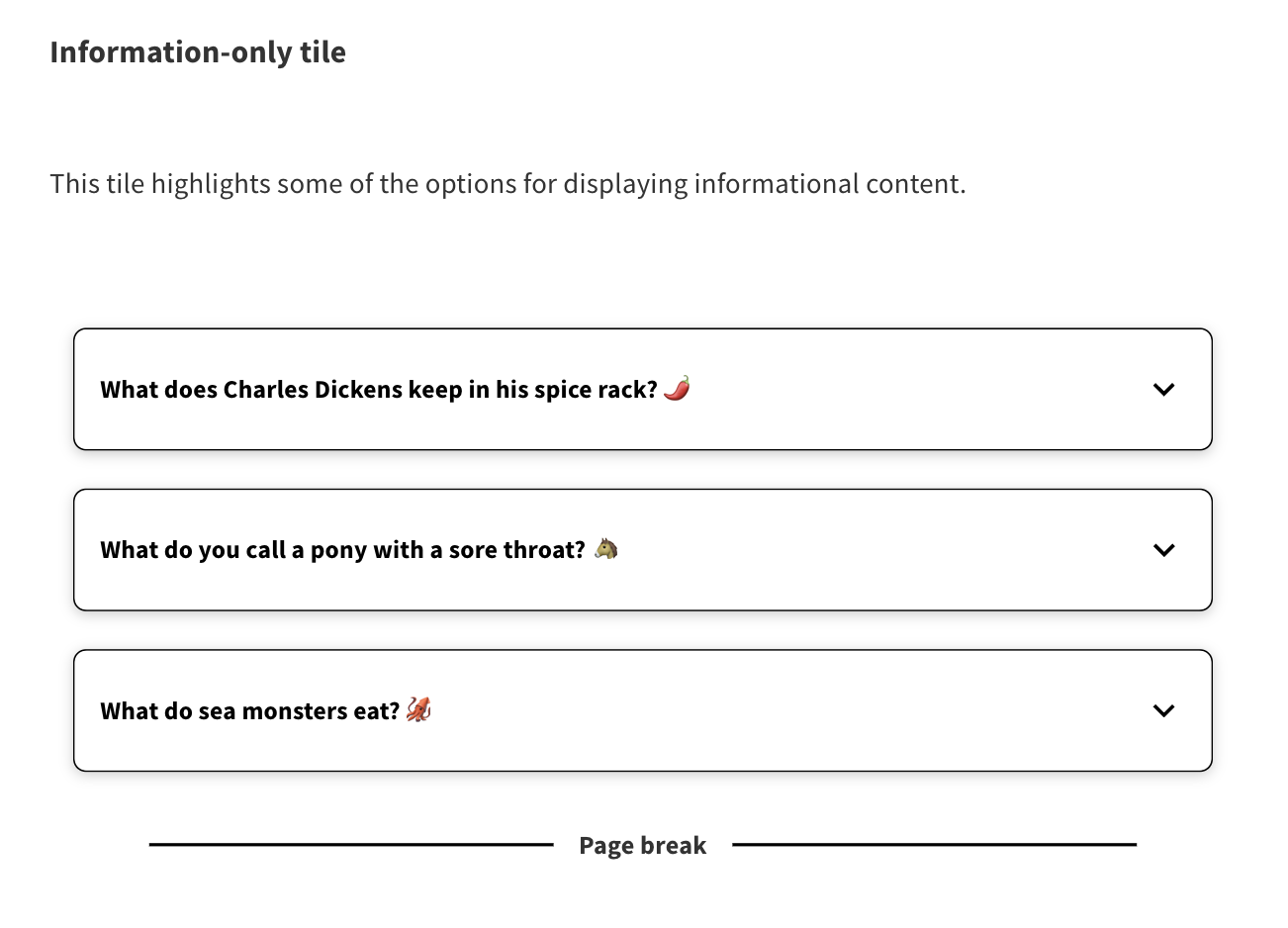
Above: Example of a page break in the edit mode preview
A page break allows you to break up a proposal tile into smaller individual steps. This can enable you to take your respondents on a journey through different themes or topics, rather than overwhelming them with a large amount of information all in one go.
Presenting your content in bite-size chunks makes it easier to absorb, and grouping content and relevant questions in a single step keeps your respondents focused on the topic you'd like them to comment about.
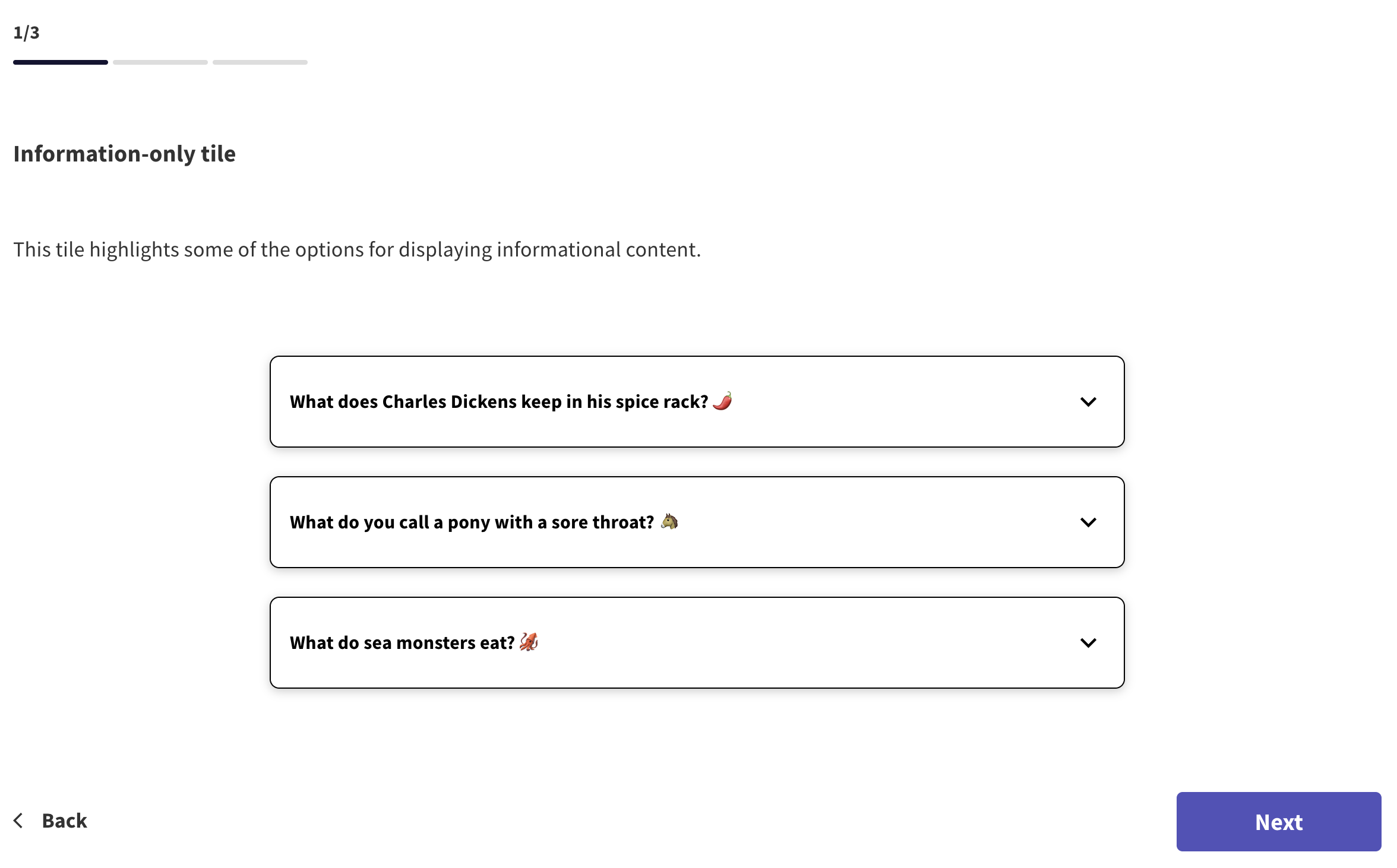
When a page uses page breaks, only one step at a time will be visible to a respondent. A progress bar will appear at the top of each step, showing which step they are on. They can proceed to the next step by clicking the 'next' button.
In edit mode, you will be able to see the content on every step all at once, separated by page break content blocks.
We suggest using no more than 7 page breaks on a single tile.
Page breaks can be added to any proposal tile. If you are unfamiliar with edit mode, it may be useful to read the 'introduction to edit mode' article first.
You can add page breaks by:
Entering edit mode through the blue 'edit page' icon
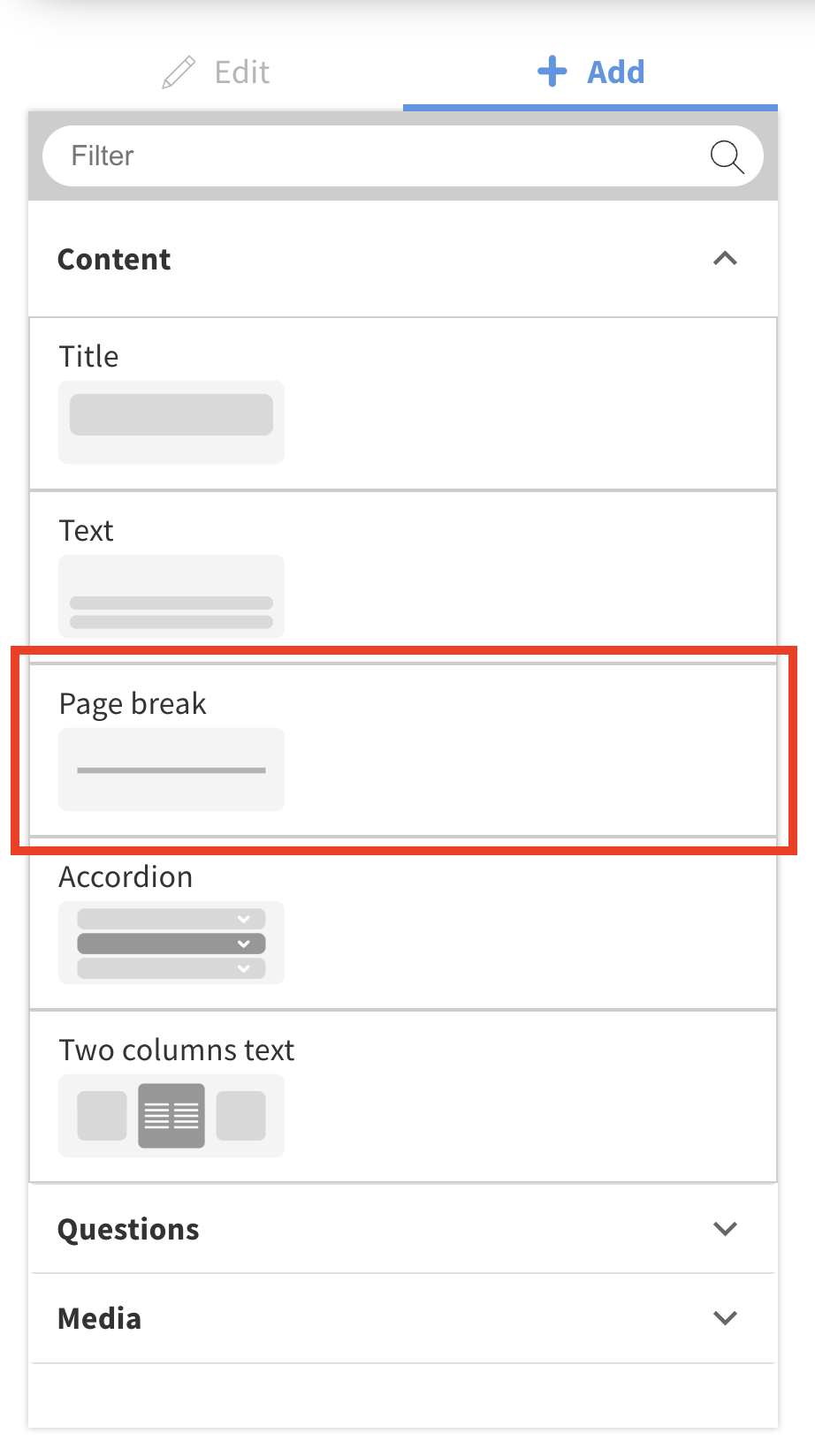
Going to the '+ add' tab in the left hand panel
Opening the content folder
Dragging a 'page break' block into the preview
Once you've finished editing, remember to save your changes by clicking the blue 'save' button.
Still unsure about anything? There's lots more information here on the Commonplace Help Centre - alternatively, contact the support team and we'll be happy to help 👋
