
The tile preview and the welcome panel are designed to present information to respondents on what your tile is about.
For a map tile, this may be information about the area your map covers, what kind of feedback you're interested in, and what that feedback will be used for.
The tile preview and the welcome panel can be edited in the 'Map info' panel in edit mode.
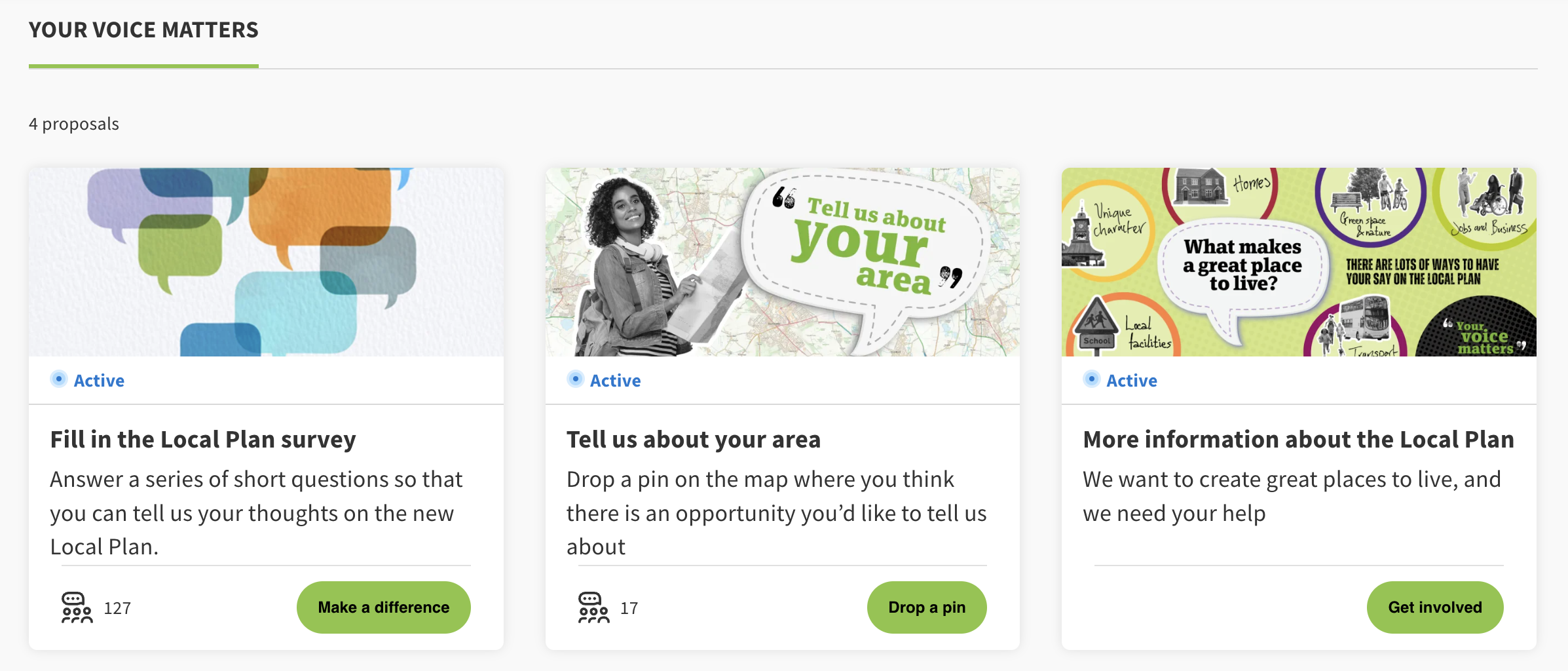
The tile preview is a small box that appears on the project homepage and in the 'all tiles' page.
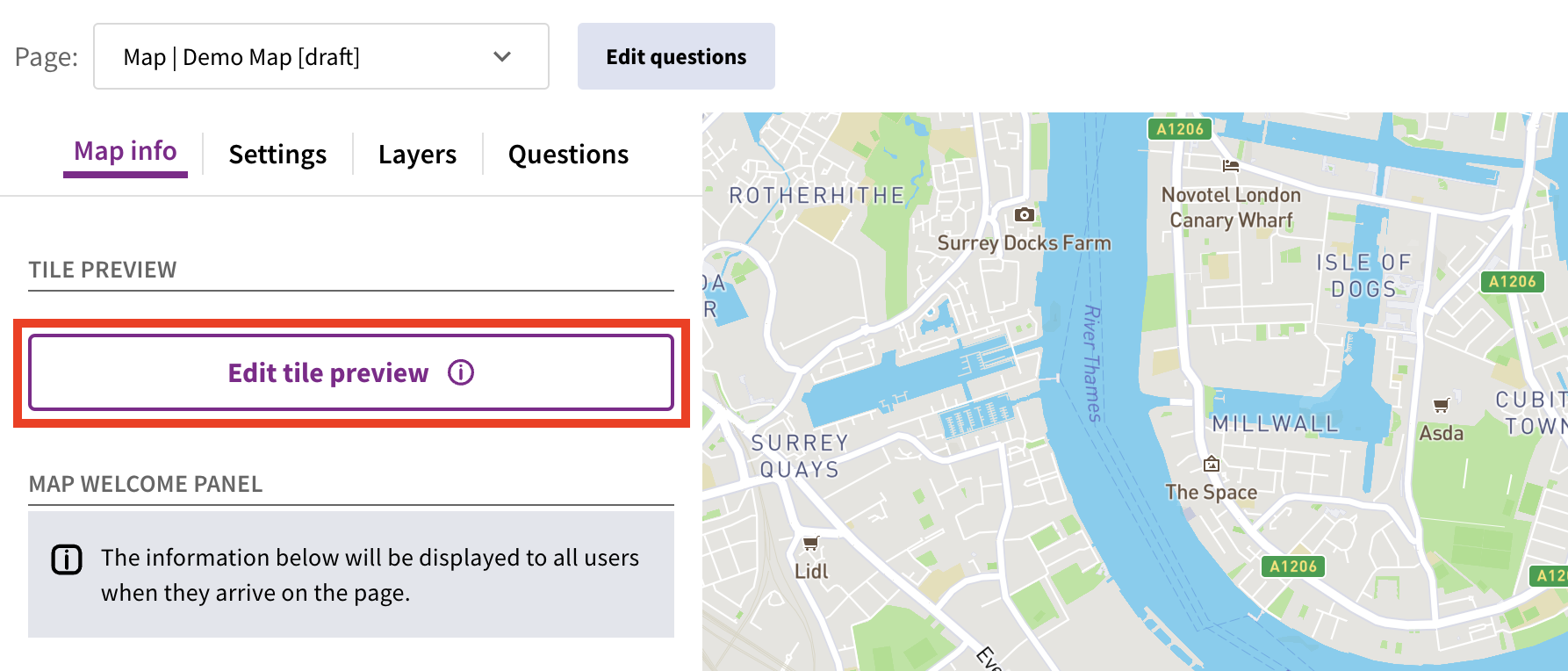
 To edit the tile preview, click 'Edit tile preview'.
 This will open a window where you can configure the following:
Name
Description
Image
Alternative text for the image
Call to action button.
You can refer to the tile preview on the right hand side to see what your tile will look like. Click 'Apply changes' to check for errors, and then 'Apply' to save.
The welcome panel appears on the left hand side of the map on desktop, or covers the whole screen on mobile. It can be hidden by a respondent once they have read it.
The welcome panel allows you to include more text than on the tile preview. You can also format the text - such as including headings, lists, etc.
Additionally, you can include a link at the bottom of the text.
Once you have populated this information, click 'Apply changes' in the top right hand corner to check for errors, and then 'Save' to save your changes.
Introduction to maps / how to create and edit a map tile
Still unsure about anything? There's lots more information here on the Commonplace Help Centre - alternatively, contact the support team and we'll be happy to help 👋
