

Maps are a powerful component of your engagement toolkit on Commonplace. Maps typically deliver much higher engagement rates than standard proposal tile-based surveys, due to their visual appeal and more interactive nature.
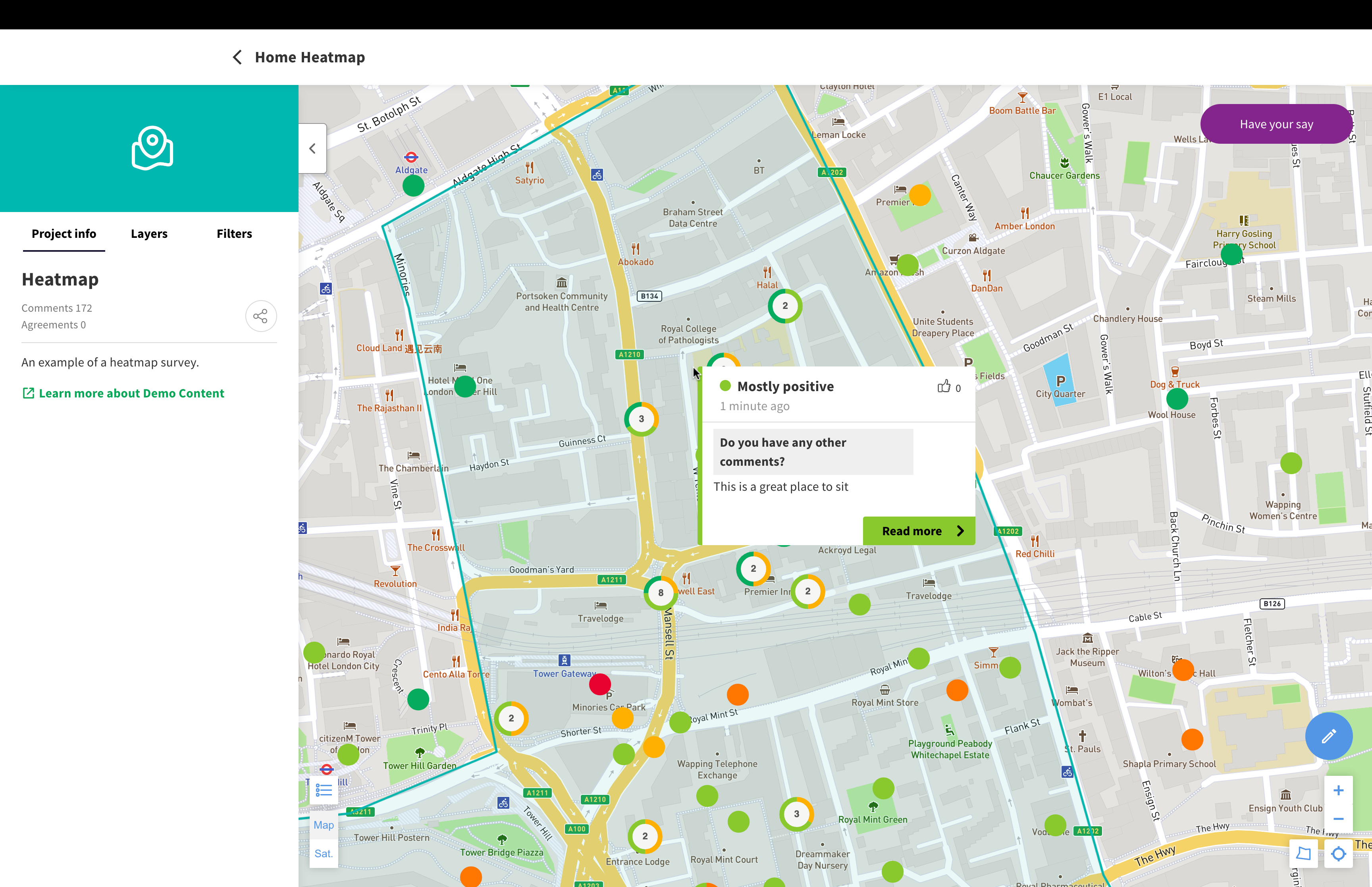
Maps have two main functions, both of which work together in tandem. Respondents are able to answer survey questions about a place on the map - but a map can also convey information using interactive elements such as map boundaries, icons and hover panels - which then informs the feedback added by respondents.
The first function is to gather community sentiment about an area. This is sometimes known as a community heatmap, because the 'sentiment' of the comments (i.e. how positive or negative they are) is displayed on the map, allowing you to build up a picture of how a community feels.
Respondents drop a pin in a particular place, and then answer questions about the place they have selected - such as how they feel about it, why they feel that way, and what could be improved.
These types of surveys usually work best when you're interested in feedback about specific locations within an area - such as, "I feel unsafe around the bus station at night because there isn't enough lighting".
For more information about how maps can be used, check out Best practice: Designing a community heatmap survey.
Maps can also be used to convey information to respondents. Layers can be added to the map using geospatial data - such as points, lines, and polygons. These could indicate individual places, routes or neighbourhoods - administrative boundaries such as wards can also be marked on the map using GIS data (such as Shapefiles or GeoJSON).
Layers on the map can also have information attached to them when a user hovers over them - these 'hover panels' can even be linked to other Commonplace tiles!
Maps can also include more advanced functionality, such as:
Image layers overlaid on maps
Map pins with icons
Map pins that can be filtered
For more information about these features, see the article below:
Advanced map functionality
Commonplace's map features are constantly evolving. This page describes latest features and outlines their benefits and limitations.
To learn how to create a map tile, see the article below:
How to add or create a new tile
Learn how to add or create new proposal or map tiles
Check out our recorded training video, covering the different map features and how to edit them.
You can also read the articles below to understand more about the different steps required to build and edit a map.
How to edit the tile preview/welcome panel on a map
How to customise the settings on a map
How to edit the legend/key on a map
How to edit the survey questions on a map
Maps have a 'validation' step before they can be saved - this checks for issues with the map, such as missing alt text or layers without names. Once you have corrected these issues, you will then be able to save.
Recorded training - Edit mode for maps
Best practice: Designing a community heatmap survey
Still unsure about anything? There's lots more information here on the Commonplace Help Centre - alternatively, contact the support team and we'll be happy to help 👋
