
Maps are a great tool for collecting feedback about an area. To understand more about how maps can be used, check out the Introduction to maps / how to create and edit a map tile article.
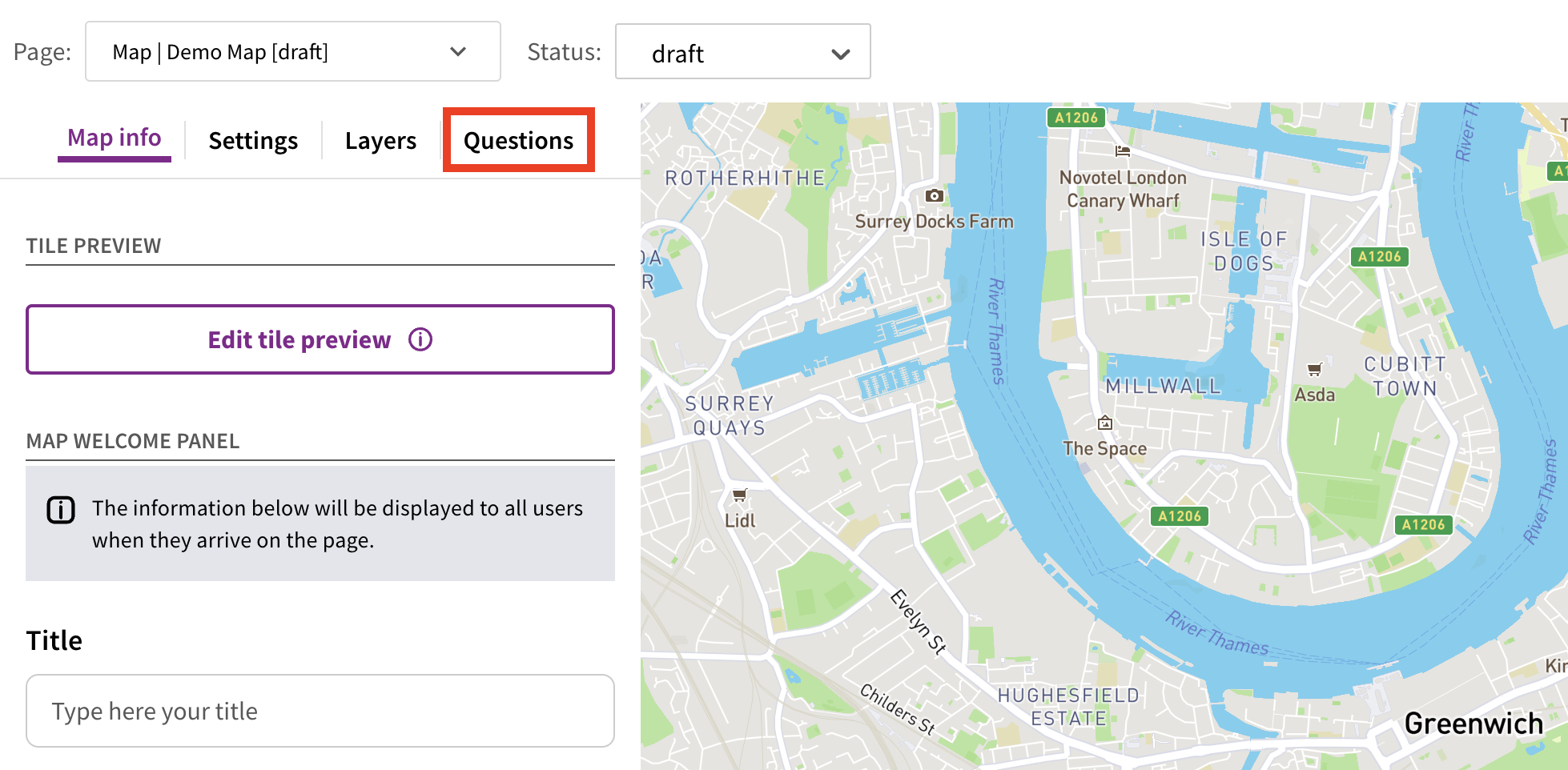
To add survey questions to a map, click the 'Questions' tab. This will open a new page where you can add or edit your survey questions.
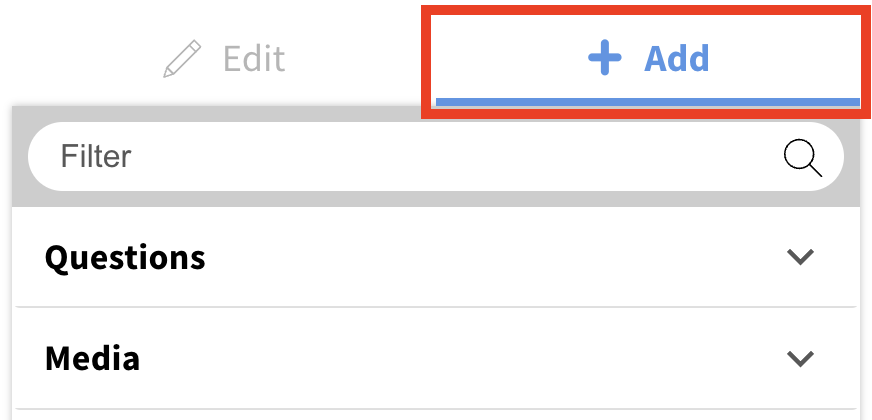
To add questions, drag them from the 'Add' tab into the preview.
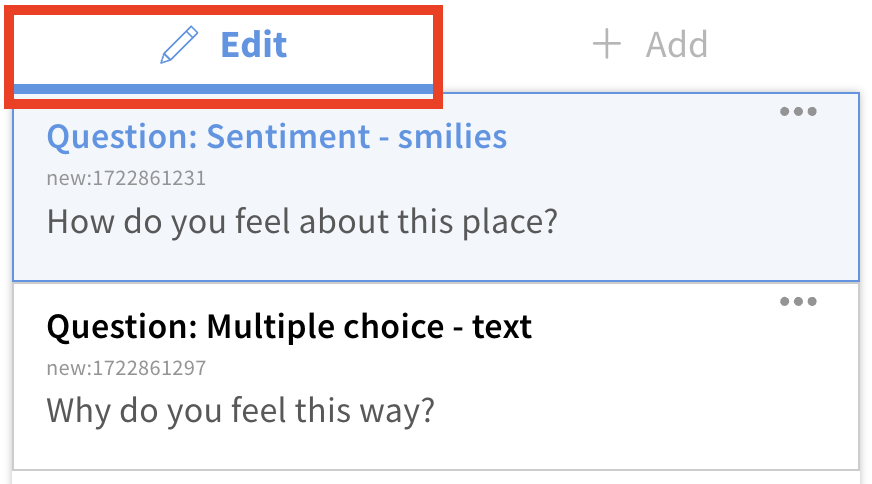
Questions can then be edited, re-ordered, duplicated or deleted from the 'Edit' tab.

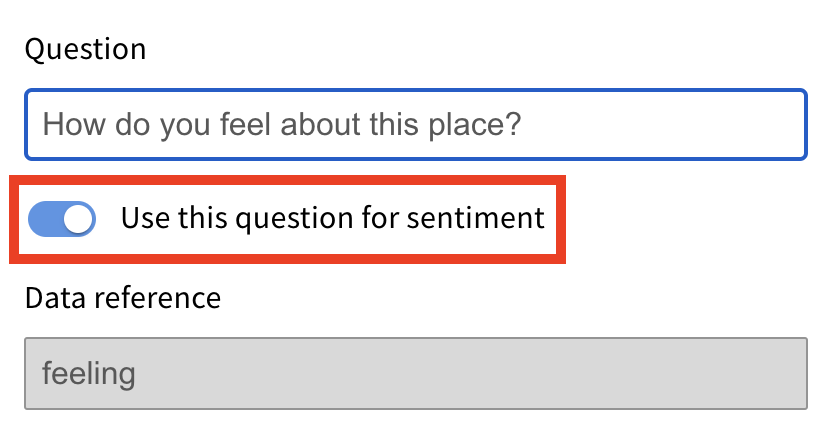
A 'sentiment question' is a special question that usually defines the colours of the contributions on the map. Sentiment questions can be either a smiley face scale or a numerical scale. A map survey can have multiple smiley face scale or numerical scale questions, but only one can be the sentiment question.
Generally, the sentiment question will ask something like 'How do you feel about this place?'. A user's response to this question will dictate the colour of their contribution on the map, on a traffic light colour scale (green being very positive, amber being neutral, red being very negative).
To mark a question as the sentiment question, toggle the 'Use this question for sentiment' switch on.
For further guidance on what questions to ask and how to structure them, check out our best practice article.
Best practice: Designing a community heatmap survey
Learn how to design a high quality, engaging community heatmap survey
Yes, maps must have a sentiment question. However, it's not mandatory to use the traffic light colours for the pins. Two other options are available:
Maps with neutral coloured pins
This option makes all the pins on the map the same neutral colour (usually purple).
Maps where users can comment with an icon
With this option, a contribution on the map appears as a custom SVG icon instead of a flat circle with traffic light colours. The SVG icon shown is dictated by the answer a user provides to a multiple choice question.
For more information about these features, check out the Advanced map functionality.
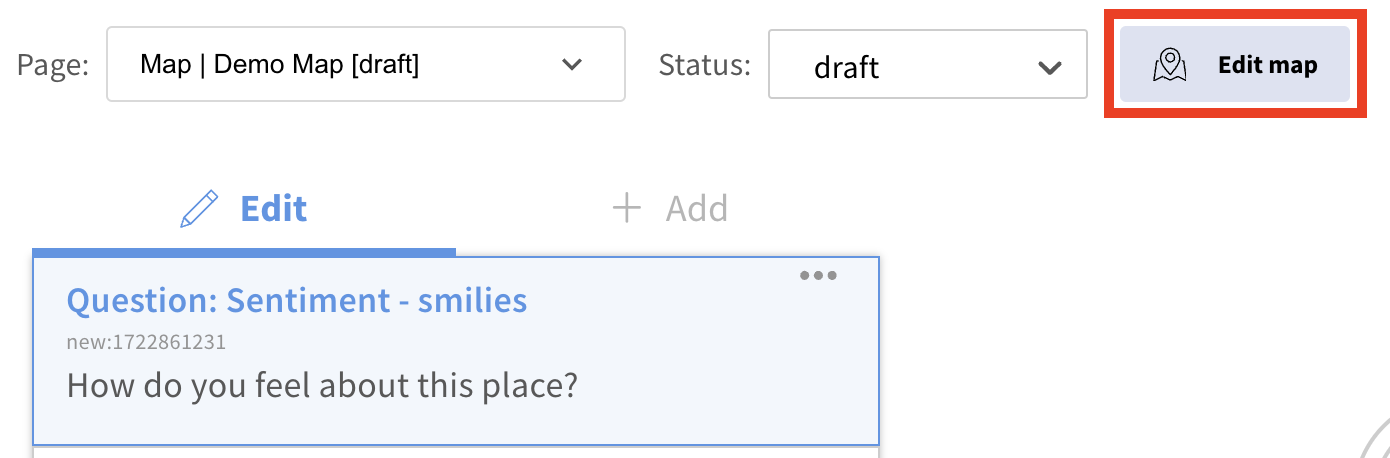
Click 'Apply changes' to check for errors and then 'Save' to save your changes. To return to editing other parts of the map, click the 'Edit map' button in the top bar.
Introduction to maps / how to create and edit a map tile
Best practice: Designing a community heatmap survey
Still unsure about anything? There's lots more information here on the Commonplace Help Centre - alternatively, contact the support team and we'll be happy to help 👋
