
The legend (also known as the key) appears as an icon in the bottom right corner of the map. Clicking the icon opens the legend panel. It helps your respondents understand the different layers on the map and what they represent.
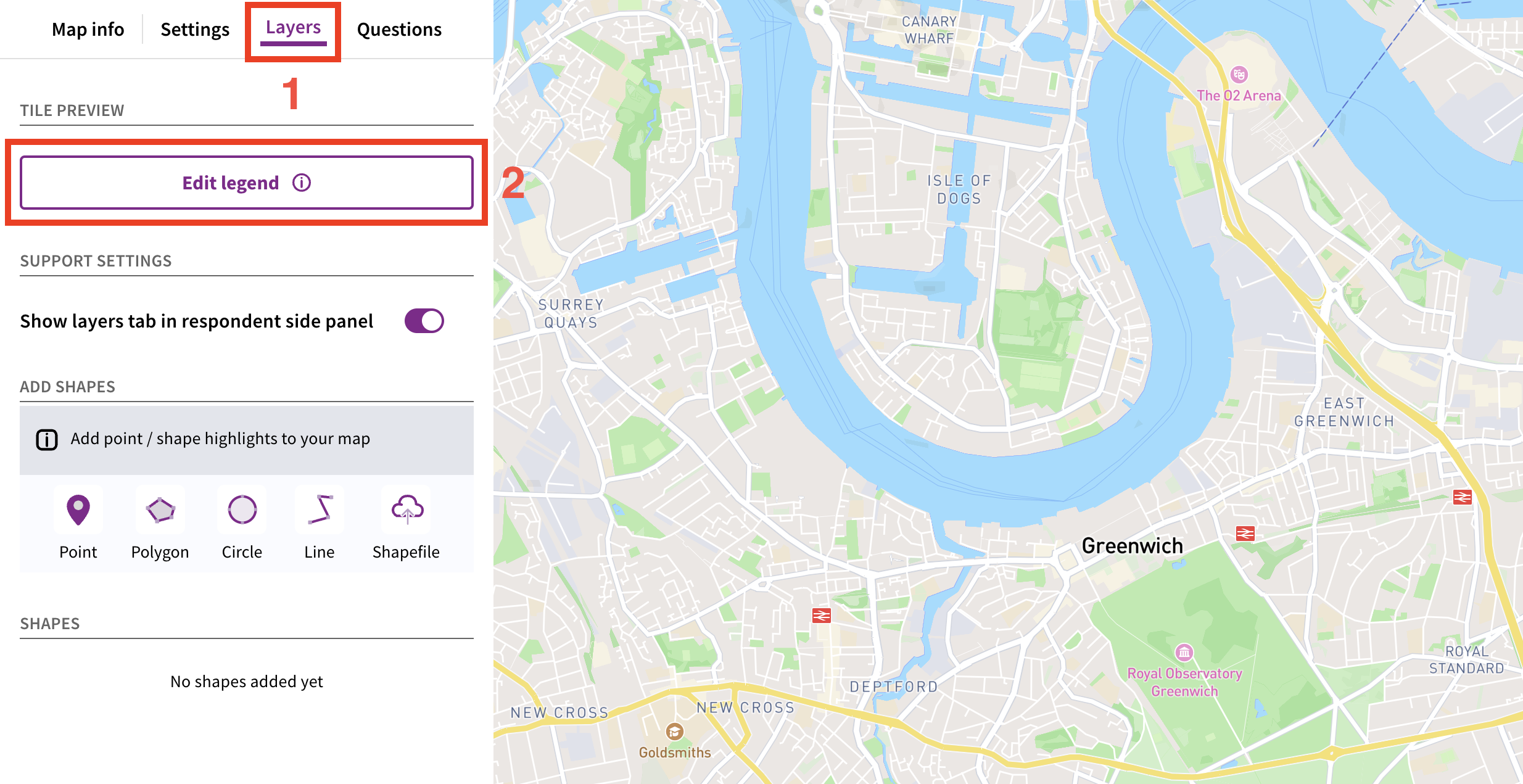
To edit the legend on a map, open edit mode and select the 'Layers' tab. Then, click 'Edit legend'.
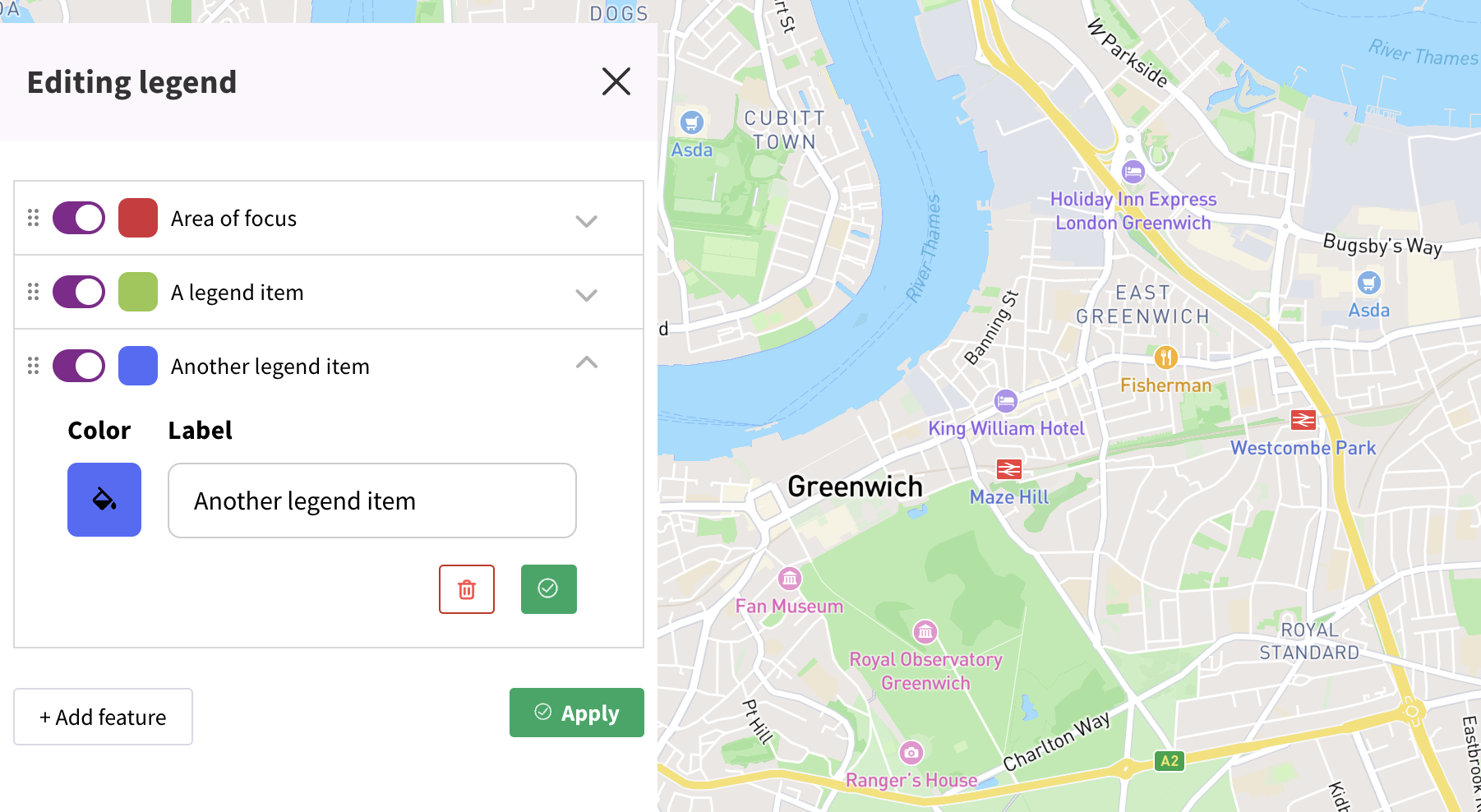
 Click 'Add feature' to create new items in the legend. Items in the legend can be re-ordered by dragging and dropping them, or hidden by clicking the toggle button.
Click on an item in the legend to edit it - you can change the name and the colour. You can either choose from an existing palette of colours, or click the paint bucket icon to choose a custom colour.
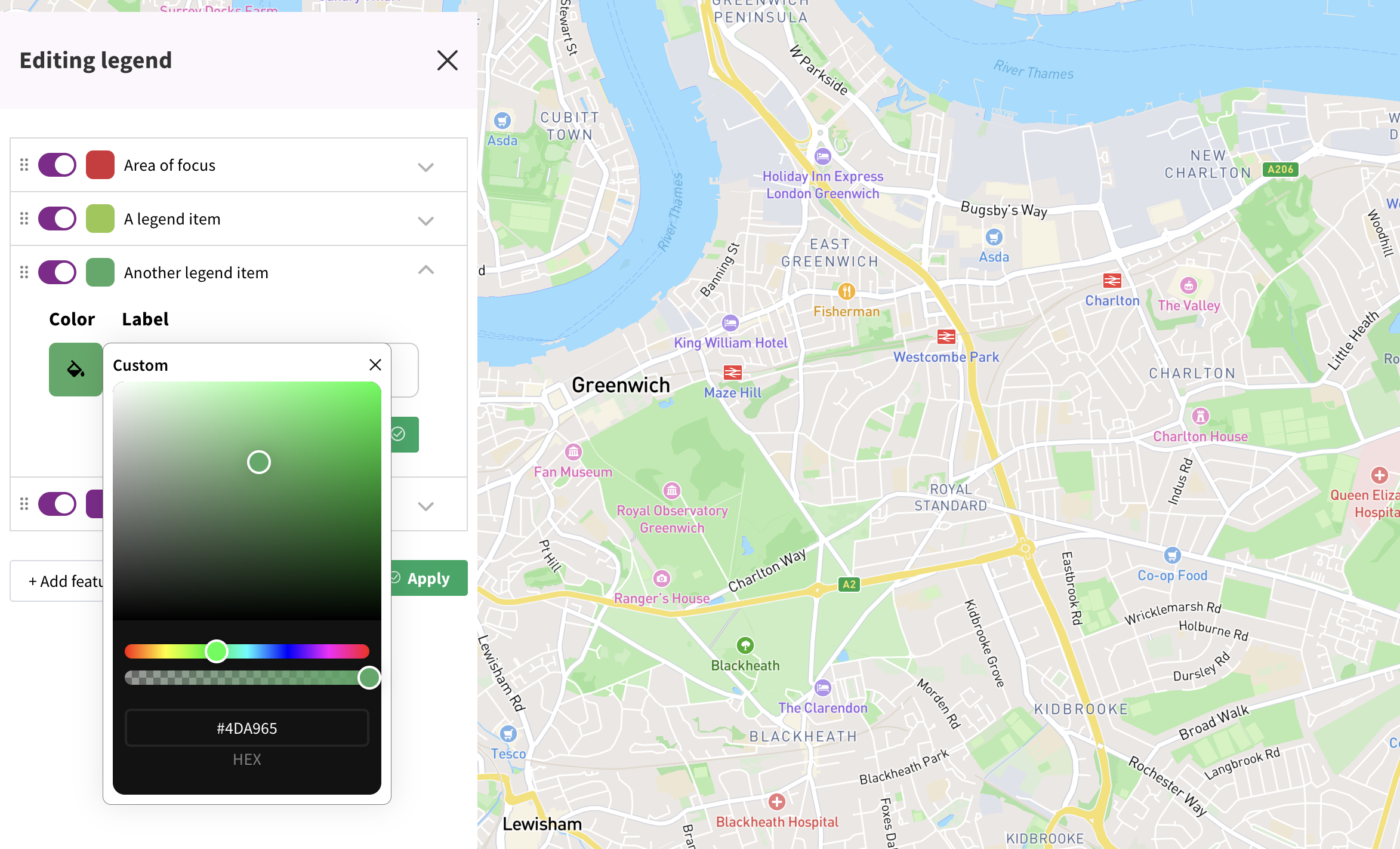 Click the 'Apply' button to save your changes in the legend.
Ensure you click 'Apply changes' in the top right hand corner to check for errors, and then 'Save' to save your changes.
Introduction to maps / how to create and edit a map tile
Still unsure about anything? There's lots more information here on the Commonplace Help Centre - alternatively, contact the support team and we'll be happy to help 👋
