
Maps have various settings to allow you to customise how the map functions. To access the settings for a map, open edit mode and select the 'Settings' tab.
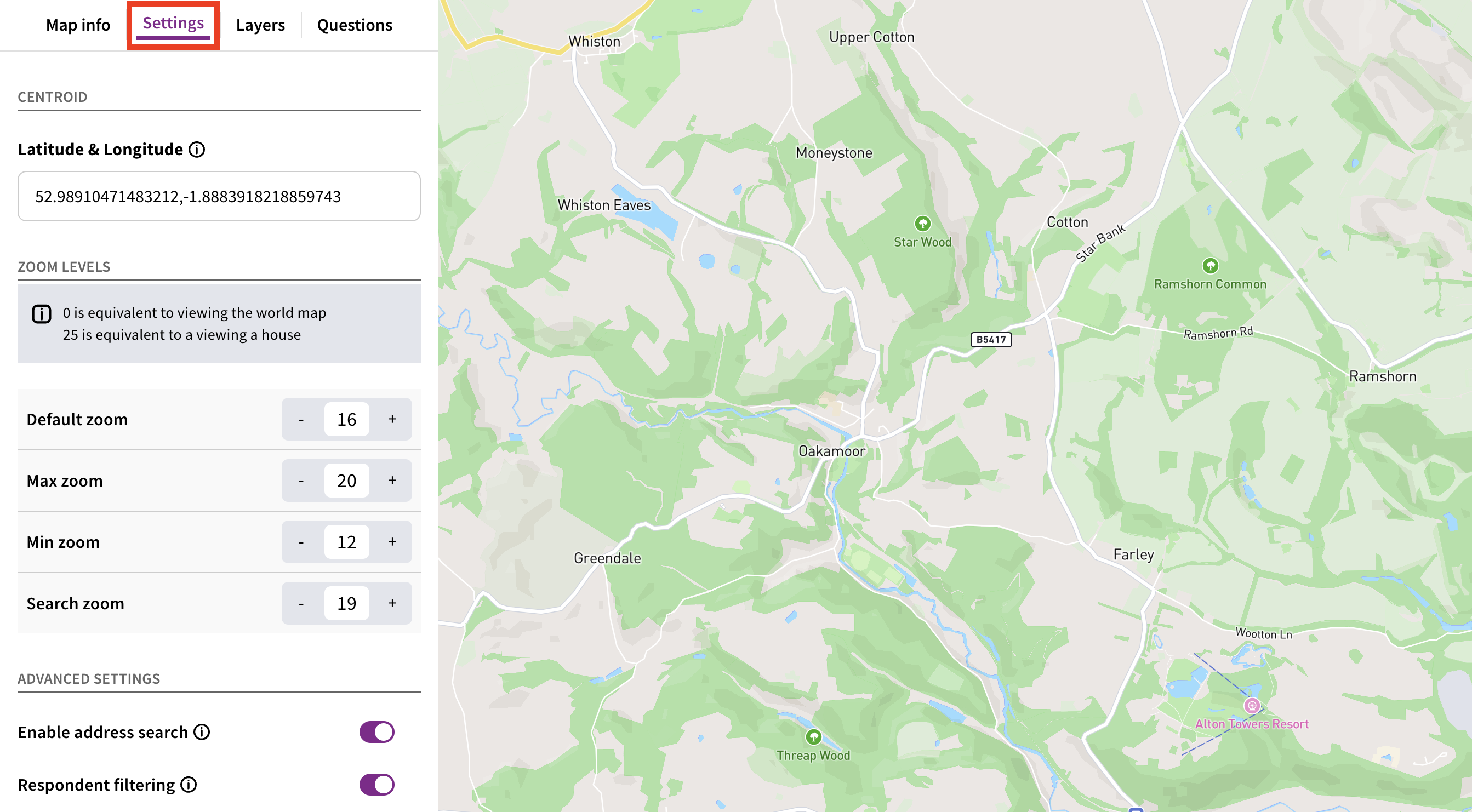
The centroid/latitude & longitude dictate the centre point of a map - in other words, the location where your map is positioned when someone first opens it.
The easiest way to update the centroid of your map is to go to Google Maps - right anywhere on the map and a menu will appear. The first thing in that menu will be the latitude and longitude of the point you selected - click the latitude and longitude to copy them to your clipboard.
Next, we need to insert the latitude before the comma and the longitude after the comma. You may find it easiest to paste the latitude and longitude you copied somewhere else - like a word doc, or a notes file - and then paste them into the 'Latitude & Longitude' field one by one.
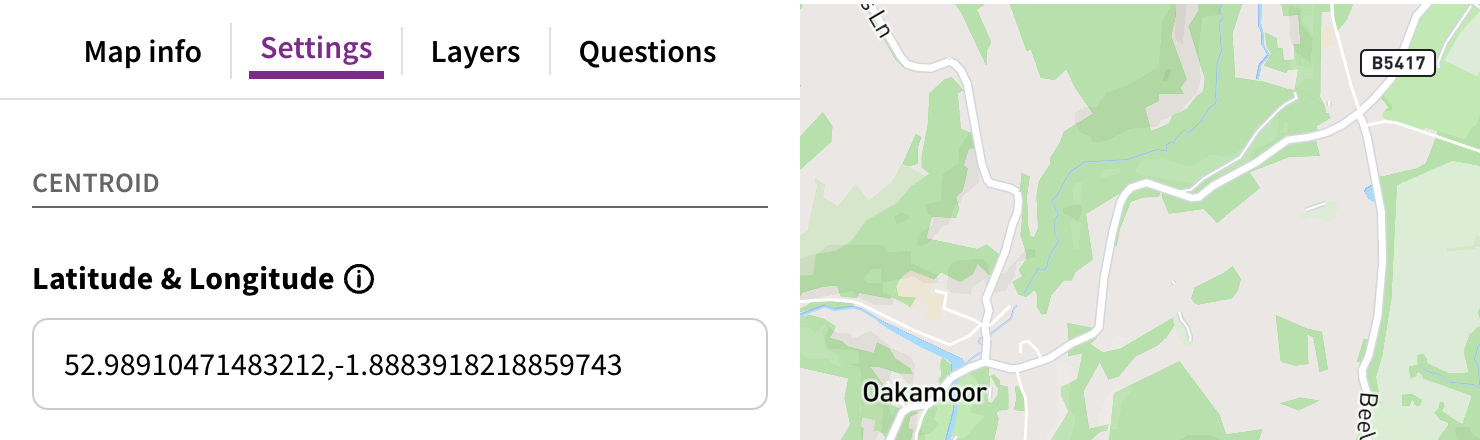
Zoom levels control how far in or out a map can be zoomed, as well as the default zoom level when someone first opens the map.
Zoom levels are dictated by a number between 0 and 25. Decimals can also be used - e.g. 12.5. Higher numbers are more 'zoomed in', while lower numbers are more 'zoomed out'.
As a general rule of thumb:
A zoom level of 12 might cover a whole city
A zoom level of 18 might cover a few streets
A zoom level of 25 might cover a single building
There are four zoom levels that can be customised.
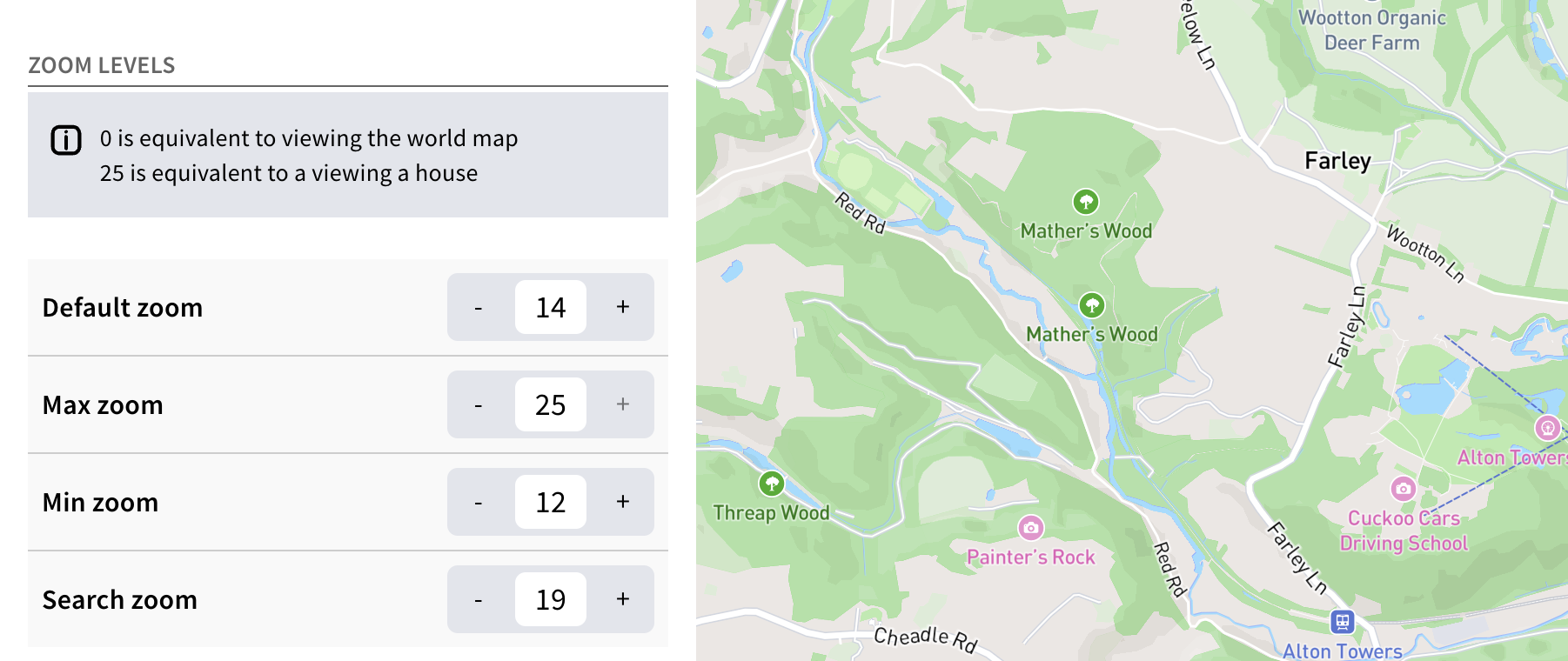
This is the initial view that respondents will first see when they visit a map. Bear in mind that on mobile devices the zoom level will be the same, but less of the map will be visible due to the smaller screen size. Ideally the default zoom level should leave any layers on the map (such as boundaries) clearly visible.
This dictates the maximum extent to which the map can be zoomed in. The maximum possible value is 25, but we generally advise setting this no higher than 20.
This dictates the maximum extent to which the map can be zoomed out. The minimum possible value is 0, although we generally advise setting this a couple of zoom levels below your default zoom level - e.g. if the default zoom level is 12, set your minimum zoom level to 10. This discourages respondents from travelling too far from the centre point of your map.
If the 'Address search' feature is enabled (see below), this setting dictates the zoom level when someone uses the address search bar. 18 or 19 are typically the best value for this setting.
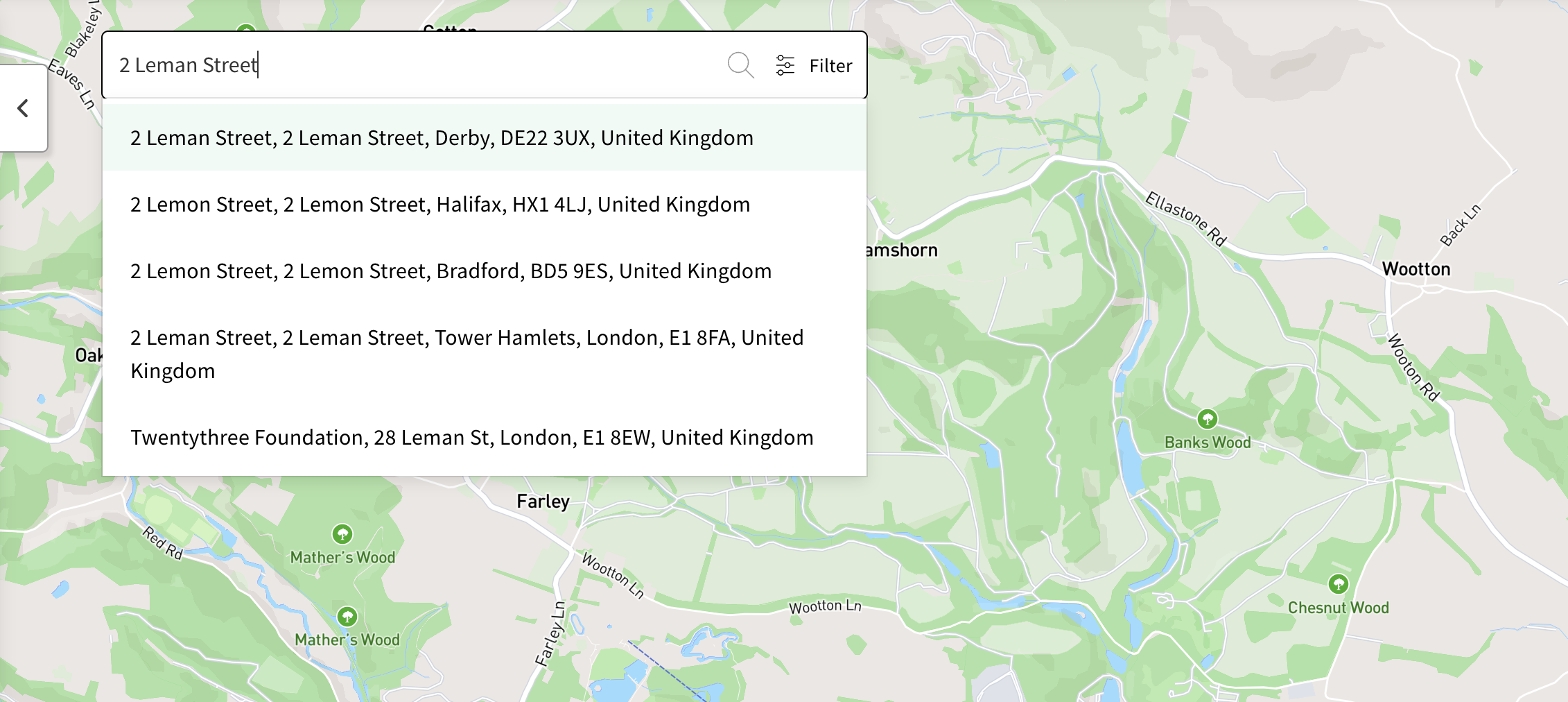
This setting enables a search bar on the map - respondents can type in an address or postcode, which will autocomplete. Selecting an address from the dropdown will move the map to that location, at the zoom level dictated by the 'Search zoom' setting (see above).
This setting enables a new tab in the left hand panel called 'Filters'. From here, respondents can filter the map - such as by showing or hiding comments of a particular sentiment.
Introduction to maps / how to create and edit a map tile
Still unsure about anything? There's lots more information here on the Commonplace Help Centre - alternatively, contact the support team and we'll be happy to help 👋
