It is possible to reply to respondents’ comments as an administrator of your Commonplace website. There are 2 methods: the first is from the Contributions Screen, and the second is via the Dashboard.
Step-by-step guide on how to reply to a comment via the Contributions Screen:
Start by clicking on the number of comments in the survey tile:
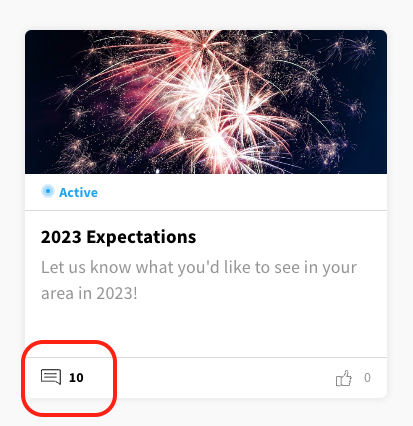
or
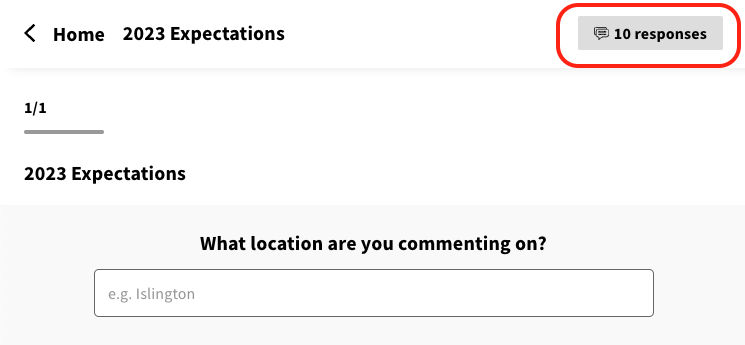
Scroll down to a comment and click on the Reply button:

Some details will populate automatically and you have the option to add your email address:
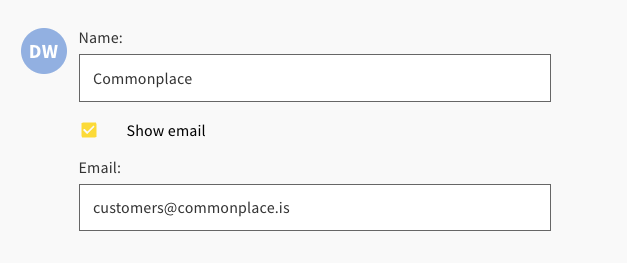
Select whether the reply will be public or private:
Respond to this comment publicly- Engagement team response can be seen by anyone and an email is sent to the individual who added the comment and anyone who agreed with the comment.
Respond to this comment privately- Response is not shown publicly and only the author of the comment is sent an email with the reply.
Add your reply and press Send:
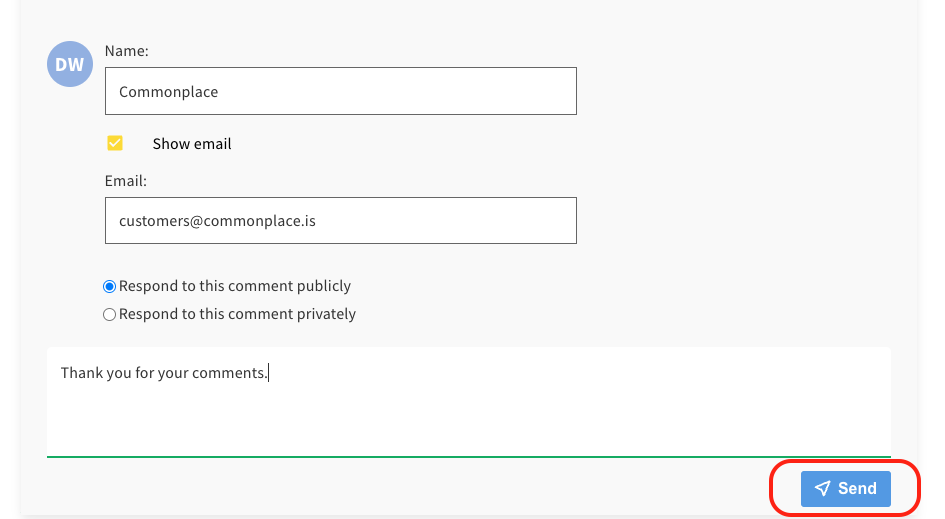
If the respondent has consented to receive replies they will get notified by email.
Step-by-step guide on how to reply to a comment via the Dashboard
On to the top right-hand menu, select Dashboard.
Expand the pane on the left hand side of the webpage as shown in the image and video below.
Click on Contributions on the left hand side.
You can reply to comments of respondents that have consented to ‘comment replies’ in the preferences page of your Commonplace website, and you will see it as comment responses under the Consents column on the dashboard.

Choose a comment you would like to reply to and see if the respondent has consented to being contacted. If the respondent has consented to being contacted, click that comment and you will be presented with a webpage within the dashboard for replying to comments where you can choose if you would like your reply to be public or private. Select your preferred option:
Respond to this comment publicly- Engagement team response can be seen by anyone and an email is sent to the individual who added the comment and anyone who agreed with the comment.
Respond to this comment privately- Response is not shown publicly and only the author of the comment is sent an email with the reply.
A text box is provided as shown in the image below where you can compose your response. Once you have filled this out, click the Send button to submit your reply.
For private and public replies, this will be displayed like the example in the image below.
Related articles
Using groups to contact specific audiences
Further support
Still unsure about anything? There's lots more information here on the Commonplace Help Centre - alternatively, contact the support team and we'll be happy to help 
