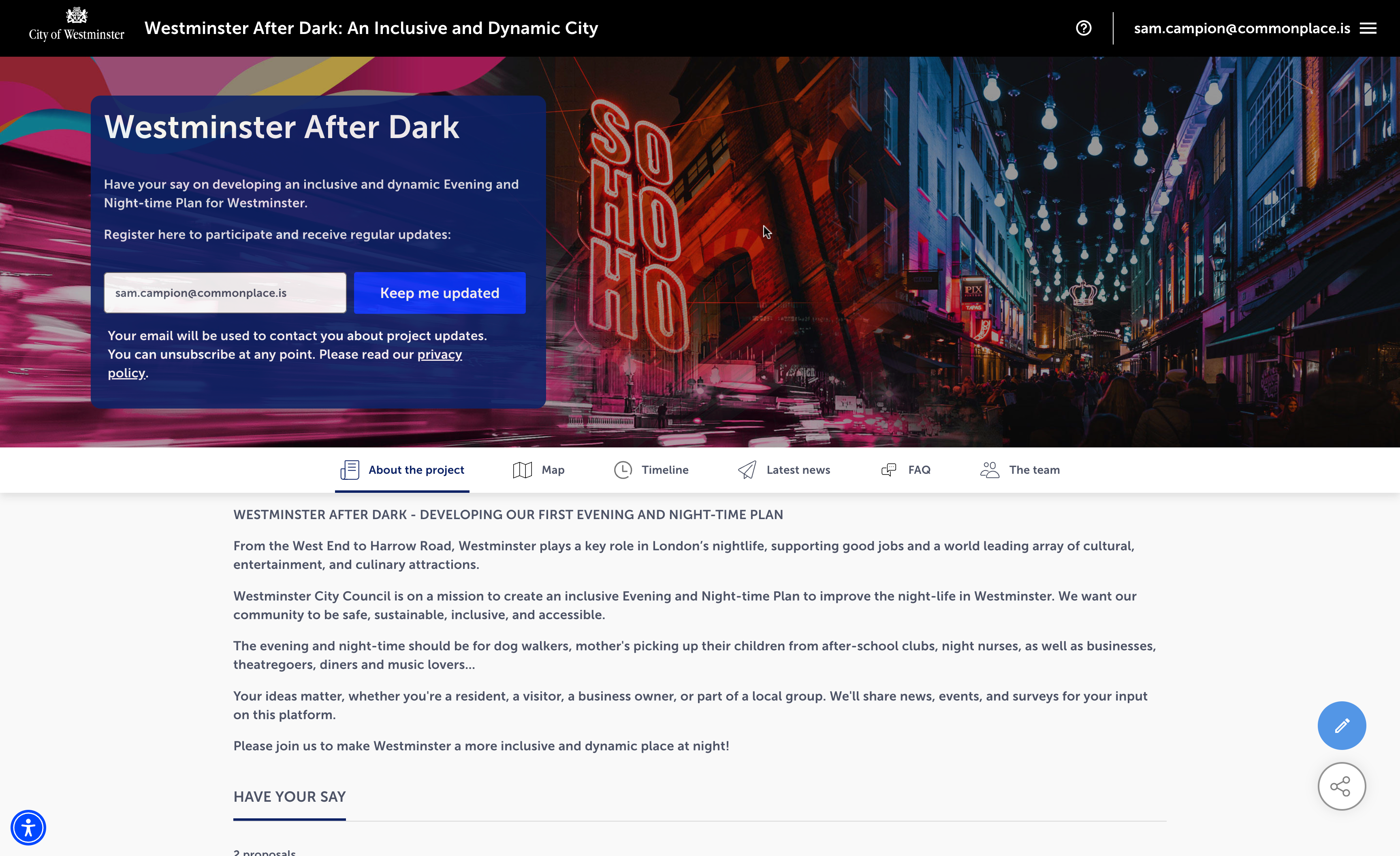
Above: An example of the home page
The home page (sometimes called the landing page) is typically the first page a user will arrive on when they visit your site.
This makes the home page one of the most important pages to get right - a good home page will boost your response rate, whereas one that is overly complex will lose people's attention before they decide to take part.
Here are a few things to think about when it comes to designing a good home page:
Is it clear what your project is about?
Your text should clearly explain the key focal areas of your project. If your project is about a specific area or location, your home banner image should be a recognisable landmark
Is it concise and easy to understand?
Avoid using jargon or too much text, as these are both likely to lose a user's attention
Is there a strong call to action?
What's the number one action you'd like a user to take on your site? Is it adding a comment? If so, a prominent 'have your say' call to action will make it clear to users what you'd like them to do
A typical home page will include the following:
This contains a headline, a short description, an image (with various layout options) and news sign-up email field.
By default this contains links to the timeline, latest news, all tiles and team pages - however it can be customised to add and remove links.
You can choose tiles from your existing set of proposal/map tiles to highlight on the homepage. The title, image and description from the tile are pulled in automatically. Tiles in the list can be re-ordered. You can also use multiple tile lists together - such as breaking your tiles down by theme, location or stage.
More information: How to display and manage tiles
This section provides you with a spot to share social media account links and a contact email address/phone number for the project team.
Milestones from the timeline page, news posts from the latest news page and logos from the team page can all be highlighted on the home page. The content from these pages is pulled in automatically.
You can also add other custom content onto the home page - such as:
Tiles linking to other Commonplace projects
Text blocks
Interactive images
If you are unfamiliar with edit mode, it may be useful to read the 'introduction to edit mode' article first.
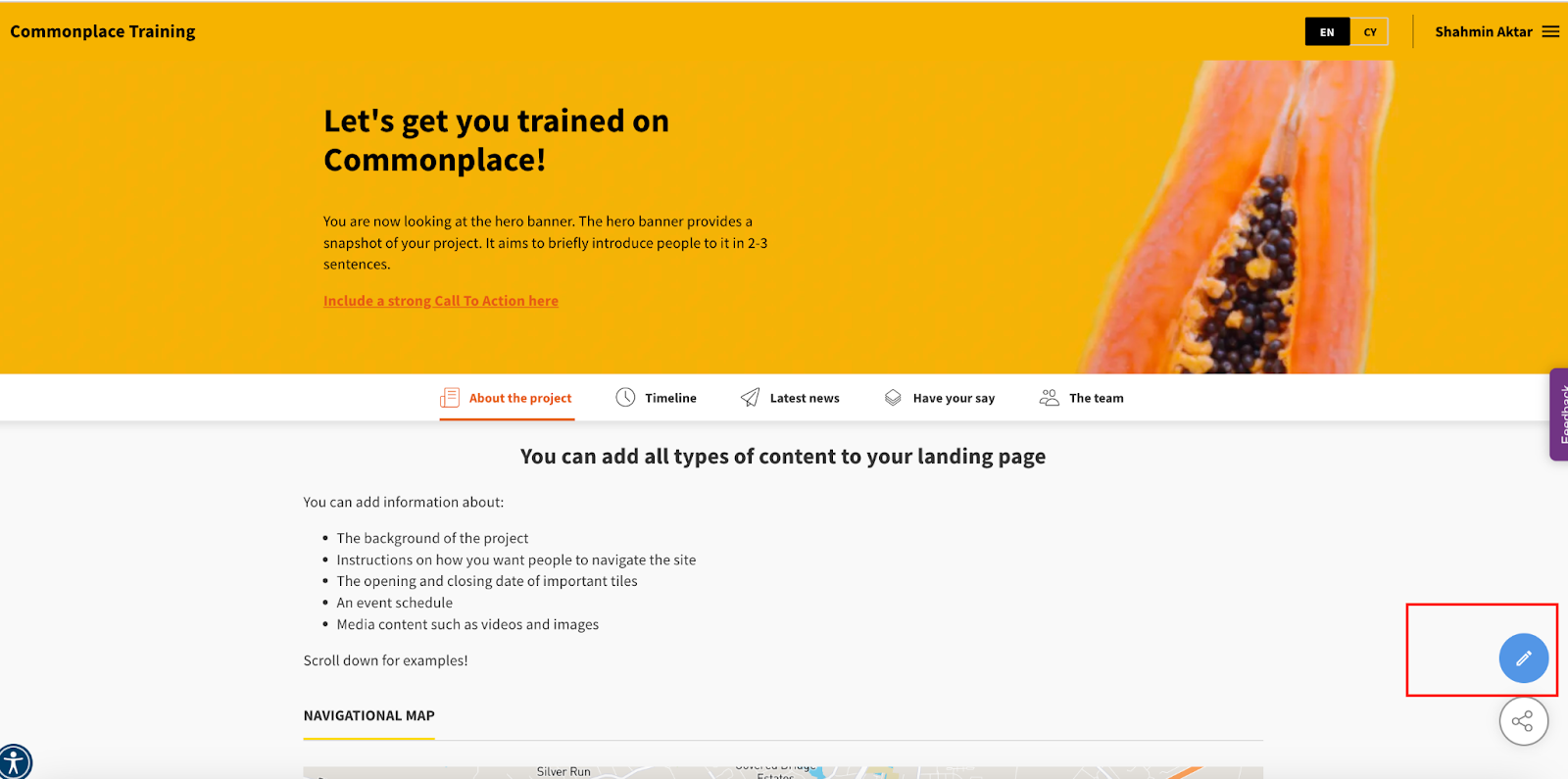
Click on the blue 'edit page' icon in the bottom right corner of the screen
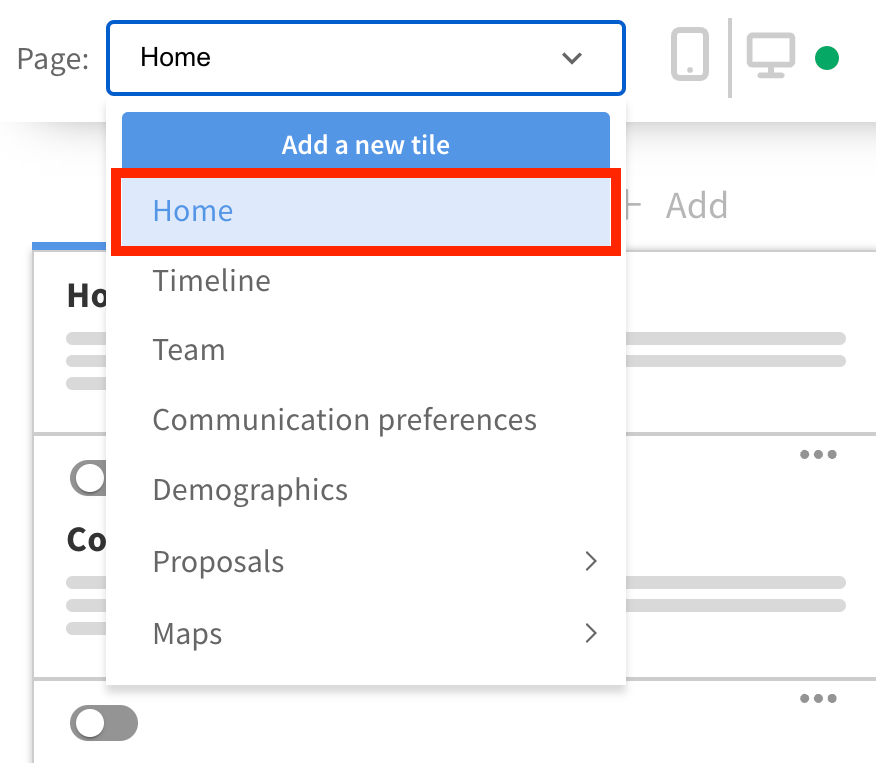
If not already on the home page, navigate to it by selecting 'home' from the 'page' menu in the top left corner
In the left hand panel is a list of content blocks on the page - you can re-order the content blocks by dragging and dropping them

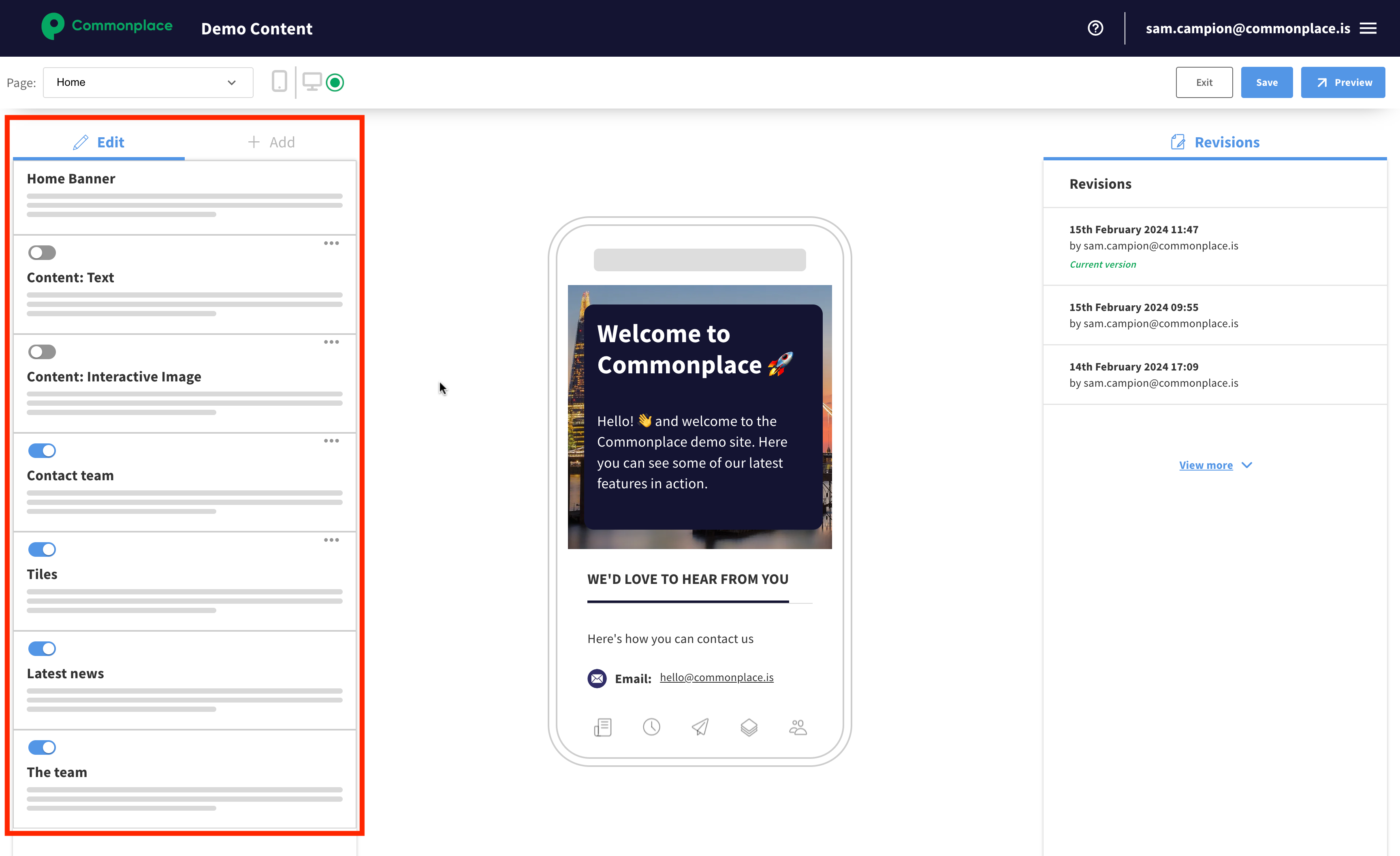
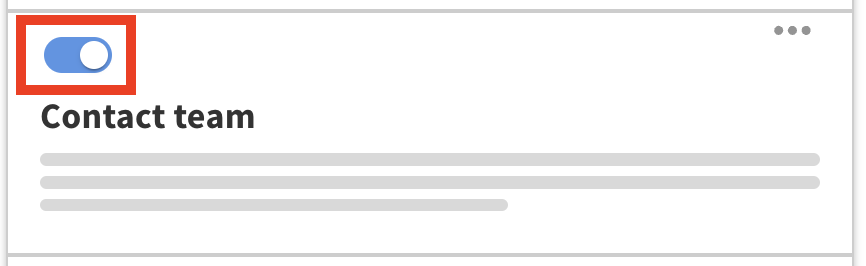
Show or hide a content block using the toggle button
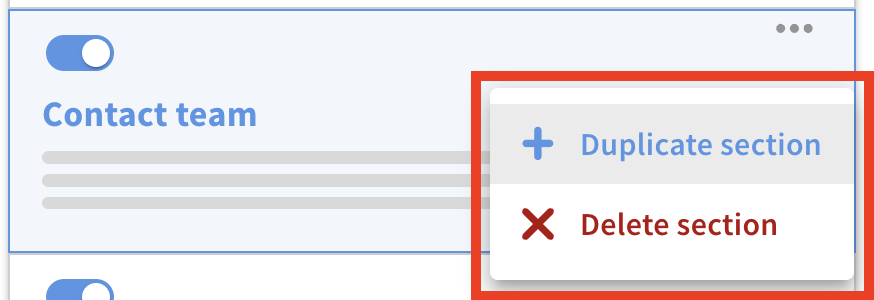
Delete or duplicate a content block by clicking the ••• button and selecting the relevant option
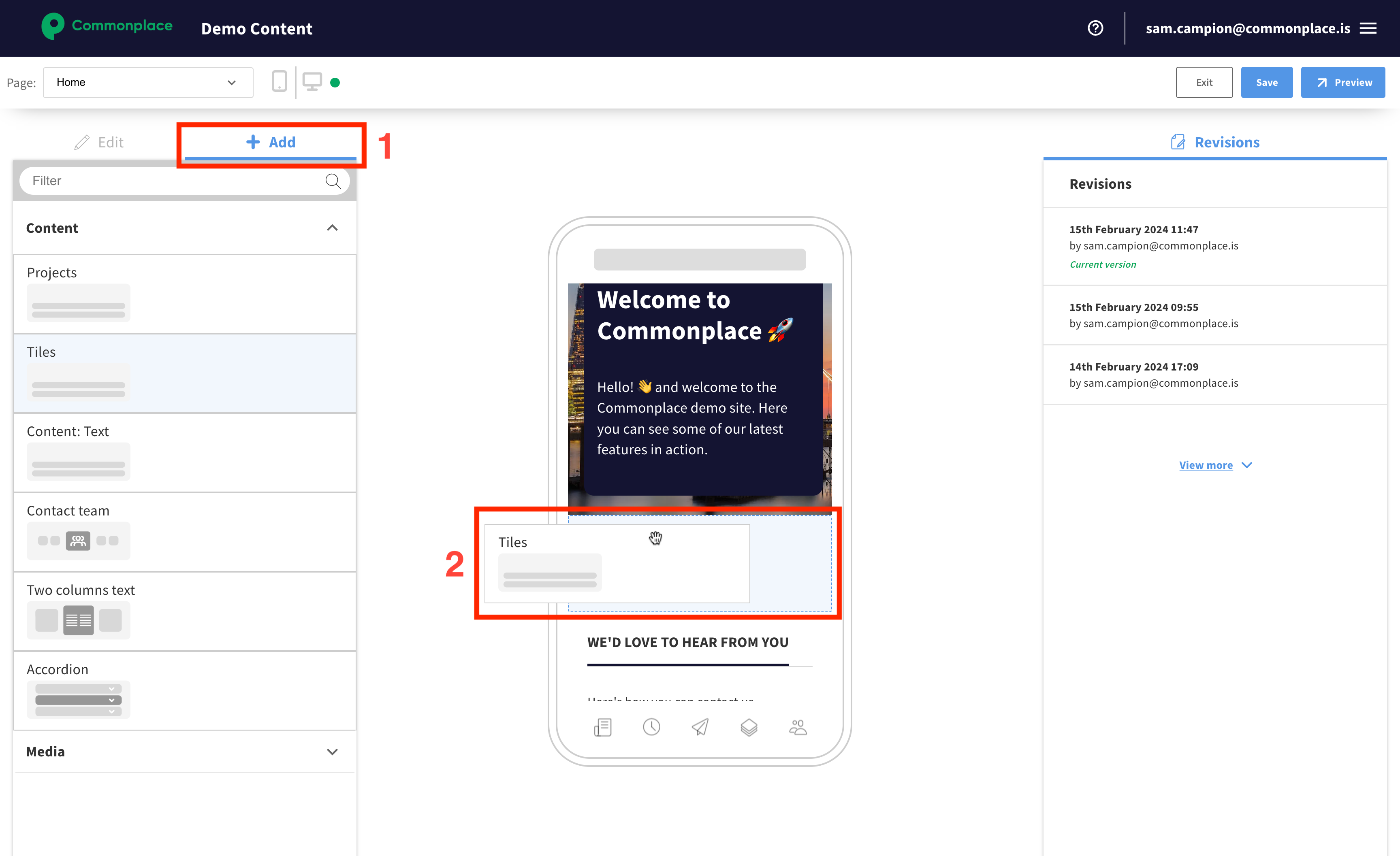
Add a content block to the page by switching the left-hand panel to the '+ add' tab and dragging a content block into the preview - a blue box will highlight the location where the content block will be added
Click on a content block in the left hand panel or in the preview - the right hand panel will show you the editing options for that content block
Once you've finished editing, remember to save your changes by clicking the blue 'save' button.
Every home page has a home banner (also known as a hero banner). Click on the content block to edit the following:
What are the recommended image dimensions?
Recommended image dimensions for high quality, engaging images
There are several options for how the text can be overlaid on top of the image - explore these under the 'display layout' section. You can also adjust the transparency of the background behind the text, and the lightness of the image.
Every project has a navigation bar. Editing it will affect all pages where the navigation bar appears in your Commonplace.
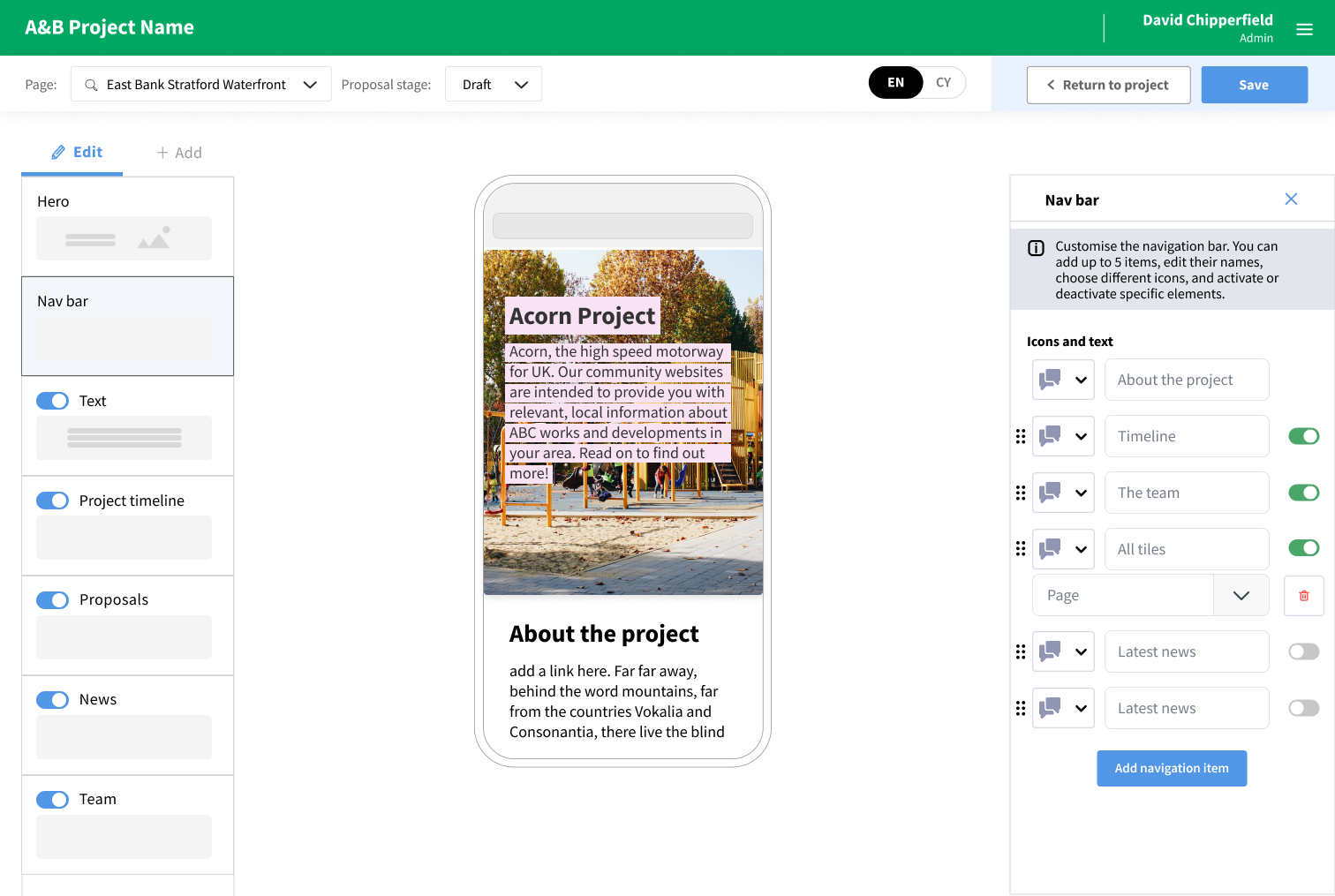
Click on the content block to edit it - you can change the order of the "tabs", their name, their icons as well as the page they redirect to. The tabs can only re-direct to Commonplace pages.
Some limits have been added to ensure that your project layout stays optimal:
Tab names can't exceed 12 characters (for accessibility on mobile)
No more than 5 tabs can be active at the same time, counting the first one (for accessibility on mobile)
Icons can only be used one (to prevent confusion)
Sometimes you may want to include custom text on your home page, beyond what's featured in the home banner - for example, you may want to highlight an upcoming workshop you're running, or cover some FAQs. To do this, follow the steps above to add a 'content: text' section. In this section, you can add text and images, as well as custom HTML if required.
The contact team section gives your users a way to get in touch with you. To add it, add a 'Contact team' content block to your home page by following the steps above. In the contact team section you can have a title and description, as well as social media links for Facebook, Twitter, Instagram and Whatsapp. You can also include a contact email address and phone number - clicking the email address will automatically open the user's email client.
Still unsure about anything? There's lots more information here on the Commonplace Help Centre - alternatively, contact the support team and we'll be happy to help 
